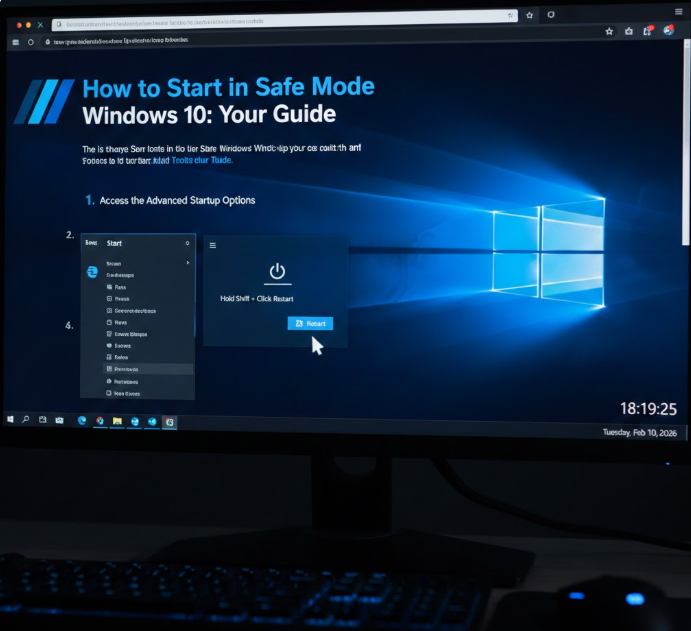
Safe Mode is one of the most powerful troubleshooting tools built into Windows 10. When your computer won’t boot properly, keeps crashing, shows a black screen, or is infected with malware, Safe Mode can help you diagnose and fix the problem without reinstalling Windows.
In this guide, you’ll learn every possible way to start Windows 10 in Safe Mode, when to use each option, and how to exit Safe Mode safely step by step.
No technical experience required.
What Is Safe Mode in Windows 10?
Safe Mode is a diagnostic startup mode that loads Windows with:
-
Minimal drivers
-
Basic system services only
-
No third-party startup programs
This stripped-down environment helps you identify and fix problems caused by:
-
Faulty drivers
-
Malware or viruses
-
Software conflicts
-
Startup errors
-
Windows update failures
If Windows works in Safe Mode but not normally, the issue is almost always software-related.
Types of Safe Mode in Windows 10
Windows 10 has three Safe Mode options, each designed for specific situations.
1. Safe Mode
-
Loads basic drivers only
-
No internet access
-
Best for removing bad drivers or software
2. Safe Mode with Networking
-
Includes network drivers
-
Internet access available
-
Best for downloading drivers or antivirus tools
3. Safe Mode with Command Prompt
-
Boots to Command Prompt only
-
Advanced troubleshooting
-
Used by IT professionals and power users
When Should You Use Safe Mode?
Use Safe Mode if your PC:
-
Freezes or crashes at startup
-
Shows a black or blue screen
-
Is stuck in a reboot loop
-
Has malware you can’t remove
-
Won’t uninstall a problematic app
-
Installed a bad Windows update
-
Has driver-related issues
Safe Mode is often the first step before more drastic repairs.
Method 1: Start Safe Mode from Settings (Windows Can Still Boot)
This is the easiest method if Windows 10 still loads.
Steps:
-
Press Windows + I to open Settings
-
Go to Update & Security
-
Click Recovery
-
Under Advanced startup, click Restart now
After restart:
-
Choose Troubleshoot
-
Select Advanced options
-
Click Startup Settings
-
Press Restart
When options appear:
-
Press 4 → Safe Mode
-
Press 5 → Safe Mode with Networking
-
Press 6 → Safe Mode with Command Prompt
Method 2: Start Safe Mode from the Sign-In Screen
Use this if Windows loads but crashes after login.
Steps:
-
At the login screen, click Power
-
Hold Shift
-
Click Restart (while holding Shift)
Then follow:
-
Troubleshoot → Advanced options → Startup Settings → Restart
-
Choose option 4, 5, or 6
Method 3: Start Safe Mode When Windows Won’t Boot
If Windows fails to start twice in a row, Windows automatically loads Recovery Mode.
Steps:
-
Power on PC
-
Force shutdown during boot (hold power button)
-
Repeat 2–3 times
You’ll see Preparing Automatic Repair.
Then:
-
Advanced options
-
Troubleshoot
-
Startup Settings
-
Restart
-
Choose Safe Mode option
Method 4: Use System Configuration (msconfig)
This method is useful if you want Safe Mode on every reboot temporarily.
Steps:
-
Press Windows + R
-
Type
msconfig -
Press Enter
-
Go to Boot tab
-
Check Safe boot
-
Choose:
-
Minimal (Safe Mode)
-
Network (Safe Mode with Networking)
-
-
Click Apply → OK
-
Restart
Important: You must disable this later to exit Safe Mode.
Method 5: Use Command Prompt to Start Safe Mode
Advanced method for users comfortable with commands.
Steps:
-
Open Command Prompt as Administrator
-
Run:
-
Restart PC
For networking:
How to Exit Safe Mode in Windows 10
Option 1: Normal Restart
If you didn’t use msconfig, simply:
-
Restart your PC normally
Option 2: Disable Safe Mode from msconfig
If stuck in Safe Mode:
-
Press Windows + R
-
Type
msconfig -
Go to Boot
-
Uncheck Safe boot
-
Click Apply → OK
-
Restart
What You Can Do in Safe Mode
Safe Mode allows you to:
-
Uninstall faulty software
-
Remove bad drivers
-
Run antivirus scans
-
Restore system files
-
Roll back Windows updates
-
Perform System Restore
-
Fix startup errors
Things That Don’t Work in Safe Mode
-
Most games
-
Advanced graphics drivers
-
Some apps and background services
-
Sound (in some cases)
-
Bluetooth devices
This is normal behavior.
Common Safe Mode Problems & Fixes
Safe Mode Won’t Start
-
Use Automatic Repair
-
Boot from Windows installation USB
-
Run Startup Repair
Keyboard or Mouse Not Working
-
Try USB ports directly on motherboard
-
Use wired devices
-
Restart and try Safe Mode with Networking
Screen Resolution Is Low
Safe Mode uses basic display drivers. This is expected.
Safe Mode vs Clean Boot
| Feature | Safe Mode | Clean Boot |
|---|---|---|
| Drivers | Minimal | Normal |
| Startup apps | Disabled | Selective |
| Best for | Severe issues | Software conflicts |
Use Safe Mode for serious problems, Clean Boot for app conflicts.
Is Safe Mode Dangerous?
No. Safe Mode does not delete files or change system data unless you manually do so.
It’s one of the safest Windows diagnostic tools.
Frequently Asked Questions (FAQ)
1. Does Safe Mode delete files?
No. Safe Mode only limits what Windows loads.
2. Can I access the internet in Safe Mode?
Only in Safe Mode with Networking.
3. Why is Safe Mode stuck on my screen?
You likely enabled it via msconfig. Disable Safe Boot to exit.
4. Can I install software in Safe Mode?
Usually no. Most installers require full Windows services.
5. Can Safe Mode remove viruses?
Yes. Many viruses don’t load in Safe Mode, making removal easier.
6. Is Safe Mode available on laptops?
Yes. Safe Mode works on desktops and laptops.
7. What if Safe Mode also crashes?
The issue may be hardware-related or Windows is severely damaged.
8. How long should I stay in Safe Mode?
Only as long as needed to fix the issue.
9. Can Safe Mode fix blue screen errors?
Yes, especially if caused by drivers or software.
10. Does Safe Mode work on Windows 11?
Yes, but steps are slightly different.
Final Thoughts
Safe Mode is one of the most important troubleshooting features in Windows 10. Whether you’re dealing with malware, crashes, failed updates, or driver problems, Safe Mode gives you a clean environment to fix issues safely.
If you manage websites, hosting servers, or tech systems, mastering Safe Mode is a must-have skill.