
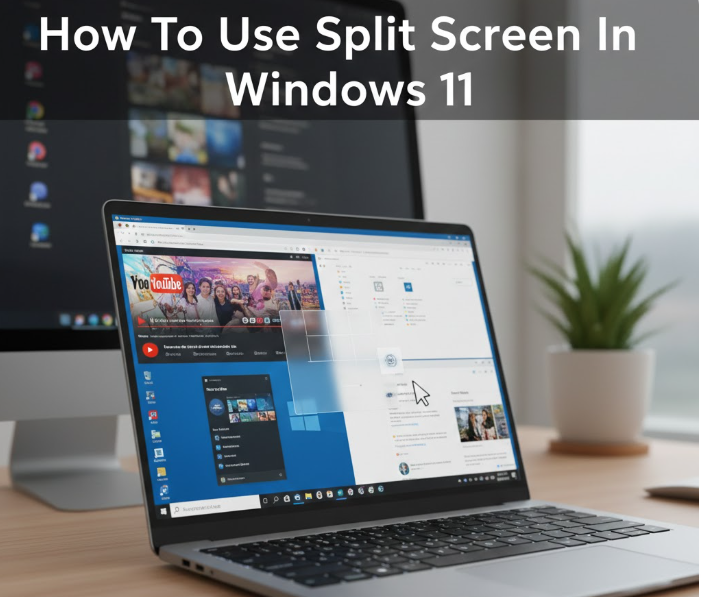
Windows 11 introduces several powerful multitasking features that make working with multiple apps or windows much easier. One of the most useful features is Split Screen, which allows you to view and work on two or more applications side by side without constantly minimizing or resizing windows manually.
This guide will show you all the methods to use split screen in Windows 11, tips for productivity, and ways to customize your workflow to get the most out of your screen real estate.
What Is Split Screen in Windows 11?
Split Screen, also called Snap Layouts, is a Windows 11 feature that allows you to arrange multiple windows on your screen so you can work more efficiently. Instead of manually dragging and resizing each window, you can quickly snap apps into pre-defined layouts.
Benefits of Split Screen:
-
Increased productivity
-
Easy reference between documents
-
Seamless multitasking
-
Better organization for multiple tasks
1. Using Snap Layouts (The Fastest Way)
Windows 11 introduces Snap Layouts, a new and improved way to split your screen compared to previous Windows versions.
Steps to Use Snap Layouts:
-
Hover your mouse over the maximize button (square icon) in any window.
-
A Snap Layout menu appears with layout options:
-
Two windows side by side
-
Three windows with a larger center window
-
Four windows in a grid
-
-
Click the layout section where you want your current window to appear.
-
Select other windows to fill the remaining sections.
Tips:
-
Use Snap Layouts to compare spreadsheets, research while writing, or watch media while working.
-
Snap Layouts automatically adjust the window sizes for you.
2. Using Keyboard Shortcuts
Windows 11 supports several keyboard shortcuts that make split screen easy and fast.
Essential Shortcuts:
-
Win + Left Arrow: Snap current window to the left half
-
Win + Right Arrow: Snap current window to the right half
-
Win + Up Arrow: Snap window to top half
-
Win + Down Arrow: Snap window to bottom half
Example Workflow:
-
Open two apps, e.g., Microsoft Word and Chrome.
-
Select the Word window and press Win + Left Arrow.
-
Select Chrome and press Win + Right Arrow.
-
Both windows now occupy half of your screen each, ready for multitasking.
Pro Tip:
Combine arrows for quadrants: Win + Left Arrow + Up Arrow places a window in the top-left corner, enabling a 4-window split.
3. Using Snap Assist
Snap Assist is a helper tool in Windows 11 that guides you in arranging windows.
How Snap Assist Works:
-
Drag a window to the left or right edge of your screen.
-
Snap Assist shows thumbnails of other open apps.
-
Click a thumbnail to fill the remaining space.
This method is perfect for touch screens or if you prefer dragging over keyboard shortcuts.
4. Customizing Snap Layouts
Windows 11 allows customization to improve your workflow:
-
Open Settings → System → Multitasking.
-
Toggle Snap Windows on or off.
-
Check/uncheck:
-
Automatically size windows when dragging to edges
-
Show suggestions for filling empty space
-
Resize adjacent windows automatically
-
Customizing Snap enhances your split screen experience, making it fit your workflow.
5. Splitting Screens Across Multiple Monitors
If you use multiple monitors, Windows 11 handles split screens intuitively:
-
Snap windows per monitor without affecting the other monitor.
-
Use Win + Left/Right Arrow for specific monitors.
-
Snap Layouts remember your preferred window positions on each monitor.
Tip:
This is ideal for developers, designers, or anyone who works with multiple applications across screens.
6. Using Touch or Pen Input for Split Screen
For Windows 11 tablets or 2-in-1 devices:
-
Swipe from the top of a window to reveal the Snap Layout menu.
-
Tap a layout to snap windows.
-
Drag other apps to remaining slots for a complete split-screen view.
This makes multitasking seamless on touch-enabled devices.
7. Adjusting and Resizing Split Windows
After snapping windows, you can easily adjust sizes:
-
Hover over the divider line between windows.
-
Drag left/right or up/down to resize.
-
Windows will automatically maintain proportions without overlapping.
8. Best Practices for Using Split Screen
Productivity Tips:
-
Pair complementary apps: e.g., Excel + Word, Browser + Notepad.
-
Limit active windows: Don’t over-clutter your screen; 2–4 windows is optimal.
-
Use keyboard shortcuts: Faster than dragging, saves time.
-
Combine with virtual desktops: Use Win + Tab to create multiple desktops for organized split screens.
9. Common Issues and Fixes
Issue 1: Snap Layouts Not Working
-
Go to Settings → System → Multitasking
-
Enable Snap Windows
-
Ensure your display resolution supports Snap (minimum recommended: 1366×768)
Issue 2: Windows Overlapping or Not Resizing
-
Try dragging the divider line again
-
Restart Windows Explorer via Task Manager if necessary
Issue 3: Multiple Monitors Not Splitting Properly
-
Check monitor arrangement in Settings → System → Display
-
Ensure scaling is consistent across monitors
10. Frequently Asked Questions (FAQ)
Q1: Can I use more than 2 apps in split screen?
Yes, Windows 11 supports up to 4 windows using Snap Layouts or keyboard shortcuts.
Q2: Is split screen available on all Windows 11 editions?
Yes, it’s built into Home, Pro, and Enterprise versions.
Q3: Can I save a snap layout for future use?
Currently, layouts are remembered per session but not permanently saved.
Q4: Can I use split screen on a laptop and external monitor at the same time?
Yes, each monitor can have its own snap layout.
Q5: Does split screen work on tablets?
Yes, Windows 11’s touch interface fully supports Snap Layouts.
11. Conclusion
Windows 11 makes multitasking faster, smoother, and more intuitive with Snap Layouts, Snap Assist, and keyboard shortcuts. Using split screen effectively can boost productivity, reduce task switching, and improve workflow management.
By mastering these techniques, you can:
-
Work efficiently on documents and web apps side by side
-
Keep multiple references open simultaneously
-
Maximize your productivity on both laptops and desktops
Optional Visual Enhancements:
-
Include screenshots showing:
-
Hovering over maximize button to reveal Snap Layouts
-
Example of 2-window, 3-window, and 4-window layouts
-
Keyboard shortcut workflow
-
-
Infographic for Snap Layout tips and shortcuts
Leave a Reply