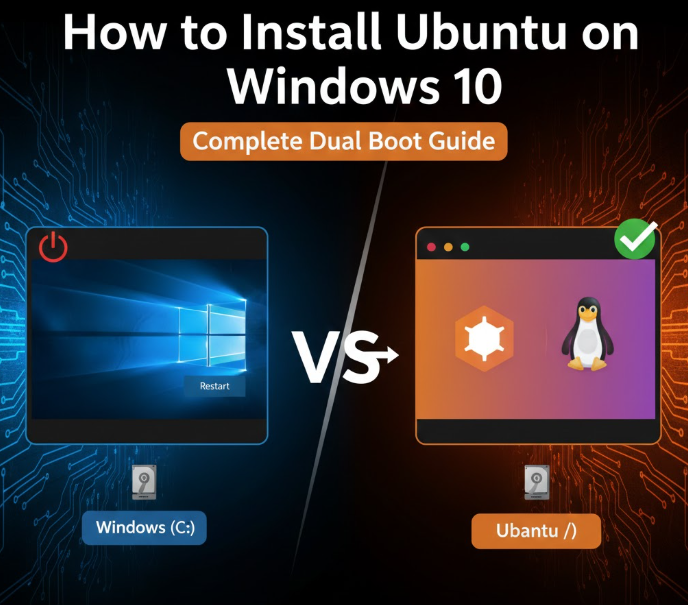
Installing Ubuntu alongside Windows 10 is one of the best ways to explore Linux without giving up Windows. This setup, known as dual boot, allows you to run two operating systems on the same computer and choose which one to use every time you power on your PC.
Whether you’re a developer, student, ethical hacker, server admin, or just curious about Linux, this guide walks you through the entire process from start to finish, even if you’ve never installed an operating system before.
No jargon. No skipped steps. No data loss.
What Is Dual Booting?
Dual booting means installing two operating systems on a single hard drive, each with its own space. When your computer starts, a boot menu appears, allowing you to select which OS to load.
In this case:
-
Windows 10 remains fully functional
-
Ubuntu Linux is installed on a separate partition
-
You choose between Windows or Ubuntu at startup
Unlike virtual machines, dual boot gives you full hardware performance.
Why Install Ubuntu Alongside Windows 10?
Ubuntu is one of the most popular Linux distributions in the world, and for good reason.
Benefits of Ubuntu:
-
100% free and open-source
-
Faster boot and shutdown times
-
More secure by default
-
Ideal for programming, servers, DevOps, and cybersecurity
-
Lightweight and great for older PCs
-
Massive community support
Why dual boot instead of replacing Windows?
-
Keep Windows-only software and games
-
Learn Linux safely
-
No performance loss
-
No monthly cost or license issues
Things You MUST Do Before Installing Ubuntu
Skipping preparation is the #1 cause of installation problems. Take 10 minutes and do this properly.
1. Back Up Your Important Files
Although dual booting is safe, mistakes or power failure can cause data loss.
Back up:
-
Documents
-
Photos
-
Videos
-
Important projects
Use:
-
External hard drive
-
USB flash drive
-
Cloud storage (Google Drive, OneDrive)
2. Check Your System Requirements
Minimum recommended specs:
-
64-bit processor
-
4 GB RAM (8 GB recommended)
-
25 GB free disk space
-
UEFI firmware (most modern PCs)
To check:
-
Press Windows + R
-
Type
msinfo32 -
Look for System Type: x64-based PC
3. Disable Fast Startup (Very Important)
Fast Startup can prevent Ubuntu from accessing your disk correctly.
Steps:
-
Open Control Panel
-
Click Power Options
-
Select Choose what the power buttons do
-
Click Change settings that are currently unavailable
-
Uncheck Turn on fast startup
-
Save changes
4. (Optional but Recommended) Disable BitLocker
If BitLocker is enabled, Ubuntu may not install correctly.
-
Open Control Panel
-
Go to BitLocker Drive Encryption
-
Turn off BitLocker for your main drive
-
Wait for decryption to complete
Step 1: Download Ubuntu (Official & Safe)
-
Visit the official Ubuntu website
-
Download the latest Ubuntu LTS version
-
LTS = Long-Term Support (stable for 5 years)
-
-
The file downloads as an ISO file (~3–4 GB)
Why LTS?
-
More stable
-
Better driver support
-
Fewer bugs
-
Ideal for beginners
Step 2: Create a Bootable Ubuntu USB (Windows 10)
You need:
-
USB flash drive (minimum 8 GB)
-
Rufus (free tool)
Using Rufus:
-
Insert your USB drive
-
Open Rufus
-
Under Device, select your USB
-
Click Select → choose Ubuntu ISO
-
Partition scheme: GPT
-
Target system: UEFI
-
File system: FAT32
-
Click Start
Wait until Rufus finishes. Your USB is now bootable.
Step 3: Create Space for Ubuntu (Shrink Windows)
Ubuntu needs its own disk space.
Steps:
-
Press Windows + X
-
Click Disk Management
-
Right-click C: Drive
-
Select Shrink Volume
-
Enter space to shrink:
-
Minimum: 25,000 MB
-
Recommended: 50,000–100,000 MB
-
-
Click Shrink
You will see Unallocated Space.
Do NOT format it.
Step 4: Boot from the Ubuntu USB
-
Restart your computer
-
Press the boot menu key immediately:
-
F12 / F10 / ESC / DEL (depends on brand)
-
-
Select your USB drive
-
Choose Try or Install Ubuntu
Ubuntu will load into a live environment.
Step 5: Start the Ubuntu Installer
Once the desktop appears:
-
Click Install Ubuntu
-
Choose your keyboard layout
-
Select Normal Installation
-
Check:
-
Download updates while installing
-
Install third-party software (graphics & Wi-Fi)
-
Click Continue
Step 6: Choose Installation Type (CRITICAL STEP)
You’ll now see Installation Type.
Choose:
Install Ubuntu alongside Windows Boot Manager
This option:
-
Automatically creates partitions
-
Preserves Windows 10
-
Configures dual boot safely
Click Install Now → Confirm changes.
Do NOT choose:
-
“Erase disk and install Ubuntu”
Step 7: Set Time Zone & User Details
-
Choose your time zone
-
Enter:
-
Name
-
Username
-
Password
-
-
Choose whether to log in automatically or require password
Ubuntu installation begins (10–20 minutes).
Step 8: Restart and Select Your OS
After installation:
-
Click Restart Now
-
Remove the USB when prompted
You’ll now see the GRUB boot menu:
-
Ubuntu
-
Windows Boot Manager
Congratulations
You’re now dual booting Ubuntu and Windows 10.
How to Switch Between Ubuntu and Windows
-
Restart your PC
-
Use arrow keys at boot menu
-
Press Enter to select OS
Ubuntu loads by default, but this can be changed.
Common Problems and How to Fix Them
Ubuntu Doesn’t Appear in Boot Menu
-
Enter BIOS/UEFI
-
Set Ubuntu as first boot option
-
Ensure UEFI mode is enabled
Wi-Fi or Graphics Not Working
-
Open Software & Updates
-
Go to Additional Drivers
-
Install recommended proprietary drivers
Boot Menu Appears Too Fast
In Ubuntu terminal:
Change:
Then:
Dual Boot vs Virtual Machine: Which Is Better?
| Feature | Dual Boot | Virtual Machine |
|---|---|---|
| Performance | Full | Limited |
| Hardware Access | Full | Limited |
| Disk Access | Native | Virtual |
| Gaming | Yes | Poor |
| Learning Linux | Best | Good |
If you want real Linux power, dual boot wins.
Can You Remove Ubuntu Later?
Yes, completely.
You can:
-
Delete Ubuntu partitions
-
Restore Windows bootloader
-
Reclaim disk space
Ubuntu is not permanent.
Frequently Asked Questions (FAQ)
1. Is dual booting Ubuntu and Windows 10 safe?
Yes. When done correctly, dual booting is safe and widely used by developers and IT professionals.
2. Will installing Ubuntu delete my Windows files?
No, if you choose “Install Ubuntu alongside Windows Boot Manager.”
3. How much space does Ubuntu need?
Minimum: 25 GB
Recommended: 50–100 GB for smooth usage.
4. Can I access Windows files from Ubuntu?
Yes. Ubuntu can read Windows partitions easily.
5. Can I install Ubuntu on a laptop?
Yes. Ubuntu works well on laptops, including Dell, HP, Lenovo, Acer, and ASUS.
6. Does Ubuntu support Wi-Fi and Bluetooth?
Yes, but some drivers may need installation through “Additional Drivers.”
7. Which Ubuntu version is best for beginners?
Ubuntu LTS (Long-Term Support) versions are best.
8. Can I dual boot Ubuntu with Windows updates enabled?
Yes. Just avoid forced shutdowns during updates.
9. Is Ubuntu good for programming?
Absolutely. Ubuntu is excellent for:
-
Web development
-
Python
-
Node.js
-
DevOps
-
Servers
-
Cybersecurity
10. Can I change the default OS?
Yes. Ubuntu boot order can be modified easily.
Final Thoughts
Installing Ubuntu alongside Windows 10 gives you freedom, performance, and flexibility. You keep Windows for daily tasks while gaining a powerful Linux system for learning, development, and advanced computing.
If you’re serious about:
-
Tech skills
-
Hosting & servers
-
Cloud computing
-
Cybersecurity
-
Programming
This setup is one of the best decisions you can make.