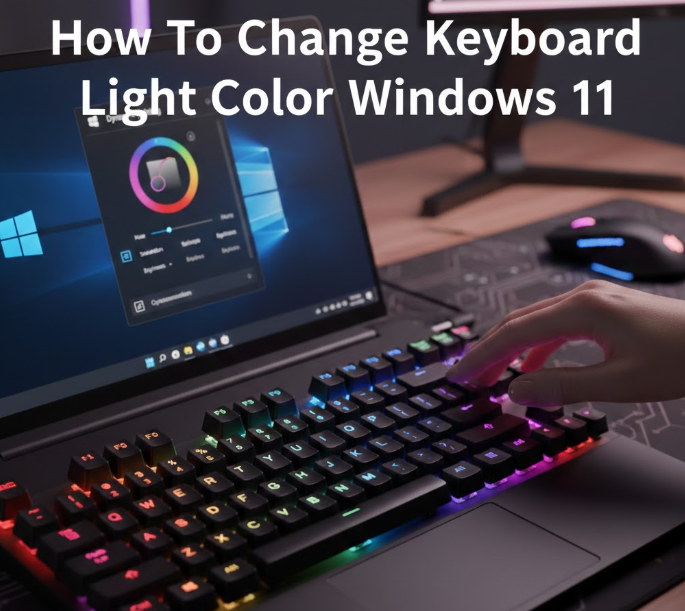
If you’re using an HP laptop with Windows 11 and want to change the keyboard light color, the process depends on your HP model and whether your keyboard supports RGB lighting or single-color backlight.
This complete HP-specific guide explains all working methods, including HP software, keyboard shortcuts, BIOS settings, and common problems—so you don’t waste time trying options that won’t work on your device.
Do HP Laptops Support RGB Keyboard Lighting?
Not all HP laptops support changing keyboard light colors.
HP Keyboard Backlight Types
-
Single-Color Backlit Keyboard
-
Usually white light
-
Brightness adjustable
-
Color cannot be changed
-
-
RGB Backlit Keyboard
-
Found mostly on HP OMEN and some HP Pavilion Gaming models
-
Supports multiple colors and lighting effects
-
Requires HP software
-
Important:
If your HP laptop is not an OMEN or Pavilion Gaming model, it likely does not support color changes—only brightness.
Method 1: Change Keyboard Light Color Using HP OMEN Gaming Hub (Best Method)
For HP laptops with RGB keyboards, HP OMEN Gaming Hub is the official and safest way to change keyboard colors.
Supported HP Models
-
HP OMEN series
-
Some HP Pavilion Gaming laptops
Steps to Change Keyboard Color Using HP OMEN Gaming Hub
-
Open HP OMEN Gaming Hub
-
Click on OMEN Device
-
Select Lighting
-
Choose Keyboard
-
Pick:
-
Static color
-
Zone-based colors
-
RGB effects (wave, breathing, reactive)
-
-
Apply and save settings
Changes take effect immediately.
Keyboard Lighting Zones (HP OMEN)
Some models allow:
-
Full keyboard color
-
WASD zone lighting
-
Arrow key zone lighting
This is popular among gamers for visibility and aesthetics.
Method 2: Use Keyboard Shortcuts on HP Laptops
Most HP laptops allow you to control keyboard backlight brightness using function keys.
Common HP Keyboard Shortcuts
-
Fn + F5 → Toggle backlight on/off
-
Fn + F4 / F3 → Increase or decrease brightness
-
Fn + Spacebar → Cycle brightness levels
These shortcuts do not change color unless your keyboard supports RGB and is managed by OMEN Gaming Hub.
Method 3: Change Keyboard Light via Windows 11 Settings (Limited Support)
Windows 11 includes a Dynamic Lighting feature, but support is very limited on HP laptops.
Steps:
-
Open Settings
-
Go to Personalization
-
Select Dynamic Lighting
-
Check if your HP keyboard appears
-
If available, select a color
Most HP laptops will not appear here unless they have supported RGB hardware.
Method 4: Check BIOS Settings on HP Laptop
Some HP models allow you to control keyboard backlight behavior in BIOS.
How to Access HP BIOS
-
Shut down your laptop
-
Turn it on and press F10 repeatedly
-
Open Advanced or Built-in Device Options
-
Look for Keyboard Backlight settings
-
Save and exit
BIOS usually controls:
-
Backlight timeout
-
Brightness behavior
Not color customization.
Why You Can’t Change Keyboard Color on Most HP Laptops
Many users search for this feature but don’t realize the limitation is hardware-based.
Common Reasons
-
Keyboard supports only white backlight
-
Laptop model is HP Envy, EliteBook, ProBook, or standard Pavilion
-
No RGB lighting hardware installed
-
OMEN Gaming Hub not supported on the model
How to Check If Your HP Laptop Supports RGB
-
Check your laptop’s official specifications
-
Look for keywords like:
-
“RGB keyboard”
-
“Per-key lighting”
-
“Zone lighting”
-
-
Try installing HP OMEN Gaming Hub
-
If lighting options appear, your device supports RGB
-
Common Problems and Fixes
Keyboard Light Not Turning On
-
Press Fn + F5
-
Check BIOS keyboard backlight settings
-
Update HP keyboard drivers
OMEN Gaming Hub Not Detecting Keyboard
-
Update the app
-
Restart HP services
-
Ensure your model supports RGB
Backlight Turns Off Automatically
-
Adjust timeout in BIOS
-
Check Windows power settings
Battery and Performance Tips (Improves User Experience)
-
Reduce brightness to save battery
-
Use static colors instead of effects
-
Disable lighting when not needed
-
Avoid third-party RGB software on HP laptops
Frequently Asked Questions (SEO-Focused)
Can I change keyboard light color on HP laptop without software?
No. HP requires OMEN Gaming Hub for RGB keyboards.
Why is my HP keyboard light only white?
Your laptop likely uses a single-color backlit keyboard.
Does HP Pavilion support RGB?
Only Pavilion Gaming models, not standard Pavilion laptops.
Is third-party RGB software safe for HP?
Not recommended. It may cause driver conflicts.
Best SEO Keywords Covered Naturally
-
Change keyboard light color HP laptop
-
HP keyboard backlight Windows 11
-
HP OMEN keyboard RGB
-
HP keyboard light not changing color
-
HP laptop backlit keyboard settings
Final Verdict
Changing keyboard light color on an HP laptop running Windows 11 is only possible on specific models, mainly HP OMEN and Pavilion Gaming laptops. For these devices, HP OMEN Gaming Hub is the official and safest solution.
If your HP laptop has a single-color backlit keyboard, color customization is not supported, and no software can enable it.