Your Windows 10 product key is one of the most important pieces of information tied to your computer. Whether you’re reinstalling Windows, upgrading hardware, activating Windows after a reset, or moving your license to a new PC, knowing how to find your product key can save you time, money, and frustration.
In this complete guide, you’ll learn every legitimate way to find your Windows 10 product key, including built-in tools, command-line methods, registry checks, Microsoft account options, and what to do if you can’t find it.
No shortcuts. No guesswork. No technical stress.
What Is a Windows 10 Product Key?
A Windows 10 product key is a 25-character code used to activate Windows. It looks like this:
XXXXX-XXXXX-XXXXX-XXXXX-XXXXX
This key confirms that your copy of Windows is genuine and licensed.
Why You Might Need Your Windows 10 Product Key
You may need your product key if:
-
Reinstalling Windows 10
-
Upgrading or replacing hardware
-
Activating Windows after reset
-
Transferring Windows to another PC
-
Troubleshooting activation issues
-
Verifying license authenticity
Types of Windows 10 Licenses (Important)
Understanding your license type helps determine whether you can retrieve or reuse your product key.
1. Retail License
-
Purchased from Microsoft Store or authorized seller
-
Transferable to another PC
-
Product key retrievable
2. OEM License
-
Pre-installed by manufacturer (Dell, HP, Lenovo)
-
Tied to motherboard
-
Often stored in BIOS/UEFI
3. Digital License
-
Linked to your Microsoft account
-
No visible product key
-
Reactivates automatically after reinstall
How to Check If Windows 10 Is Activated
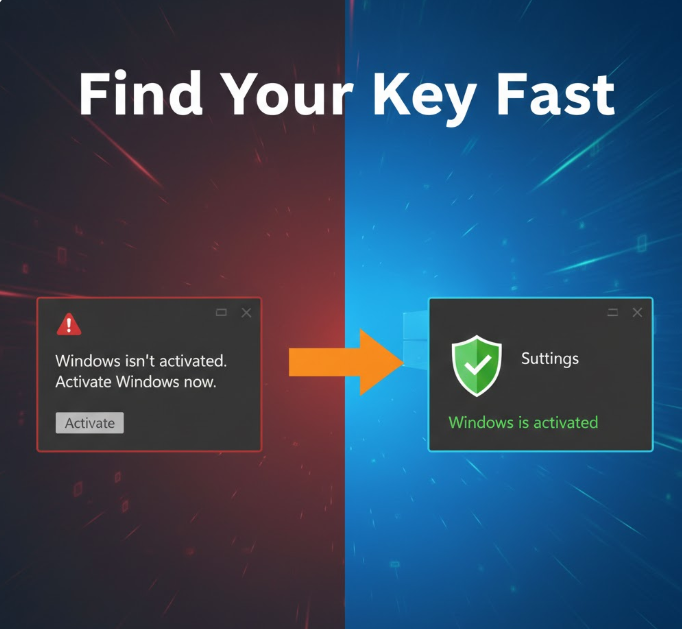
Before finding the product key, confirm your activation status.
Steps:
-
Press Windows + I
-
Go to Update & Security
-
Click Activation
You’ll see one of the following:
-
Windows is activated with a digital license
-
Windows is activated using a product key
Method 1: Find Windows 10 Product Key Using Command Prompt
This is the simplest built-in method.
Steps:
-
Press Windows + S
-
Type cmd
-
Right-click Command Prompt
-
Select Run as administrator
-
Paste the command below:
-
Press Enter
If your product key is stored in BIOS/UEFI, it will appear.
Method 2: Find Product Key Using PowerShell
PowerShell offers the same result as Command Prompt.
Steps:
-
Press Windows + X
-
Select Windows PowerShell (Admin)
-
Paste this command:
-
Press Enter
Method 3: Find Windows 10 Product Key Using Registry Editor
This method is for advanced users only.
Steps:
-
Press Windows + R
-
Type regedit
-
Press Enter
-
Navigate to:
Look for:
-
DigitalProductId
-
DigitalProductId4
Note: The key is encrypted and not human-readable without decoding.
Method 4: Check Your Microsoft Account (Digital License)
If your Windows 10 uses a digital license, there may be no visible product key.
Steps:
-
Go to Settings → Update & Security → Activation
-
If it says:
Windows is activated with a digital license linked to your Microsoft account
Then:
-
Sign in to your Microsoft account
-
Reinstall Windows
-
Activation happens automatically
No product key required.
Method 5: Find Product Key on Physical Sticker or Email
For OEM PCs:
-
Check sticker on:
-
Bottom of laptop
-
Back of desktop
-
Inside battery compartment
-
For Retail Purchases:
-
Check:
-
Email receipt
-
Product box
-
Microsoft Store order history
-
Method 6: Use Third-Party Product Key Finder Tools
If built-in methods fail, third-party tools can help.
Popular Tools:
-
ProduKey
-
Belarc Advisor
-
ShowKeyPlus
Download only from official websites.
These tools may show:
-
Installed key
-
Original OEM key
-
Partial keys
Why You Might See a Generic Product Key
Sometimes Windows shows a generic key, like:
XXXXX-XXXXX-XXXXX-XXXXX-3V66T
This is normal.
Generic Keys Mean:
-
Windows is activated via digital license
-
Key cannot be reused manually
How to Backup Your Windows 10 Product Key Safely
Once you find your key:
-
Save it in a password manager
-
Store in encrypted notes
-
Write it down and keep it offline
-
Link license to Microsoft account
Can You Transfer Your Windows 10 Product Key?
| License Type | Transferable |
|---|---|
| Retail | ✅ Yes |
| OEM | ❌ No |
| Digital License | ❌ Usually no |
To transfer:
-
Deactivate on old PC
-
Activate on new PC
-
Sign in with Microsoft account
What If You Can’t Find Your Product Key?
Try These Options:
-
Check Microsoft account
-
Contact PC manufacturer
-
Contact Microsoft Support
-
Purchase new license if needed
Windows 10 Product Key vs Activation Key
They are often used interchangeably, but technically:
-
Product key = manual activation
-
Digital license = automatic activation
Security Warning: Never Share Your Product Key
Sharing your product key can:
-
Get your license blocked
-
Lead to unauthorized use
-
Cause activation failure
Frequently Asked Questions (FAQ)
1. Can I find Windows 10 product key without software?
Yes, using Command Prompt or PowerShell.
2. Is product key same as activation key?
Mostly yes, but digital licenses don’t have visible keys.
3. Can I use same key on two PCs?
No, one key per device.
4. What if Command Prompt shows nothing?
Your key may be digital-only.
5. Is it safe to use third-party tools?
Yes, if downloaded from trusted sources.
6. Do Windows updates change product key?
No.
7. Can I recover key after hard drive failure?
Only if it was stored in BIOS or Microsoft account.8. Can I activate Windows without a product key?
Yes, if you have a digital license.
9. Is OEM key permanently tied to PC?
Yes, usually to the motherboard.
10. Should I buy cheap keys online?
No—many are illegal or reused.
Final Thoughts
Knowing how to find your Windows 10 product key gives you control over your system, saves money, and prevents activation headaches. Whether your license is stored in BIOS, tied to your Microsoft account, or recorded elsewhere, there’s almost always a way to recover it.
Before reinstalling Windows or upgrading hardware, always check and secure your product key first.