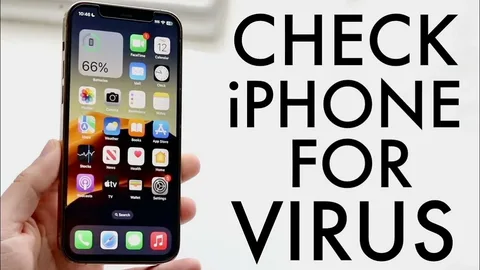
Many people assume iPhones can never get viruses, but while Apple devices are highly secure, they’re not completely immune to threats. Malware, phishing scams, malicious profiles, and harmful apps can still affect your iPhone’s performance and security.
The good news? Most issues are easy to spot and fix if you know what to look for. This guide will help you identify warning signs, remove suspicious activity, and keep your iPhone safe.
How to Check if Your iPhone Has a Virus
Follow these steps to inspect your iPhone for viruses, malware, or suspicious behavior.
Step 1: Look for Unusual Behavior
Pay attention to how your iPhone is performing.
Common warning signs include:
- Apps crashing repeatedly
- Sudden overheating
- Fast battery drain
- Random pop-ups in Safari
- Slow performance
- Excessive data usage
- Unexpected ads appearing
If your iPhone suddenly behaves differently without explanation, it could indicate a software issue or malicious activity.
Step 2: Check for Unknown Apps
Review all installed apps carefully.
Go through your Home Screen and App Library looking for:
- Apps you don’t remember installing
- Suspicious names or icons
- Duplicate apps pretending to be legitimate ones
If you find something unfamiliar, delete it immediately.
How to Delete an App
- Press and hold the app icon
- Tap Remove App
- Select Delete App
Think of this like cleaning unwanted guests out of your house.
Step 3: Check Battery Usage
Some malicious apps constantly run in the background, draining battery life.
To Check:
- Open Settings
- Tap Battery
- Scroll down to see battery usage by app
Look for:
- Apps using unusually high battery
- Background activity you don’t recognize
A suspicious app consuming excessive power may indicate trouble.
Step 4: Monitor Data Usage
Malware may secretly use internet data behind the scenes.
To Check:
- Open Settings
- Tap Cellular or Mobile Data
- Review data usage by app
Watch for:
- Unknown apps consuming lots of data
- Huge spikes in usage
- Apps using data when you rarely use them
This is similar to checking your bank account for mysterious charges.
Step 5: Update iOS Immediately
Apple frequently releases security updates to patch vulnerabilities.
To Update:
- Open Settings
- Tap General
- Select Software Update
Install any available updates as soon as possible.
Keeping iOS updated is one of the best defenses against security threats.
Step 6: Clear Safari Data
Sometimes the issue isn’t a virus but malicious websites or browser pop-ups.
To Clear Safari:
- Open Settings
- Tap Safari
- Select Clear History and Website Data
This removes:
- Cookies
- Cached files
- Potentially harmful website scripts
Step 7: Check Device ProfilesSome malware installs unauthorized configuration profiles.
To Check:
- Open Settings
- Tap General
- Select VPN & Device Management
If you see a profile you don’t recognize:
- Remove it immediately
- Restart your iPhone afterward
Step 8: Restart Your iPhone
Sometimes a simple restart fixes glitches or temporary software problems.
To Restart:
- Press and hold the Side button + Volume button
- Slide to power off
- Turn the device back on after a few seconds
It’s like giving your iPhone a quick refresh.
Step 9: Reset Your iPhone (Last Resort)
If problems continue, resetting your device may help.
Before Resetting:
- Back up your data to iCloud or your computer
To Reset:
- Open Settings
- Tap General
- Select Transfer or Reset iPhone
- Tap Erase All Content and Settings
This completely wipes the device and removes persistent malware or corrupted software.
What Happens After These Steps?
After cleaning and securing your device:
- Your iPhone should run smoother
- Battery life may improve
- Strange pop-ups should disappear
- Apps should behave normally again
If problems continue even after resetting, contact:
Apple Support
Pro Tips to Keep Your iPhone Safe
Download Apps Only from the App Store
Apple reviews apps for security, making the App Store much safer than unofficial sources.
Avoid Clicking Suspicious Links
Be cautious with:
- Text messages
- Emails
- Social media links
Phishing scams are more common than actual iPhone viruses.
Enable Two-Factor Authentication
Protect your Apple ID with an extra layer of security.
To Enable:
Settings → Your Name → Password & Security → Two-Factor Authentication
Use Strong Passwords
Avoid easy passwords like:
- 123456
- password
- birthdays
Use unique passwords for every account.
Turn On Automatic Updates
This ensures you always have the latest security patches.
Common Myths About iPhone Viruses
“iPhones Can’t Get Viruses”
False. While rare, iPhones can still face:
- Malware
- Spyware
- Phishing attacks
- Harmful profiles
“I Need an Antivirus App”
Most traditional antivirus apps are unnecessary on iPhone because iOS already has strong built-in protections.
“Pop-Ups Mean My Phone Is Infected”
Usually false. Many pop-ups are simply malicious websites trying to scare users.
Never call numbers from pop-up warnings claiming:
- “Your iPhone is infected”
- “Apple security alert”
Frequently Asked Questions
Can iPhones really get viruses?
Yes, though it’s uncommon compared to other devices.
How do I know if my iPhone is hacked?
Signs include:
- Strange apps
- Password changes
- Unknown charges
- Random pop-ups
- Unusual device behavior
Will restarting my iPhone remove a virus?
Sometimes it can stop temporary malicious processes, but deeper issues may require deleting apps or resetting the device.
Should I use antivirus software on iPhone?
Usually not necessary unless you want extra features like phishing protection or VPN services.
Can jailbreaking increase virus risk?
Yes. Jailbreaking removes many of Apple’s built-in security protections.
Quick Summary
- Watch for unusual behavior
- Remove suspicious apps
- Monitor battery and data usage
- Update iOS
- Clear Safari history
- Check device profiles
- Reset if necessary
Final Thoughts
Your iPhone is designed with strong security protections, but staying alert is still important. Most iPhone “virus” problems actually come from:
- Scam websites
- Fake pop-ups
- Suspicious apps
- Phishing links
By regularly updating your device, monitoring app activity, and practicing safe browsing habits, you can keep your iPhone secure and running smoothly.
Think of iPhone security like locking your house: Apple provides the locks, but you still need to close the door.