
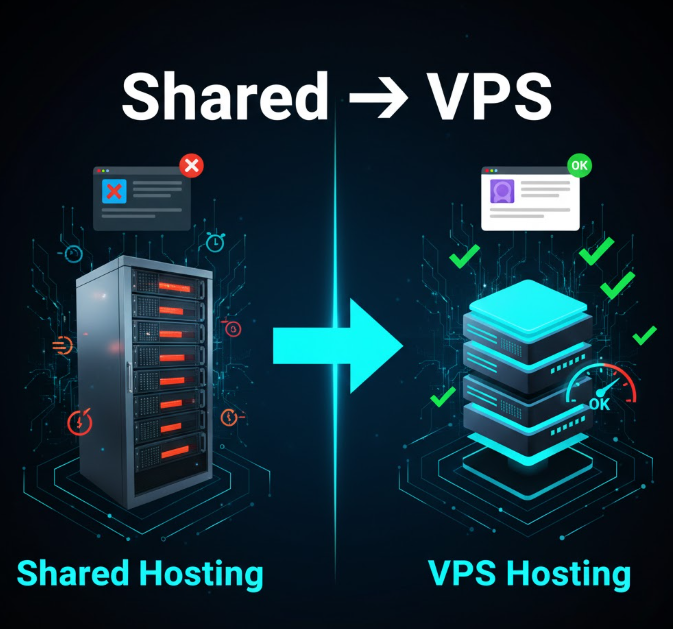
Moving from shared hosting to a VPS is a big milestone for any website. It usually happens when your site has outgrown shared resources, started slowing down, or needs more control and stability. While the idea of switching servers can sound intimidating, the process is manageable if you approach it carefully and in the right order.
This guide explains how to move from shared hosting to a VPS safely and without unnecessary downtime, using plain language and real-world steps.
Why People Move from Shared Hosting to VPS
Shared hosting places many websites on the same server. When traffic is low, this works fine. As your site grows, problems often appear.
Common reasons people upgrade include:
-
Slow page loading during busy periods
-
Limited server control and settings
-
Resource usage warnings or suspensions
-
Inability to install required software
-
Growing security concerns
A VPS gives you your own isolated environment with dedicated resources, which solves most of these issues.
What Changes When You Move to a VPS
Before migrating, it helps to understand what will be different.
On shared hosting:
-
The host manages the server
-
You have limited configuration access
-
Performance depends on other users
On a VPS:
-
You control the server environment
-
Resources are reserved for your site
-
You are responsible for basic server management
This extra control is powerful, but it also means preparation matters.
Step 1: Choose the Right VPS Plan
Start by selecting a VPS plan that matches your needs, not just your budget.
Consider:
-
RAM and CPU suitable for your traffic
-
Storage type, preferably SSD or NVMe
-
Operating system compatibility
-
Managed or unmanaged service
If you are not comfortable with server administration, a managed VPS is often the safer choice.
Step 2: Set Up the VPS Environment
Once your VPS is active, it needs to be prepared before moving anything.
This usually includes:
-
Installing the operating system
-
Setting up a web server such as Apache or Nginx
-
Installing the required language runtime (PHP, Python, Node, etc.)
-
Configuring the database server
-
Creating a secure user account
Do not point your domain to the VPS yet. This setup happens in the background.
Step 3: Back Up Everything on Your Shared Hosting
Before making any changes, create full backups.
Back up:
-
Website files
-
Databases
-
Email data if email is hosted there
-
Configuration files
Store backups in more than one place if possible. This is your safety net.
Step 4: Transfer Website Files to the VPS
With the VPS ready, copy your website files from shared hosting.
This can be done using:
-
Secure file transfer tools
-
Backup restore methods
-
Hosting control panels
Make sure file permissions remain correct after transfer. Incorrect permissions are a common source of errors.
Step 5: Move the Database
If your website uses a database, this step is critical.
The basic process involves:
-
Exporting the database from shared hosting
-
Creating a database and user on the VPS
-
Importing the database into the VPS
-
Updating configuration files with new credentials
Double-check database connection details carefully.
Step 6: Update Configuration and Paths
Shared hosting and VPS environments are rarely identical.
You may need to:
-
Update file paths
-
Adjust memory limits
-
Modify environment variables
-
Update cache or session settings
These small adjustments make a big difference in stability.
Step 7: Test the Website on the VPS
Testing is where many problems are avoided.
Before switching traffic:
-
Use a temporary IP or preview URL
-
Load all key pages
-
Test forms, logins, and uploads
-
Check error logs
-
Confirm images and media load correctly
Take your time here. Fixing issues now prevents downtime later.
Step 8: Prepare DNS for the Switch
DNS controls where visitors are sent.
Before switching:
-
Lower the DNS TTL value
-
Verify current DNS records
-
Confirm the VPS IP address is correct
Lower TTL ensures faster propagation when you update the domain.
Step 9: Point Your Domain to the VPS
Once testing is complete, update your domain’s DNS records to point to the VPS.
During this stage:
-
Some visitors may still see the old server
-
Others will reach the new VPS
-
Both servers should remain active
This overlap prevents interruptions.
Step 10: Monitor After the Migration
After traffic starts flowing to the VPS:
-
Watch server resource usage
-
Check logs for errors
-
Confirm emails, if applicable, are working
-
Monitor page load speed
Keep the shared hosting active for a few days in case a rollback is needed.
Step 11: Secure and Optimize the VPS
Once everything is stable:
-
Set up a firewall
-
Enable automatic updates
-
Configure regular backups
-
Optimize server settings for performance
Security and maintenance are ongoing responsibilities on a VPS.
Common Mistakes to Avoid
-
Canceling shared hosting too early
-
Skipping backups
-
Migrating during peak traffic hours
-
Ignoring email services tied to shared hosting
-
Forgetting to test before DNS changes
Avoiding these mistakes saves time and stress.
When a VPS Might Not Be the Right Move
A VPS may not be ideal if:
-
Your site has very low traffic
-
You are uncomfortable managing servers
-
Budget is extremely limited
In those cases, higher-tier shared hosting or managed cloud hosting may be better.
Final Thoughts
Moving from shared hosting to a VPS is a natural step when your website grows. The key is not rushing the process. Careful setup, proper testing, and keeping the old hosting active during the transition make the move smooth and safe.
With the right preparation, most visitors will never even notice the migration happened.

