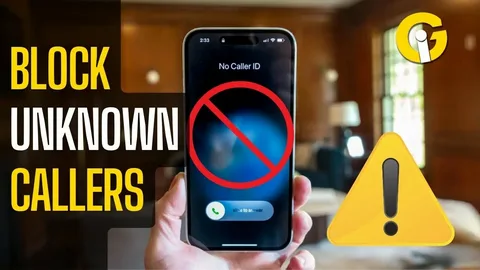
If you want to make calls without showing your number, your iPhone has a built-in feature that lets you hide your caller ID. Once enabled, your number will appear as “No Caller ID” or “Private Number” on the recipient’s phone.
This guide walks you through how to block your caller ID step by step.
Why Block Caller ID?
Hiding your number can be useful when you:
- Want to protect your privacy
- Are calling someone for the first time
- Prefer not to share your personal number
- Need temporary anonymity
How to Block Caller ID on iPhone
Follow these simple steps:
Step 1: Open Settings
Tap the Settings app on your iPhone home screen.
Step 2: Go to Phone Settings
Scroll down and tap Phone.
This section controls your call-related features.
Step 3: Tap “Show My Caller ID”
Find and tap Show My Caller ID.
Step 4: Turn Off Caller ID
Toggle the switch off.
- On (green): Your number is visible
- Off (gray): Your number is hidden
Step 5: Test It
Make a call to a friend or another phone to confirm your number appears as No Caller ID.
What Happens After You Turn It Off?
Once disabled:
- Your number is hidden on outgoing calls
- Recipients will see “No Caller ID” or similar
- Your incoming calls are not affected
How to Hide Caller ID for One Call Only
If you don’t want to disable caller ID permanently, you can hide it for a single call by dialing:
*67 + phone number
Example: *67 08012345678
This works on many carriers but may vary by region.
Important Things to Know
- Some carriers may not support caller ID blocking
- Some people or businesses automatically block unknown callers
- Emergency services can still see your number
- The feature only applies to voice calls, not messages
Tips for Using Caller ID Blocking
- Use it only when necessary to avoid missed calls
- Inform important contacts if they should expect a private call
- Restart your phone if the setting doesn’t apply immediately
- Keep your iOS updated for smooth functionality
- Check with your network provider if it’s not working
Frequently Asked Questions
How do I turn caller ID back on?
Go back to Settings > Phone > Show My Caller ID and toggle it on.
Does this affect incoming calls?
No. It only hides your number when you make calls.
Can I block caller ID for texts?
No. This feature works only for phone calls.
Why isn’t the option showing on my iPhone?
Some carriers disable this feature. Contact your service provider for help.
Is caller ID blocking free?
In most cases, yes—but it depends on your carrier.
Final Thoughts
Knowing how to block caller ID on your iPhone gives you more control over your privacy. Whether you want to stay anonymous occasionally or keep your number hidden at all times, the process is quick and easy.
Just remember—while it’s a useful feature, some people may ignore calls from unknown numbers. Use it wisely to balance privacy and communication.