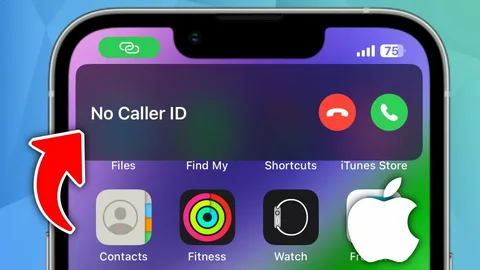
Ever wanted to make a call without revealing your number? Whether it’s for privacy, business reasons, or simply to stay anonymous, your iPhone makes it easy. With a few simple settings, you can hide your caller ID so your number appears as “No Caller ID” or “Private Number.”
Let’s walk through everything you need to know—from the basic steps to advanced tips and troubleshooting.
Step-by-Step: Hide Your Number on iPhone
Step 1: Open Settings
Tap on the Settings app from your Home Screen.
This is your control center for customizing your iPhone’s features, including call privacy.
Step 2: Scroll Down and Tap “Phone”
Scroll until you find Phone and tap it.
This section manages everything related to calls—caller ID, call forwarding, voicemail, and more.
Step 3: Tap “Show My Caller ID”
Find and select Show My Caller ID.
This setting determines whether your phone number is visible when you make outgoing calls.
Step 4: Toggle It Off
Switch the toggle off (it will turn gray).
Once disabled, your number will be hidden for all outgoing calls.
Step 5: Test It
Make a quick test call to a friend or another phone.
They should see “No Caller ID” or “Private Number” instead of your actual number.
What Happens After You Turn It Off?
After disabling caller ID:
- Your number stays hidden for all outgoing calls
- People may see labels like Unknown Caller or Private Number
- Some recipients may not answer your calls due to hidden identity
Alternative Method (Hide Number for One Call Only)
If you don’t want to hide your number permanently, use this trick:
👉 Dial *67 before the phone number
Example: *67 08012345678
This hides your number only for that specific call, leaving your normal settings unchanged.
Tips for Better Privacy
- Use temporarily when needed: Keep caller ID on normally and hide it only when necessary
- Check carrier support: Some network providers may disable this feature
- Combine with Focus Mode: Avoid interruptions while staying anonymous
- Be mindful of trust: Many people ignore calls from hidden numbers
- Restart if it doesn’t work: Sometimes settings need a refresh
Common Issues & Fixes
1. “Show My Caller ID” is missing
- Your carrier may control this feature
- Contact your network provider
2. Toggle is grayed out
- Likely restricted by your carrier
- Try using *67 instead
3. Number still shows
- Restart your iPhone
- Recheck the toggle
- Confirm your carrier supports caller ID blocking
Frequently Asked Questions
Can I hide my number for specific contacts only?
No, iPhone doesn’t support per-contact hiding. Use *67 for selective calls.
Will this affect incoming calls?
No, it only affects outgoing calls.
Can emergency services still see my number?
Yes. Emergency numbers can always identify your number for safety reasons.
Is it completely anonymous?
For regular calls, yes—but telecom providers may still log your number internally.
Does this work for WhatsApp or other apps?
No, this only applies to regular phone calls, not internet-based apps.
Quick Summary
- Open Settings
- Tap Phone
- Select Show My Caller ID
- Toggle it Off
- (Optional) Use *67 for one-time privacy
Final Thoughts
Hiding your number on an iPhone is like putting on a digital mask—it gives you control over your privacy when making calls. While it’s a powerful feature, it’s best used thoughtfully. Some people won’t answer unknown numbers, so balance privacy with communication needs.
If you’re serious about privacy, explore other iPhone features like:
- Silence Unknown Callers
- Focus Modes
- Location & App Privacy Settings
Mastering these tools turns your iPhone into a truly personal and secure device.