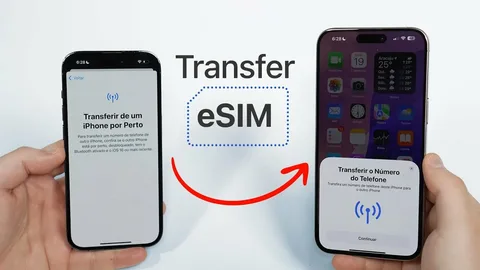
Upgrading to a new iPhone is exciting, but transferring your eSIM can feel confusing if you’ve never done it before. The good news is that Apple has made the process incredibly simple. In most cases, you can move your cellular plan from your old iPhone to your new one in just a few minutes—without needing a physical SIM card.
This guide walks you through everything you need to know, including preparation steps, troubleshooting tips, and important carrier information.
What Is an eSIM?
An eSIM (embedded SIM) is a digital SIM card built directly into your iPhone. Instead of inserting a physical SIM card, your cellular plan is activated electronically.
Benefits of eSIM include:
- No physical SIM card required
- Easier switching between carriers
- Dual SIM support
- Better security
- Faster device setup
Many modern iPhones support eSIM, including:
- iPhone XS
- iPhone 11
- iPhone 12
- iPhone 13
- iPhone 14
- iPhone 15
- iPhone 16
Before You Transfer Your eSIM
Before starting, make sure:
- Both iPhones are charged
- Wi-Fi is connected
- Bluetooth is enabled
- Your Apple ID is signed in
- Both devices are updated to the latest iOS version
- Your carrier supports eSIM transfers
Some carriers may require additional verification during activation.
How to Transfer eSIM to a New iPhone
Follow these steps carefully for a smooth transfer.
Step 1: Back Up Your Old iPhone
Create a fresh backup of your current iPhone.
Go to:
Settings > [Your Name] > iCloud > iCloud Backup > Back Up Now
You can also back up using:
- Finder on Mac
- iTunes on Windows
A backup protects your:
- Photos
- Messages
- Apps
- Settings
- Passwords
- Contacts
Even though eSIM activation is separate, backups help restore your overall setup quickly.
Step 2: Keep Your Old iPhone Nearby
Place both devices close together during setup.
Apple often uses Quick Start to transfer settings and eSIM information automatically. Keeping both phones nearby ensures the process works smoothly.
Make sure:
- Bluetooth is turned on
- Both devices are unlocked
Step 3: Turn On Your New iPhone
Power on your new iPhone and begin setup.
You’ll see the “Hello” screen. Follow the setup instructions until you reach the cellular setup section.
If using Quick Start:
- Your old iPhone will detect the new device
- A pairing animation will appear
- Scan it using your old iPhone
This securely links the two devices.
Step 4: Transfer the eSIM
When prompted, select Transfer From Nearby iPhone.
Your new iPhone will guide you through the transfer process automatically.
You may need to:
- Confirm on your old iPhone
- Enter verification codes
- Approve carrier activation
The transfer usually takes only a few minutes.
Step 5: Complete Carrier Activation
Wait for activation to finish.
Once complete, you’ll see:
- Signal bars
- Carrier name
- Cellular connectivity
Your old iPhone’s eSIM usually deactivates automatically once the transfer succeeds.
Step 6: Test Your Cellular Service
After setup, test your connection.
Try:
- Making a phone call
- Sending a text message
- Browsing the internet
- Turning cellular data on and off
This confirms the eSIM is fully active.
Alternative Method: Transfer eSIM Manually
If automatic transfer doesn’t work, you can manually add the eSIM.
Go to:
Settings > Cellular > Add eSIM
Then choose:
- Transfer from nearby iPhone
- Scan QR code
- Enter carrier details manually
Some carriers provide:
- QR activation codes
- Activation apps
- Carrier-specific instructions
What Happens After the Transfer?
Once completed:
- Your phone number moves to the new iPhone
- Cellular service activates on the new device
- The old iPhone usually loses service
- Calls, texts, and data work normally
- Your apps and settings restore from backup
Your new iPhone is now fully connected and ready to use.
Tips for a Smooth eSIM Transfer
Update iOS First
Older software versions can cause activation problems.
Update both devices:
Settings > General > Software Update
Use Strong Wi-Fi
A stable internet connection speeds up activation and setup.
Keep Both Devices Charged
Low battery interruptions can disrupt the transfer process.
Don’t Erase Your Old iPhone Too Soon
Wait until:
- eSIM activates successfully
- Data transfers fully
- Calls and texts work correctly
Only then should you factory reset the old device.
Contact Your Carrier if Needed
Some carriers require:
- Account verification
- Security PINs
- Manual activation
Carrier support can usually resolve activation issues quickly.
Common eSIM Transfer Problems
eSIM Transfer Option Missing
Possible causes:
- Carrier doesn’t support automatic transfer
- Devices not updated
- Bluetooth disabled
Try restarting both iPhones.
Activation Failed
Solutions:
- Restart your iPhone
- Reconnect to Wi-Fi
- Retry activation
- Contact your carrier
No Cellular Signal
Try:
- Toggling Airplane Mode
- Resetting network settings
- Waiting several minutes for activation
How to Remove eSIM From Old iPhone
After confirming the transfer worked:
Go to:
Settings > Cellular
Tap the old eSIM and choose:
Delete eSIM
If selling the device, also erase all content:
Settings > General > Transfer or Reset iPhone > Erase All Content and Settings
Frequently Asked Questions
Can I transfer an eSIM myself?
Yes. Most carriers and iPhones support self-service eSIM transfers.
Will I lose my phone number?
No. Your existing number transfers with the eSIM.
Do I need a physical SIM card?
No. eSIM is completely digital.
Can I use both eSIM and physical SIM together?
Yes. Many iPhones support Dual SIM functionality.
Does transferring eSIM erase my data?
No. Your data remains safe, especially if backed up beforehand.
What if my carrier doesn’t support eSIM transfer?
You may need:
- A QR code
- Carrier activation
- Customer support assistance
Summary
Here’s a quick recap:
- Back up your old iPhone
- Keep both devices nearby
- Turn on the new iPhone
- Transfer the eSIM during setup
- Confirm activation
- Test calls, texts, and data
Conclusion
Transferring an eSIM to a new iPhone is far easier than many people expect. Apple has streamlined the process so you can move your cellular service quickly without fumbling with tiny SIM cards or visiting a carrier store.
With proper preparation and a stable connection, the transfer often takes just a few minutes. Once complete, your new iPhone will feel instantly familiar—with your number, apps, settings, and data all ready to go.
Think of it like moving into a new house where everything is already unpacked and organized for you.
Before resetting your old iPhone, always double-check that your eSIM is active and working properly. Once confirmed, you’re free to enjoy everything your new iPhone has to offer.
Leave a Reply