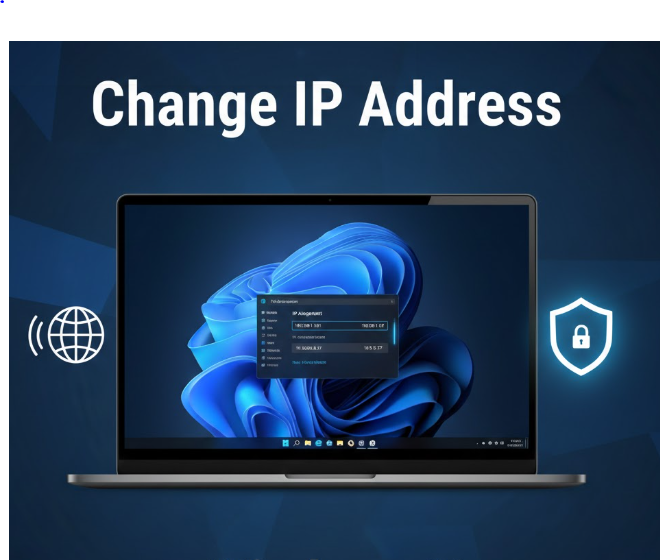
An IP address (Internet Protocol address) is a unique identifier that allows your computer to communicate with other devices on the internet or a local network. In Windows 11, your IP address can be assigned automatically or set manually depending on your network configuration.
There are many reasons you may want to change your IP address, such as fixing network issues, improving privacy, accessing restricted content, or configuring a specific network setup. This guide explains everything you need to know about changing your IP address in Windows 11, using safe and legitimate methods.
What Is an IP Address?
An IP address is a numerical label assigned to each device connected to a network. It serves two main purposes:
-
Identifying the device
-
Locating the device on a network
Types of IP Addresses
-
IPv4 – The most common format (e.g., 192.168.1.1)
-
IPv6 – A newer format designed to replace IPv4
Public vs Private IP Address
-
Public IP: Assigned by your internet service provider (ISP) and visible on the internet
-
Private IP: Used within local networks (home or office)
Windows 11 primarily allows you to manage your private IP address, though some methods indirectly change your public IP as well.
Why Change Your IP Address in Windows 11?
Common reasons include:
-
Fixing network conflicts or connectivity issues
-
Accessing region-restricted services
-
Improving online privacy
-
Configuring static IPs for servers or printers
-
Troubleshooting Wi-Fi or Ethernet problems
-
Avoiding temporary IP blocks
Changing your IP address is legal when done for legitimate purposes and within network rules.
How to Check Your Current IP Address in Windows 11
Before changing your IP address, it’s helpful to know your current one.
Method 1: Using Settings
-
Open Settings
-
Go to Network & Internet
-
Select Wi-Fi or Ethernet
-
Click your connected network
-
Scroll to IP assignment
Method 2: Using Command Prompt
-
Press Windows + R
-
Type
cmdand press Enter -
Type
ipconfigand press Enter
Your IPv4 and IPv6 addresses will be displayed.
Method 1: Change IP Address Automatically (DHCP)
This is the easiest and safest method for most users.
Steps:
-
Open Settings
-
Go to Network & Internet
-
Select Wi-Fi or Ethernet
-
Click your active network
-
Under IP assignment, click Edit
-
Choose Automatic (DHCP)
-
Click Save
Windows will automatically assign a new IP address from your router.
Method 2: Change IP Address Manually (Static IP)
A static IP address remains fixed and is useful for:
-
Servers
-
Network printers
-
Advanced configurations
Steps:
-
Open Settings
-
Go to Network & Internet
-
Select Wi-Fi or Ethernet
-
Click your connected network
-
Under IP assignment, click Edit
-
Select Manual
-
Enable IPv4
-
Enter:
-
IP address
-
Subnet prefix length (usually 24)
-
Gateway
-
Preferred DNS
-
Alternate DNS
-
-
Click Save
⚠️ Ensure the IP address is within your network range to avoid conflicts.
Method 3: Change IP Address Using Command Prompt
This method is useful for advanced users.
Steps:
-
Open Command Prompt as Administrator
-
Release current IP:
-
Renew IP:
This forces Windows to request a new IP from the router.
Method 4: Change IP Address Using Network Adapter Settings
Steps:
-
Press Windows + R
-
Type
ncpa.cpland press Enter -
Right-click your active network adapter
-
Select Properties
-
Double-click Internet Protocol Version 4 (IPv4)
-
Choose:
-
Obtain an IP address automatically, or
-
Use the following IP address
-
-
Enter the required details
-
Click OK
Method 5: Change Public IP Address (Indirect Methods)
Windows itself does not directly change your public IP, but these methods can help.
Restart Your Router
-
Turn off the router
-
Wait 5–10 minutes
-
Turn it back on
This may assign a new public IP from your ISP.
Use a VPN (Virtual Private Network)
A VPN:
-
Masks your real IP address
-
Assigns a new IP from another location
-
Improves privacy and security
VPNs are commonly used for privacy, security, and safe browsing.
Use a Proxy Server
A proxy acts as an intermediary between your PC and the internet.
-
Changes visible IP address
-
Less secure than VPNs
-
Useful for basic browsing
How to Change IP Address for Wi-Fi vs Ethernet
Wi-Fi
-
Uses wireless adapter
-
IP settings are network-specific
-
Changes affect only that Wi-Fi network
Ethernet
-
Uses wired adapter
-
Often preferred for static IP setups
-
More stable for enterprise networks
The steps are similar, but settings apply per adapter.
Common Problems When Changing IP Address
No Internet Access
-
Incorrect gateway or DNS
-
IP conflict
-
Wrong subnet prefix
IP Conflict Error
-
Another device is using the same IP
-
Switch back to automatic DHCP
Network Not Identified
-
Router misconfiguration
-
Restart router and PC
Best Practices When Changing IP Address
-
Always note your original settings
-
Use DHCP unless static IP is required
-
Avoid random IP values
-
Use trusted VPN services
-
Restart your PC after major changes
Security and Privacy Considerations
Changing your IP address:
-
Does not make you anonymous
-
Helps reduce basic tracking
-
Should not be used for illegal activities
For strong privacy, combine IP changes with:
-
Secure browsers
-
Firewalls
-
Regular system updates
Frequently Asked Questions (FAQ)
Is it legal to change IP address in Windows 11?
Yes, changing your IP address is legal for legitimate purposes.
Will changing IP address fix internet problems?
Often yes, especially IP conflicts or DNS issues.
Does changing IP affect downloads or updates?
Ongoing connections may reset, but future connections work normally.
Can I use the same static IP forever?
Yes, as long as it does not conflict with other devices.
Does a VPN permanently change my IP?
Only while connected. Disconnecting restores your original IP.
Which is better: static or dynamic IP?
Dynamic IP is better for general users; static IP is for advanced setups.
Conclusion
Changing your IP address in Windows 11 is a straightforward process once you understand the available methods. Whether you want to troubleshoot network issues, enhance privacy, or configure advanced networking, Windows 11 provides flexible tools to manage IP settings safely.
For most users, automatic DHCP is the best option. Advanced users can take advantage of static IPs, command-line tools, or VPNs to meet specific needs.
Understanding how IP addresses work empowers you to maintain a stable, secure, and efficient network environment.