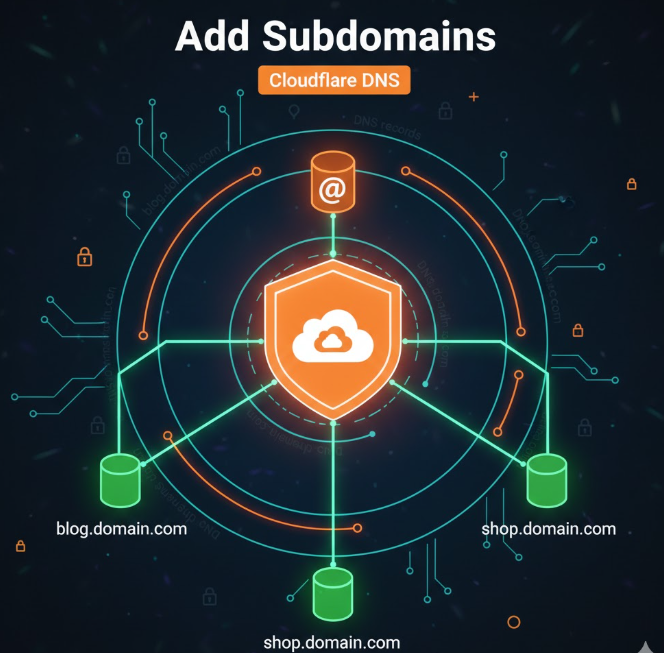
Subdomains let you organize your website, apps, and services under one main domain. You might use them for a blog, shop, API, admin panel, or staging site. When your domain is on Cloudflare, adding subdomains is simple, but doing it correctly matters for performance, security, and uptime.
This guide explains how to add subdomains to Cloudflare step by step, what each DNS option means, and how to avoid common mistakes.
What Is a Subdomain?
A subdomain is an extension of your main domain.
Examples:
-
blog.example.com -
shop.example.com -
api.example.com -
staging.example.com
Each subdomain can point to:
-
A different server
-
A different IP address
-
A hosted service
-
A cloud platform
Cloudflare manages subdomains through DNS records.
Before You Add a Subdomain
Make sure:
-
Your main domain is already active on Cloudflare
-
Cloudflare nameservers are correctly set
-
You know where the subdomain should point
You do not need to add subdomains separately to Cloudflare accounts.
Step 1: Log In to Your Cloudflare Account
-
Sign in to Cloudflare
-
Select your domain
-
Go to DNS
This is where all subdomains are created and managed.
Step 2: Decide What the Subdomain Will Point To
Before adding the record, identify the destination:
-
Server IP address
-
Hosting provider hostname
-
Third-party service
-
Load balancer
-
Another domain
This determines the DNS record type.
Step 3: Add a DNS Record for the Subdomain
Click Add record and choose the appropriate type.
Common DNS Record Types
A Record
Points a subdomain to an IPv4 address.
Example: blog.example.com → 192.0.2.1
AAAA Record
Points to an IPv6 address.
CNAME Record
Points the subdomain to another hostname.
Example: shop.example.com → hosting.provider.com
TXT Record
Used for verification or security purposes.
Step 4: Enter the Subdomain Name Correctly
In the Name field:
-
Enter only the subdomain part
-
Do not include the full domain
Example:
-
Enter
blognotblog.example.com
Cloudflare automatically appends the main domain.
Step 5: Choose Proxy or DNS-Only Mode
Cloudflare lets you decide whether traffic passes through its network.
Orange Cloud (Proxied)
-
Enables CDN, WAF, DDoS protection
-
Hides origin IP
-
Improves performance and security
Gray Cloud (DNS Only)
-
Direct connection to the server
-
Required for some services like mail or FTP
Choose based on the service running on the subdomain.
Step 6: Save the Record and Wait for Propagation
Once saved:
-
Changes apply almost instantly within Cloudflare
-
Full DNS propagation may take a few minutes
You can test by visiting the subdomain in a browser.
Step 7: Set Up SSL for the Subdomain
Cloudflare automatically covers subdomains with its Universal SSL.
To confirm:
-
Go to SSL/TLS
-
Ensure SSL mode is set correctly
-
Confirm your origin supports HTTPS if needed
For sensitive services, use Full or Full (Strict) mode.
Step 8: Apply Security Rules to Subdomains
Cloudflare allows you to:
-
Create firewall rules per subdomain
-
Apply rate limiting
-
Block unwanted countries
-
Protect admin or API subdomains
Security rules can target:
-
Specific hostnames
-
Paths
-
Request behavior
Step 9: Optimize Performance for Subdomains
For content-based subdomains:
-
Enable caching
-
Use Auto Minify
-
Set cache rules
For application subdomains:
-
Avoid aggressive caching
-
Monitor performance analytics
Each subdomain can have its own optimization strategy.
Step 10: Verify Everything Is Working
Check:
-
Subdomain loads correctly
-
SSL certificate is valid
-
Content appears as expected
-
Cloudflare proxy works if enabled
Use Cloudflare Analytics to confirm traffic flow.
Common Problems and Fixes
Subdomain not loading
-
Check IP or hostname accuracy
-
Verify DNS record type
-
Confirm proxy setting
SSL errors
-
Ensure origin supports HTTPS
-
Check SSL mode
-
Clear browser cache
Service not working
-
Try switching to DNS-only mode
-
Review provider documentation
Do Subdomains Cost Extra on Cloudflare?
No. Cloudflare does not charge per subdomain.
You can add:
-
Unlimited subdomains
-
Unlimited DNS records
Costs only apply if you upgrade Cloudflare plans.
Best Practices for Subdomains
-
Use clear naming conventions
-
Secure admin subdomains
-
Monitor traffic per hostname
-
Avoid exposing origin IPs
-
Separate production and staging
Good structure improves reliability and security.
Final Thoughts
Adding subdomains to Cloudflare is simple, but doing it thoughtfully makes a real difference. Proper DNS setup, proxy choices, and security settings ensure your subdomains stay fast, safe, and reliable.
Once set up correctly, Cloudflare handles the heavy lifting while you focus on running your website or application.