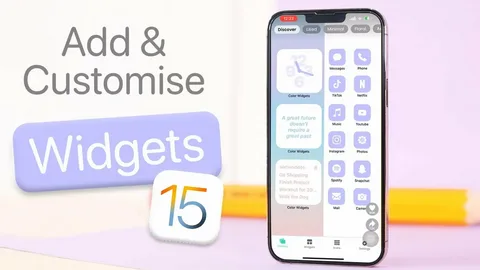
If you want to make your iPhone look modern, organized, and more useful, learning how to make widgets on iPhone is the perfect place to start.
Widgets turn your home screen into a smart dashboard—showing weather, calendar events, battery, photos, and more at a glance.
In this guide, you’ll learn step-by-step how to add widgets on iPhone, customize them, and create a stunning home screen setup.
What Are iPhone Widgets?
Widgets are mini-app panels that display real-time information without opening apps.
They can show:
- Weather updates
- Calendar events
- Battery status
- Photos
- News headlines
- Fitness tracking
Think of widgets as shortcuts to your daily life.
How to Make Widgets on iPhone (Step-by-Step)
Follow these simple steps to customize your iPhone home screen.
Step 1: Long-Press Your Home Screen
Press and hold on any empty space on your home screen.
Your apps will start shaking (this is edit mode).
You’ll also see a “+” icon in the top corner.
Step 2: Tap the “+” Button
Tap the plus (+) icon at the top left.
This opens the widget gallery where you can browse all available widgets.
Step 3: Choose a Widget
Scroll through and select a widget from apps like:
- Apple Weather
- Calendar
- Photos
- Notes
- Battery
Not all apps support widgets, but most popular ones do.
Step 4: Select Widget Size
Choose from:
- Small (compact info)
- Medium (balanced view)
- Large (full details)
Bigger widgets show more information, but take more space.
Step 5: Tap “Add Widget”
Tap Add Widget to place it on your home screen.
Then drag it anywhere you like and tap Done.
Your widget is now active!
How to Customize Widgets on iPhone
You can also personalize widgets:
✔ Edit Widget Info
Press and hold → Tap Edit Widget
✔ Move Widgets
Drag them anywhere on the screen
✔ Stack Widgets (Smart Stack)
Place widgets on top of each other to rotate automatically
Pro Tips for iPhone Widgets
- Use Smart Stack for a cleaner home screen
- Place important widgets on the first page
- Combine small + medium widgets for balance
- Use photo widgets for aesthetic home screens
- Keep your apps updated for new widget features
Frequently Asked Questions (FAQ)
How do I add widgets on iPhone?
Long-press home screen → Tap “+” → Choose widget → Add it.
Which iPhones support widgets?
All iPhones running iOS 14 or later.
Can I delete widgets?
Yes—press and hold → Tap “Remove Widget”.
Can I stack widgets?
Yes, using Smart Stack.
Why don’t I see widgets?
Your app may not support widgets, or your iOS needs updating.
Summary
- Long-press home screen
- Tap “+” icon
- Select widget
- Choose size
- Add and arrange
Final Thoughts
Learning how to make widgets on iPhone is one of the easiest ways to completely transform your device.
Instead of a boring home screen, you get a smart, personalized dashboard that shows exactly what you need—when you need it.
From weather updates to photos and calendars, widgets make your iPhone more powerful, stylish, and efficient.
A better home screen = a better iPhone experience.