
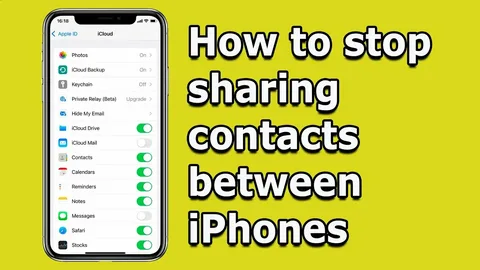
Your contact list contains personal information like phone numbers, emails, and names—so controlling which apps can access it is important. Fortunately, iPhone makes it easy to manage contact sharing and protect your data.
This guide shows you how to turn off contact sharing on iPhone and keep your information private.
Why Turn Off Contact Sharing?
Some apps request access to your contacts for features like messaging, invitations, or syncing. However, not every app actually needs this access.
Disabling contact sharing can help you:
- Protect personal information
- Prevent unnecessary data collection
- Improve privacy control
- Reduce unwanted syncing
- Limit how apps use your data
How to Turn Off Contact Sharing on iPhone
Follow these simple steps.
Step 1: Open Settings
Tap the Settings app on your iPhone home screen.
This is where you control all system permissions.
Step 2: Go to Privacy & Security
Scroll down and select Privacy & Security.
This section contains all privacy-related controls, including contacts, location, camera, and microphone access.
Step 3: Tap Contacts
Inside Privacy & Security, tap Contacts.
You will see a list of apps that have requested access to your contact list.
Step 4: Turn Off Access for Selected Apps
Find the apps you want to restrict and toggle the switch off.
- Green (On) → App can access contacts
- Gray (Off) → Access is removed
Turn off access for any app you do not fully trust or do not need.
What Happens After You Turn It Off?
Once disabled:
- The app can no longer view or use your contacts
- Your contacts remain محفوظ on your device
- Some app features (like inviting friends) may stop working
You can always re-enable access later if needed.
Tips for Better Privacy Management
Review Permissions Regularly
Check your app permissions every few months to stay updated.
Only Allow Necessary Apps
Grant contact access only to apps that truly require it (e.g., messaging apps).
Check After App Updates
Some apps may request permissions again after updates.
Understand App Permissions Before Allowing
When installing new apps, carefully review what data they request.
Use Built-in Privacy Controls
Explore other privacy settings like:
- Location Services
- Camera access
- Microphone permissions
Frequently Asked Questions
Will turning off contact sharing delete my contacts?
No. Your contacts remain safe on your iPhone. Only app access is removed.
Can I disable contact access for all apps at once?
No, permissions must be managed individually for each app.
Why do apps request contact access?
Some apps use contacts for messaging, syncing, or finding people you know.
Do I need to restart my iPhone?
No. Changes apply immediately.
Can I turn contact access back on later?
Yes. Simply return to the same settings and toggle it back on.
Final Thoughts
Knowing how to turn off contact sharing on iPhone gives you better control over your personal data. With just a few taps, you can decide which apps are allowed to access your contacts and which are not.
Regularly reviewing your privacy settings is a smart habit that helps keep your information secure. A few minutes of checking permissions can go a long way in protecting your digital life.

