
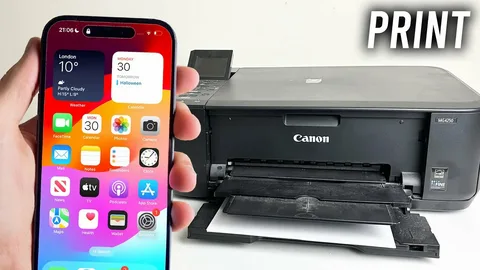
Printing directly from your iPhone is simple once everything is set up correctly. Whether you want to print documents, photos, emails, or tickets, you can do it wirelessly using built-in features or compatible apps.
The easiest method is through Apple AirPrint, which allows your iPhone to connect to supported printers without installing extra software.
This guide walks you through the process step by step.
What You Need Before You Start
Before connecting your iPhone to a printer, make sure:
- Your printer supports AirPrint (or has a companion app)
- Your iPhone and printer are connected to the same Wi-Fi network
- Your printer is powered on and ready
How to Connect Printer to iPhone
Follow these simple steps to print from your iPhone.
Step 1: Check Printer Compatibility
Confirm that your printer supports AirPrint.
If it doesn’t, you can still print by installing your printer brand’s official app (for example, HP Smart, Canon PRINT, Epson iPrint).
Step 2: Connect Both Devices to Wi-Fi
Ensure your iPhone and printer are on the same Wi-Fi network.
This is essential—devices on different networks cannot communicate.
Step 3: Open the File You Want to Print
Go to the app where your document or photo is located.
You can print from:
- Photos app
- Files app
- Mail app
- Safari browser
- Notes and other supported apps
Step 4: Tap the Share Icon
Tap the Share icon (a square with an upward arrow).
Scroll down and select Print.
Step 5: Select Your Printer
Tap Select Printer and choose your printer from the list.
If your printer does not appear, double-check your Wi-Fi connection.
Step 6: Adjust Print Settings
Before printing, you can choose:
- Number of copies
- Page range
- Color or black & white
- Paper size (depending on printer)
Step 7: Tap Print
Tap Print, and your document will be sent to the printer instantly.
What If Your Printer Doesn’t Support AirPrint?
If your printer is not AirPrint-compatible, you can still print using third-party apps.
Many printer manufacturers provide official apps that connect your iPhone to the printer over Wi-Fi.
These apps often allow:
- Printing documents and photos
- Scanning files
- Checking ink levels
- Managing print settings
Troubleshooting Common Issues
If your iPhone cannot find the printer, try the following:
Check Wi-Fi Connection
Ensure both devices are on the same network.
Restart Devices
Turn off and restart both your iPhone and printer.
Move Closer to the Router
Weak signals can interrupt communication.
Update Printer Firmware
Outdated firmware may cause compatibility issues.
Check App Permissions
If using a third-party app, ensure it has proper access.
Tips for Better Printing Experience
- Keep your printer updated for best performance
- Use high-quality paper for better results
- Preview documents before printing
- Reduce file size for faster printing
- Keep printer ink or toner levels sufficient
Frequently Asked Questions
Why is my printer not showing on my iPhone?
This usually happens when devices are not on the same Wi-Fi network or the printer is not AirPrint-enabled.
Do I need an app to print from iPhone?
Not if your printer supports AirPrint. Otherwise, you will need a compatible app.
Can I print from any iPhone app?
Most apps that support sharing (Photos, Mail, Files, Safari) allow printing.
Can I print without Wi-Fi?
Some printers support Wi-Fi Direct or Bluetooth, but setup varies by model.
How do I print in color?
Select color options in the print settings before tapping print.
Final Thoughts
Learning how to connect a printer to your iPhone makes everyday tasks faster and more convenient. With AirPrint or a compatible app, you can print documents and photos without needing a computer.
Once set up, printing becomes a quick, wireless process you can use anytime—whether at home, school, or the office.

