
Turning off your iPhone is a basic but useful action—whether you want to save battery, fix minor glitches, or give your device a quick reset. While it only takes a few seconds, the exact steps can vary slightly depending on your iPhone model.
This guide shows you how to power off your iPhone using buttons or settings.
Why Turn Off Your iPhone?
Powering down your iPhone occasionally can help:
- Save battery when not in use
- Fix temporary glitches or lag
- Refresh system performance
- Reduce background activity
- Troubleshoot minor issues
How to Turn Off iPhone (iPhone X and Newer)
For newer iPhones without a Home button, follow these steps:
Step 1: Press and Hold Buttons
Press and hold the Side button and either Volume button at the same time.
Keep holding until the power-off slider appears.
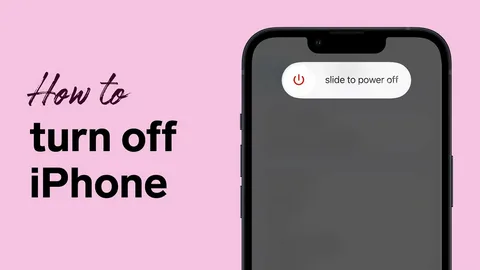
Step 2: Slide to Power Off
Swipe the “slide to power off” bar from left to right.
Step 3: Wait for Shutdown
Your iPhone will turn off within a few seconds, and the screen will go completely black.
How to Turn Off iPhone (iPhone 8, 7, 6, and SE 2nd/3rd Gen)
- Press and hold the Side button
- Wait for the power-off slider
- Swipe to turn off
How to Turn Off iPhone (iPhone SE 1st Gen, iPhone 5, and Older)
- Press and hold the Top button
- Slide to power off when it appears
How to Turn Off iPhone Without Buttons
If your buttons are not working, you can turn off your iPhone through settings:
- Open Settings
- Tap General
- Scroll down
- Tap Shut Down
- Slide to power off
What Happens After You Turn It Off?
Once powered off:
- The screen goes black
- Apps and background processes stop
- Notifications pause
- Battery usage stops completely
To turn your iPhone back on, press and hold the Side button until the Apple logo appears.
Tips for Turning Off iPhone
- Restart your iPhone occasionally to improve performance
- If your phone freezes, try a force restart instead
- Make sure your buttons are working properly
- Keep your iOS updated for smooth operation
- Turn off your phone before storing it for long periods
Frequently Asked Questions
Why is my iPhone not turning off?
You may not be pressing the correct buttons. Try holding both the Side and Volume buttons together.
What if my iPhone is frozen?
Use a force restart instead of a normal shutdown.
Does turning off iPhone save battery?
Yes. When powered off, your iPhone does not consume battery.
Can I turn off my iPhone without touching the screen?
Yes, using AssistiveTouch or button combinations depending on the situation.
How often should I turn off my iPhone?
Once a week is a good habit for maintaining performance.
Final Thoughts
Knowing how to turn iPhone off is a simple but essential skill. Whether you’re troubleshooting an issue or just giving your device a break, powering it down properly can help improve performance and extend battery life.
It only takes a few seconds, but it can make a noticeable difference in how smoothly your iPhone runs over time.

