
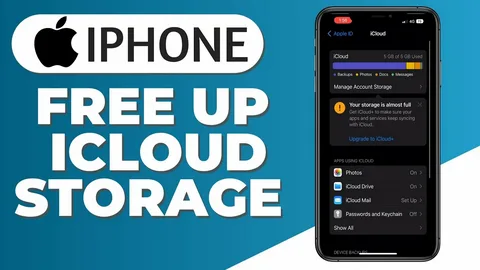
Running out of iCloud storage can be frustrating, especially when your iPhone stops backing up photos, messages, or important files. The good news is that freeing up space is usually quick and easy. By cleaning up old backups, managing photos, and removing unnecessary app data, you can reclaim valuable storage and keep your iPhone running smoothly.
Think of iCloud like a digital closet—over time, unused files pile up. A little cleanup can make a huge difference.
How to Free Up iCloud Storage on iPhone
The following steps will help you identify what’s taking up space and remove unnecessary files from your iCloud account.
Step 1: Check Your iCloud Storage
Open Settings, tap your name at the top, then go to iCloud > Manage Account Storage (or Manage Storage).
This section gives you a complete breakdown of your iCloud usage. You’ll see categories such as:
- Photos
- Backups
- Messages
- Apps
- Documents
Knowing what’s consuming the most storage helps you decide where to start.
Step 2: Optimize Photo Storage
Go to:
Settings > Photos
Then enable Optimize iPhone Storage.
This feature stores smaller, space-saving versions of photos on your iPhone while keeping the full-resolution originals safely in iCloud. It’s one of the easiest ways to reduce device storage usage without deleting memories.
You can also review your photo library and remove:
- Duplicate photos
- Screenshots
- Blurry pictures
- Old videos you no longer need
Videos are often the biggest storage hogs.
Step 3: Delete Old iPhone Backups
Return to:
Settings > Your Name > iCloud > Manage Storage > Backups
Tap on backups from devices you no longer use and select Delete Backup.
Old backups can consume several gigabytes of space. If you upgraded phones recently, there’s a good chance your previous device backup is still sitting in iCloud.
Before deleting, make sure the backup does not belong to your current device.
Step 4: Manage App Data
Inside Manage Storage, scroll through the list of apps using iCloud.
Some apps store large amounts of data, including:
- Messaging apps
- Note-taking apps
- Editing apps
- Cloud-based games
Tap an app to review its storage usage and remove unnecessary data if possible.
You can also disable apps you don’t want syncing to iCloud anymore.
Step 5: Clean Up Messages and Attachments
Messages with photos, videos, and GIFs can quietly consume a lot of storage.
Go to:
Settings > General > iPhone Storage > Messages
Review categories like:
- Large Attachments
- Photos
- Videos
- GIFs and Stickers
Delete anything you no longer need.
Step 6: Remove Unnecessary Files from iCloud Drive
Open the Files app and check your iCloud Drive folders.
Delete:
- Old PDFs
- Downloads
- Duplicate documents
- Unused presentations
- Large video files
These files sync across your Apple devices and count toward your iCloud storage limit.
Step 7: Empty Recently Deleted Folders
Deleted photos and files don’t disappear immediately.
Check:
- Photos > Albums > Recently Deleted
- Files > Recently Deleted
Permanently remove unwanted items to instantly recover storage space.
What Happens After Freeing Up iCloud Storage?
Once you complete these steps:
- Your iPhone backups can resume normally
- Photos and files will sync properly again
- You’ll stop receiving “iCloud Storage Full” warnings
- Your device may perform more smoothly
- You’ll have room for new photos, apps, and documents
Tips for Managing iCloud Storage Efficiently
Here are some smart habits to help prevent storage issues in the future:
- Review your iCloud storage once a month
- Delete duplicate photos regularly
- Avoid backing up apps you rarely use
- Use shared albums instead of sending large media files repeatedly
- Save large videos to external storage or a computer
- Turn off iCloud backups for unnecessary apps
- Keep only important files in iCloud Drive
When Should You Upgrade Your iCloud Plan?
You may want to upgrade your storage plan if:
- You regularly back up multiple Apple devices
- You store thousands of photos or videos
- You use iCloud Drive heavily for work or school
- Your family shares iCloud storage
- You constantly run out of space despite cleanup efforts
Apple offers several storage tiers, including:
- 50GB
- 200GB
- 2TB and higher plans
Frequently Asked Questions
Why is my iCloud storage full even after deleting photos?
Deleted photos remain in the Recently Deleted folder for 30 days unless permanently removed.
Does deleting iCloud backups remove anything from my current iPhone?
No. Deleting an old backup only removes the stored backup file in iCloud, not the data currently on your device.
What takes up the most iCloud storage?
Usually:
- Photos and videos
- Device backups
- Messages with attachments
- Large documents
- App data
Can I free up space without deleting photos?
Yes. You can:
- Optimize storage
- Remove backups
- Delete app data
- Clean up Messages
- Remove files from iCloud Drive
Will turning off iCloud Photos delete my pictures?
Not immediately. However, if you disable syncing incorrectly, photos may eventually be removed from devices. Always back up important pictures first.
Is iCloud storage the same as iPhone storage?
No.
- iPhone storage is the physical space on your device.
- iCloud storage is online cloud storage linked to your Apple account.
Quick Summary
- Check iCloud storage usage
- Optimize photo storage
- Delete old backups
- Manage app data
- Clean up messages and attachments
- Remove unused iCloud Drive files
- Empty Recently Deleted folders
Conclusion
Freeing up iCloud storage on your iPhone is one of the best ways to keep your digital life organized and stress-free. When your storage is full, backups stop working, photos won’t sync properly, and important files can become difficult to manage. A little cleanup goes a long way.
By regularly reviewing backups, photos, messages, and app data, you can avoid the dreaded “iCloud Storage Full” notification and keep your iPhone running efficiently. Think of it like spring cleaning for your phone—less clutter means more room for what truly matters.
If you still find yourself running low on storage after cleaning up, upgrading your iCloud plan may be worth considering, especially if you rely heavily on Apple services.
Take a few minutes today to check your iCloud storage—you might be surprised by how much space you can recover.

