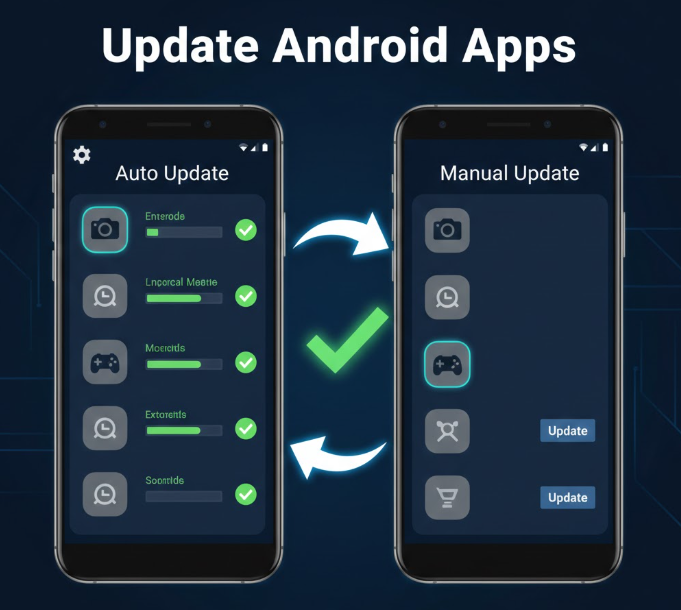
Keeping your Android apps updated is essential for security, performance, and access to new features. Outdated apps can lead to crashes, slow performance, or even security vulnerabilities. This guide will explain how to update Android apps both automatically and manually, troubleshoot common update issues, and optimize your app update process.
Why Updating Android Apps is Important
-
Security – App updates often include patches for vulnerabilities.
-
Bug Fixes – Developers fix errors that may cause apps to crash or misbehave.
-
New Features – Updates often add new functionality or improved interfaces.
-
Better Performance – Updates improve app speed and reduce resource usage.
-
Compatibility – Ensures apps work with the latest version of Android.
How to Update Android Apps Automatically
Automatic updates ensure your apps always stay up to date without manual intervention. Here’s how to enable this feature:
Step 1: Open Google Play Store Settings
-
Open the Google Play Store app.
-
Tap your profile icon in the top-right corner.
-
Select Settings.
Step 2: Enable Auto-Update
-
Tap Network Preferences → Auto-update apps.
-
Choose your preferred option:
-
Over any network – Updates will download using mobile data or Wi-Fi.
-
Over Wi-Fi only – Updates download only when connected to Wi-Fi, saving mobile data.
-
Step 3: Confirm and Exit
-
Tap Done. All your apps will now update automatically when updates are available.
How to Update Android Apps Manually
Manual updates are useful when:
-
Automatic updates are disabled
-
You want to update a specific app only
-
You are troubleshooting an app issue
Step 1: Open Google Play Store
-
Launch the Google Play Store app.
Step 2: Access My Apps
-
Tap your profile icon → Manage apps & device → Updates available.
Step 3: Update Apps
-
You will see a list of apps with pending updates.
-
Tap Update All to update all apps or Update next to a specific app.
Tips to Ensure Smooth Updates
1. Check Internet Connection
-
Use a stable Wi-Fi connection for faster downloads and to avoid mobile data charges.
-
Poor connections can cause updates to fail or stall.
2. Free Up Storage Space
-
Updates require storage space.
-
Go to Settings → Storage to check available space. Delete unnecessary files if needed.
3. Restart Your Device
-
Restarting can resolve temporary glitches that prevent updates from installing.
4. Clear Google Play Store Cache
-
Go to Settings → Apps → Google Play Store → Storage → Clear Cache.
-
This can fix issues when updates aren’t showing or failing.
5. Check for System Updates
-
App updates sometimes depend on the latest Android version.
-
Go to Settings → System → Software Update to ensure your device is up to date.
Common Issues and Troubleshooting
Problem 1: App Won’t Update
Solution:
-
Restart your phone
-
Check Wi-Fi connection
-
Clear Google Play Store cache
-
Make sure there is enough storage
Problem 2: Updates Fail on Mobile Data
Solution:
-
Go to Play Store → Settings → Auto-update apps → Over any network
-
Or switch to Wi-Fi for smoother updates
Problem 3: App Update Stuck
Solution:
-
Pause and resume the update
-
Restart the Play Store
-
Restart the device
Problem 4: App Disappears After Update
Solution:
-
Some apps may move or be renamed by developers
-
Check “My apps & games → Installed” in Google Play Store
-
Reinstall the app if necessary
Advanced Tips
Enable Automatic Updates for Select Apps Only
-
Google Play allows selective automatic updates:
-
Open Google Play Store → My apps & games → Installed.
-
Tap an app → More → Enable Auto-update.
-
This way, only essential apps update automatically.
Use Wi-Fi Optimizer for Faster Updates
-
Apps like Wi-Fi Analyzer can help find the strongest Wi-Fi signal, reducing update time.
Schedule Updates
-
While Android doesn’t allow full scheduling, you can enable auto-update only when charging or on Wi-Fi to reduce battery consumption during the day.
FAQ
Why should I update apps manually if auto-update is enabled?
Manual updates allow you to control which apps update first, saving data and preventing issues with newly released buggy updates.
Do app updates consume a lot of data?
Yes, large updates can consume hundreds of MBs. Use Wi-Fi to avoid mobile data overage charges.
Can outdated apps cause security risks?
Absolutely. Developers release updates to patch vulnerabilities. Running outdated apps may expose your device to malware.
Why do some updates fail repeatedly?
Failed updates often result from poor connectivity, low storage, corrupted cache, or outdated Android versions. Fixing these usually resolves the issue.
Will automatic updates drain my battery?
Not significantly. Updates run in the background, but enabling updates over Wi-Fi only can minimize battery consumption.
Conclusion
Updating Android apps is essential for security, performance, and new features. Whether you choose automatic updates for convenience or manual updates for control, following the steps outlined in this guide ensures your apps remain current and functional.
By regularly updating apps and troubleshooting common issues, you can enjoy a smooth, secure, and efficient Android experience.