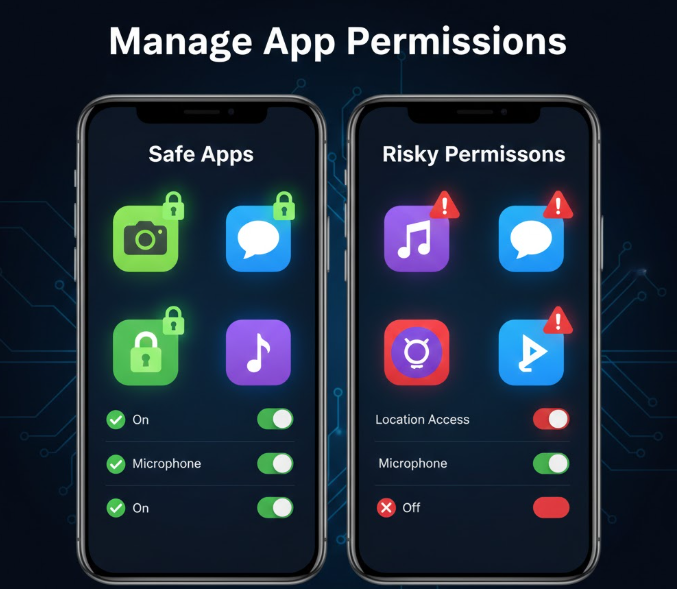
In today’s digital world, Android apps often request access to personal data and device features such as your camera, microphone, location, contacts, and storage. While many of these permissions are necessary for apps to function correctly, granting unnecessary permissions can compromise your privacy and security.
Managing app permissions is essential to protect your data, reduce risks of malware, and maintain control over your Android device. This guide explains what permissions are, how to manage them step by step, and tips for staying secure.
Why App Permissions Matter
Apps request permissions for legitimate reasons, but excessive access can create security and privacy risks. Here’s why it matters:
-
Protect Your Personal Data – Some apps request access to sensitive information like contacts, SMS, or location.
-
Prevent Unauthorized Access – Apps with unnecessary permissions could misuse your device features.
-
Improve Device Security – Limiting permissions reduces exposure to potential malware.
-
Control App Behavior – You decide which app can access what features.
Understanding Different Types of App Permissions
Android categorizes permissions into two main types:
1. Normal Permissions
-
Required for app functionality, such as connecting to the internet.
-
These are automatically granted when installing the app.
-
Examples: Internet access, setting alarms, adjusting audio settings.
2. Dangerous Permissions
-
Access sensitive data or features, such as location, contacts, microphone, camera, or SMS.
-
Requires explicit approval from the user.
-
Examples:
-
Location: Track your GPS
-
Contacts: Access your phonebook
-
Microphone/Camera: Record audio or take photos
-
SMS: Read or send messages
-
Step-by-Step Guide to Manage App Permissions on Android
Android allows you to manage permissions for individual apps or by permission type.
Step 1: Access App Permissions
-
Open Settings on your Android device.
-
Scroll down and tap Apps or Apps & notifications.
-
Tap See all apps to view all installed apps.
Step 2: Manage Permissions for a Specific App
-
Select the app you want to manage.
-
Tap Permissions.
-
You will see a list of granted and denied permissions.
-
Toggle permissions on or off according to your preference.
Example:
-
A flashlight app does not need access to contacts or location. Deny unnecessary permissions while keeping essential ones active.
Step 3: Manage Permissions by Type
-
Go to Settings → Privacy → Permission Manager (name may vary by Android version).
-
Select a permission type, e.g., Location, Camera, or Microphone.
-
View which apps have requested access and adjust permissions:
-
Allow all the time
-
Allow only while using the app
-
Deny
-
This method is useful for batch managing permissions across multiple apps.
Step 4: Use Android’s Permission Reminders
Modern Android versions (Android 10 and above) remind you if an app hasn’t been used for a long time but still has permissions:
-
Go to Settings → Privacy → Permission Manager → Unused apps.
-
Review and revoke unnecessary permissions for apps you haven’t used recently.
Step 5: Revoke Permissions When Not Needed
-
Revoke dangerous permissions for apps that don’t need constant access.
-
For example:
-
Social media apps may not need location access all the time.
-
Messaging apps may only need contacts access when sending messages.
-
Step 6: Monitor App Behavior
-
Android allows you to monitor apps using permissions:
-
Settings → Privacy → Permission Manager → Permission Usage
-
-
Check which apps are accessing location, camera, or microphone recently.
-
Revoke permissions if the access seems unnecessary.
Step 7: Avoid Granting Permissions During Installation
-
On older Android versions, apps may request permissions during installation.
-
Carefully read permission requests and deny unnecessary ones.
-
On modern Android, permissions are requested when the app needs them, giving you more control.
Tips for Better App Permission Management
-
Install Apps from Trusted Sources Only
-
Use Google Play Store or official app stores to reduce the risk of malicious apps.
-
-
Regularly Review Permissions
-
Check permissions monthly to ensure apps haven’t acquired unnecessary access.
-
-
Use Limited Access Options
-
Grant temporary permissions when possible. Android allows location or camera access only while using the app.
-
-
Uninstall Unused Apps
-
Old apps may still have access to your sensitive data. Removing them reduces exposure.
-
-
Enable Google Play Protect
-
Google Play Protect scans apps for malware and warns about risky permissions.
-
Settings → Security → Google Play Protect → Enable.
-
Common Issues and How to Fix Them
Problem 1: App Won’t Function After Revoking Permissions
Solution:
-
Some apps require certain permissions to work.
-
Re-enable the necessary permissions in Settings → Apps → Permissions.
Problem 2: Android Shows Persistent Permission Requests
Solution:
-
Check if the app is outdated. Update it via the Play Store.
-
Reinstall the app if the issue persists.
Problem 3: Accidental Permission Denial
Solution:
-
Go to Settings → Apps → Permissions and re-grant the required permissions.
FAQ
Can I completely block apps from accessing my location?
Yes, you can deny location access for specific apps or globally disable location services under Settings → Location.
Will revoking permissions break my apps?
Some apps require specific permissions to function. For instance, a navigation app needs location access. Only revoke permissions that are not essential.
How often should I review app permissions?
At least once a month or after installing new apps. Android reminders also help identify unused permissions.
Do Android versions differ in permission management?
Yes. Android 10 and above have more granular permission controls and temporary access options, while older versions grant permissions mostly at install time.
Can malware exploit permissions?
Yes. Granting excessive permissions to unknown apps increases the risk of data theft, spyware, and malware.
Conclusion
Managing app permissions on Android is a simple but essential step to protect your privacy and device security. By understanding the difference between normal and dangerous permissions, reviewing them regularly, and using Android’s built-in tools, you can:
-
Prevent unauthorized access to personal data
-
Reduce security risks
-
Optimize app performance
Take control of your app permissions today and ensure that your Android device stays safe, private, and efficient.