
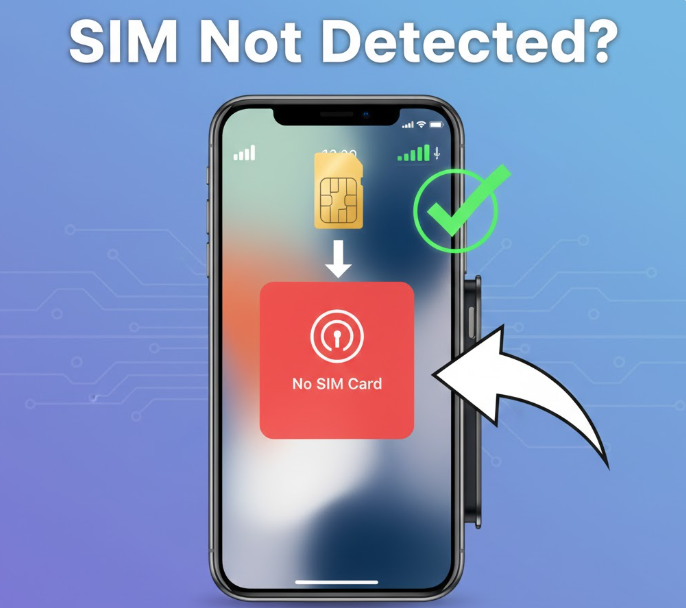
Seeing “No SIM” or “SIM Card Not Detected” on your iPhone can be frustrating. Without a SIM card, your iPhone can’t make calls, send texts, or use cellular data.
Fortunately, most SIM card issues are fixable, whether they’re caused by the SIM itself, software glitches, or network settings. This guide walks you through the reasons behind the problem and step-by-step solutions to get your iPhone back online.
Why Your iPhone Shows “SIM Card Not Detected”
This message usually appears when your iPhone cannot communicate with the SIM card. Common reasons include:
-
Improper SIM card placement – The SIM is not seated correctly.
-
Dirty or damaged SIM – Dust, scratches, or moisture can prevent connection.
-
Software glitches – Bugs in iOS can interfere with SIM detection.
-
Carrier or network issues – Temporary service outages or incorrect settings.
-
Hardware problems – A damaged SIM slot or internal iPhone component.
Identifying the cause helps determine the correct fix.
Step-by-Step Fixes for SIM Card Not Detected on iPhone
Step 1: Restart Your iPhone
A simple restart often resolves temporary software glitches:
-
Press and hold the Power button and either volume button (iPhone X and later) or just the Power button (iPhone SE and earlier).
-
Slide to power off.
-
Wait 10–15 seconds, then turn the iPhone back on.
Step 2: Check the SIM Card
Improper SIM placement is a common culprit:
-
Power off your iPhone.
-
Use a SIM ejector tool or paperclip to remove the SIM tray.
-
Inspect the SIM for dirt or scratches.
-
Reinsert the SIM securely into the tray.
-
Power on your iPhone.
Step 3: Clean the SIM Card and Tray
Dust or debris can block the SIM from making contact:
-
Remove the SIM card.
-
Gently wipe it with a soft, dry cloth.
-
Blow lightly into the SIM tray to remove dust.
-
Reinsert the SIM and restart your phone.
Step 4: Toggle Airplane Mode
Turning Airplane Mode on and off can reset your iPhone’s network connections:
-
Open Control Center.
-
Tap the Airplane Mode icon to enable it.
-
Wait 30 seconds, then tap it again to disable.
-
Check if the SIM is detected.
Step 5: Update iOS and Carrier Settings
Outdated software can cause SIM detection problems:
-
Go to Settings → General → Software Update.
-
Install any available updates.
-
To update carrier settings:
-
Go to Settings → General → About.
-
If an update is available, a prompt will appear.
-
Keeping iOS and carrier settings current ensures your iPhone works correctly with your mobile network.
Step 6: Remove Case or Accessories
Some cases or third-party accessories can press against the SIM tray and prevent proper connection. Remove the case and check if the SIM is detected.
Step 7: Try Another SIM Card
To determine whether the issue is with the SIM or the iPhone:
-
Insert a different, working SIM into your iPhone.
-
If it works, your original SIM may be damaged.
-
Contact your carrier for a replacement SIM if needed.
Step 8: Reset Network Settings
If the issue persists, resetting network settings can help:
-
Go to Settings → General → Reset → Reset Network Settings.
-
Enter your passcode and confirm.
-
Reconnect to Wi-Fi networks and check the SIM.
⚠️ Note: This will remove saved Wi-Fi networks, Bluetooth connections, and VPN settings.
Step 9: Check for Carrier Outages
Sometimes the problem is not your iPhone but the network:
-
Visit your carrier’s website or social media to see if outages are reported.
-
Call customer support to confirm network availability and account status.
Step 10: Inspect for Hardware Issues
If the SIM works in another device but your iPhone still cannot detect it:
-
The SIM tray or internal components may be damaged.
-
Visit an Apple Authorized Service Provider or Apple Store for inspection.
Tips to Prevent SIM Detection Issues
-
Handle SIM cards carefully and insert them correctly.
-
Keep the SIM card and tray clean.
-
Avoid using damaged or incompatible SIM cards.
-
Regularly update iOS and carrier settings.
-
Remove cases or accessories that may press on the SIM tray.
FAQ
Why does my iPhone say SIM card not detected even after reinserting it?
It could be a damaged SIM, a software glitch, or a hardware issue. Try cleaning the SIM, updating iOS, or testing another SIM card.
Can a new SIM card solve this problem?
Yes. A faulty SIM is one of the most common causes. Replacing it usually resolves the issue.
Will updating iOS fix SIM detection issues?
Yes. Updates include bug fixes and carrier settings improvements that can resolve detection problems.
Could a phone case or accessory affect the SIM?
Yes. Cases that press on the SIM tray can cause the phone not to detect the SIM.
What if the SIM tray or phone is damaged?
If the SIM card works in another device but not your iPhone, you may need a repair at an Apple Store or authorized service center.
Conclusion
A “SIM Card Not Detected” error on iPhone is frustrating but usually solvable. Start with simple steps like restarting the phone, reinserting the SIM, and cleaning it. If the problem persists, try network resets, software updates, or contacting your carrier.
Following this guide will help you restore mobile connectivity quickly and avoid repeated issues.

