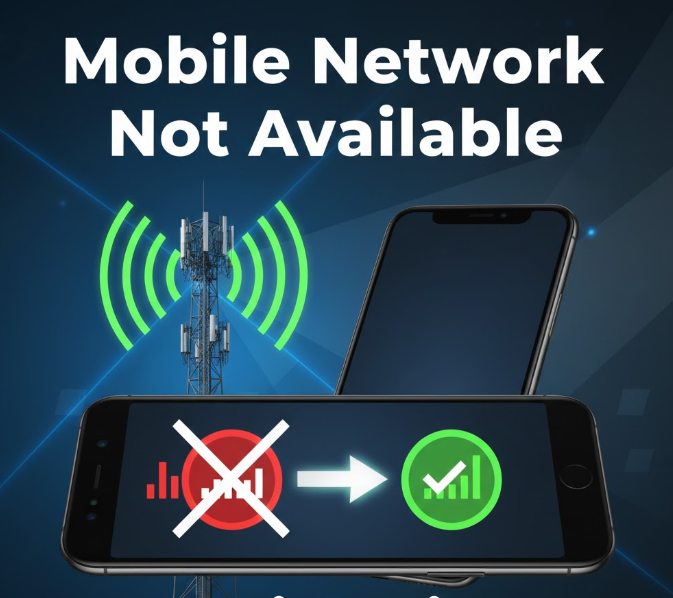
Nothing is more frustrating than seeing “Mobile Network Not Available” on your phone. Whether it’s during an important call or when you’re trying to browse, losing your network connection can leave you disconnected from the world.
The good news? This issue is usually fixable. This guide explains why it happens, how to troubleshoot it, and step-by-step solutions to get your network back quickly.
Why the “Mobile Network Not Available” Error Occurs
When your phone shows this message, it essentially means it cannot connect to your carrier’s network. This can happen due to multiple reasons:
-
Weak signal or coverage issues – Being far from a cell tower or in an area with poor reception.
-
SIM card problems – Damaged, improperly inserted, or inactive SIM card.
-
Phone network settings – Incorrect network mode or manual network selection.
-
Carrier outages – Temporary network issues from your mobile operator.
-
Software bugs or outdated firmware – Glitches in the phone system preventing connection.
-
Hardware issues – Problems with your phone’s antenna or internal components.
Identifying the root cause is key to applying the right solution.
Step-by-Step Fixes for Mobile Network Not Available
Below are solutions starting from the simplest fixes to more advanced troubleshooting.
Step 1: Restart Your Phone
Sometimes, a simple restart can refresh the network connection.
-
Press and hold the Power button.
-
Tap Restart or Power off, then turn the phone back on.
This clears temporary glitches and reconnects your device to the network.
Step 2: Check Your SIM Card
A malfunctioning SIM card is a common cause of this error.
-
Turn off your phone.
-
Remove the SIM card carefully.
-
Inspect it for scratches, dust, or damage.
-
Reinsert it properly.
-
Turn your phone back on.
If the problem persists, try inserting the SIM card into another phone to check if it works. If it doesn’t, contact your carrier for a replacement SIM.
Step 3: Toggle Airplane Mode
Airplane Mode can help reset network connections.
-
Swipe down from the top of the screen (Android) or Control Center (iPhone).
-
Turn Airplane Mode on for 30 seconds.
-
Turn it off and wait for your phone to reconnect.
This often resolves temporary network issues.
Step 4: Manually Select Your Network
Sometimes your phone fails to automatically select your carrier’s network.
Android:
-
Go to Settings → Network & Internet → Mobile Network → Network Operators
-
Select Search Networks
-
Choose your carrier manually
iPhone:
-
Go to Settings → Cellular → Network Selection
-
Turn off Automatic
-
Select your network manually
Step 5: Reset Network Settings
If settings are misconfigured, resetting them can help.
Android:
-
Go to Settings → System → Reset Options → Reset Wi-Fi, Mobile & Bluetooth
-
Confirm and restart
iPhone:
-
Go to Settings → General → Reset → Reset Network Settings
-
Enter your passcode and confirm
⚠️ Note: This will remove saved Wi-Fi passwords and Bluetooth pairings. Reconnect after the reset.
Step 6: Update Phone Software and Carrier Settings
Outdated software or carrier updates can interfere with network connectivity.
-
Go to Settings → Software Update
-
Check for updates and install them
-
On iPhone: Settings → General → About to check for carrier updates
Keeping your device updated ensures better compatibility with your mobile network.
Step 7: Check for Network Outages
Before taking further steps, confirm if your carrier is experiencing outages.
-
Visit your carrier’s official website or social media pages.
-
Call customer support to ask about regional network issues.
If it’s an outage, the solution is waiting until service is restored.
Step 8: Switch Network Modes
Sometimes, switching between 2G, 3G, 4G, or 5G can fix connection problems.
Android:
-
Settings → Mobile Network → Preferred Network Type → Select another option
iPhone:
-
Settings → Cellular → Cellular Data Options → Voice & Data → Change network type
Try switching modes if your usual network is unstable.
Step 9: Use a SIM or Network Booster
In areas with weak reception, consider using a signal booster to amplify mobile signals.
-
Home or office boosters are available for 3G/4G/5G signals.
-
They improve stability and reduce dropped connections.
Step 10: Contact Your Carrier or Repair Center
If all else fails:
-
Call your carrier for assistance. They can check your account, SIM, and tower connectivity.
-
If the SIM works in another device, the issue may be hardware-related.
-
Visit an authorized repair center to inspect your phone’s antenna and internal components.
Tips to Prevent Mobile Network Problems
-
Keep your device software and carrier updates current.
-
Avoid using damaged or old SIM cards.
-
Use Wi-Fi calling in areas with weak mobile coverage.
-
Consider a signal booster for locations with consistently poor reception.
-
Choose a network provider with good coverage in your area.
FAQ
Why does my phone say “Mobile Network Not Available” in some areas?
This usually happens due to weak or no signal. Moving to an area with better reception often fixes it.
Can a SIM card replacement solve this issue?
Yes. A faulty SIM card is a common cause of this error. Replacing it with a new one often restores network access.
Will updating my phone fix network issues?
Yes. Updates can fix software bugs and improve compatibility with your carrier.
Does Wi-Fi calling help if the network is unavailable?
Yes. Wi-Fi calling routes calls through your internet connection, bypassing weak cellular signals.
Could my phone hardware be the problem?
Yes. If the SIM works in another device, your phone’s antenna or internal components may be faulty.
Conclusion
A “Mobile Network Not Available” error is frustrating but usually fixable. Start with simple steps like restarting your phone or reinserting the SIM card, and gradually move to network resets, software updates, or contacting your carrier.
By following the steps above, you can restore connectivity, reduce dropped calls, and ensure a stable network experience.