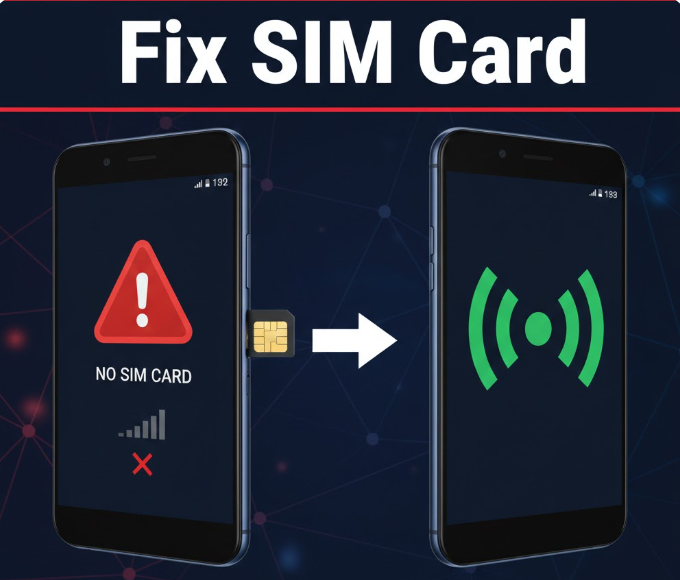
There’s nothing more frustrating than seeing “SIM Card Not Detected” on your Android device. Without a SIM, your phone cannot make calls, send texts, or use mobile data.
Fortunately, this is usually fixable, and the solutions range from simple adjustments to minor troubleshooting steps. This guide explains why it happens, what you can do, and how to prevent it in the future.
Why Your Android Says SIM Card Not Detected
When your phone cannot recognize the SIM card, it’s usually because of one of the following reasons:
-
SIM card not inserted properly – Even slightly misaligned, it won’t work.
-
Dirty or damaged SIM card – Dust, scratches, or moisture can block connectivity.
-
Software glitches – Temporary bugs can prevent your device from reading the SIM.
-
Network or carrier issues – Problems with your service provider may make the SIM undetectable.
-
Phone hardware issues – Faulty SIM slot or internal components.
Identifying the cause helps you choose the right solution.
Step-by-Step Fixes for SIM Card Not Detected
Step 1: Restart Your Android Device
The simplest solution often works:
-
Press and hold the Power button.
-
Tap Restart.
-
Wait for the phone to boot and check if the SIM is detected.
Restarting clears temporary software glitches that can interfere with the SIM card.
Step 2: Check the SIM Card Placement
Sometimes, the SIM is simply not seated correctly:
-
Power off your phone.
-
Remove the SIM card tray.
-
Carefully remove the SIM card.
-
Reinsert it properly, ensuring it sits flush in the tray.
-
Power on the phone and check connectivity.
Step 3: Clean the SIM Card
Dirt or dust can prevent proper contact:
-
Remove the SIM card.
-
Wipe it gently with a soft, dry cloth.
-
Avoid using liquids.
-
Reinsert the SIM card.
This often resolves detection issues caused by dirt.
Step 4: Try Another SIM Card
To check if the issue is with your phone or SIM:
-
Insert a different, working SIM into your device.
-
If the phone detects it, your original SIM may be damaged.
-
Contact your carrier for a replacement SIM if necessary.
Step 5: Enable Airplane Mode and Disable It
Toggling Airplane Mode can reset your network connections:
-
Swipe down to open Quick Settings.
-
Turn Airplane Mode on for 30 seconds.
-
Turn it off and wait for your SIM to reconnect.
Step 6: Reset Network Settings
Resetting network settings fixes configuration issues:
Steps:
-
Go to Settings → System → Reset Options → Reset Wi-Fi, Mobile & Bluetooth
-
Confirm the reset.
-
Reinsert the SIM card if necessary.
Note: This will remove saved Wi-Fi networks and Bluetooth pairings.
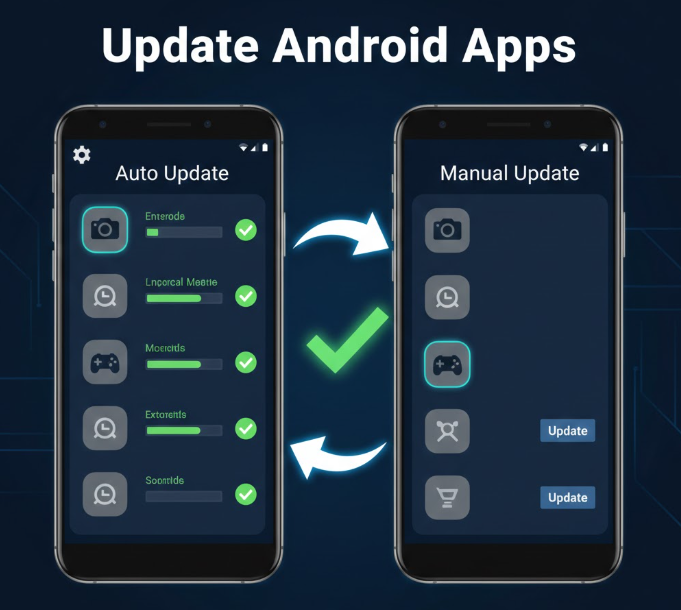
Step 7: Update Your Phone Software
Software bugs can cause SIM detection issues:
-
Go to Settings → System → Software Update
-
Check for updates and install them.
-
Restart your phone and check the SIM.
Keeping your device updated ensures better compatibility with carriers.
Step 8: Check Carrier and Network Settings
Sometimes the problem is with your carrier:
-
Ensure your account is active and in good standing.
-
Contact your carrier to verify network settings.
-
Ask if there’s a temporary outage in your area.
Step 9: Inspect for Hardware Damage
If the SIM card is fine, your phone’s SIM slot or internal components might be damaged:
-
Look for bent pins in the SIM tray.
-
If the SIM slot is damaged, take your phone to an authorized repair center.
Step 10: Use Safe Mode to Identify Third-Party App Conflicts
Some apps interfere with network connectivity:
-
Press and hold the Power button.
-
Tap and hold Power off, then choose Reboot to Safe Mode.
-
Check if the SIM is detected.
If it works in Safe Mode, a recently installed app may be causing the issue. Uninstall suspicious apps and reboot normally.
Tips to Prevent SIM Card Detection Issues
-
Always insert the SIM card carefully.
-
Avoid bending or scratching the SIM.
-
Keep your phone updated with the latest software.
-
Remove SIM dust with a soft, dry cloth periodically.
-
Use only compatible SIM cards for your device.
FAQ
Why does my Android say SIM card not detected even after reinserting it?
It could be a damaged SIM, a software bug, or hardware issue. Try cleaning the SIM, resetting network settings, or testing another SIM.
Can a new SIM card fix this problem?
Yes. A faulty or damaged SIM is a common cause, and replacing it usually solves the issue.
Will updating my phone fix SIM detection problems?
Often, yes. Updates include bug fixes that improve SIM card compatibility.
What if the SIM slot is damaged?
You’ll need a professional repair. Attempting DIY fixes can cause more damage.
Can apps cause SIM detection issues?
Yes. Some apps interfere with network services. Testing in Safe Mode can help identify the culprit.
Conclusion
A “SIM Card Not Detected” error is frustrating, but most cases are easily fixable. Start with simple steps like restarting the phone, reinserting the SIM, and cleaning it. If that doesn’t work, move on to network resets, software updates, or contacting your carrier.
By following this guide, you can restore mobile connectivity quickly and prevent similar issues in the future.