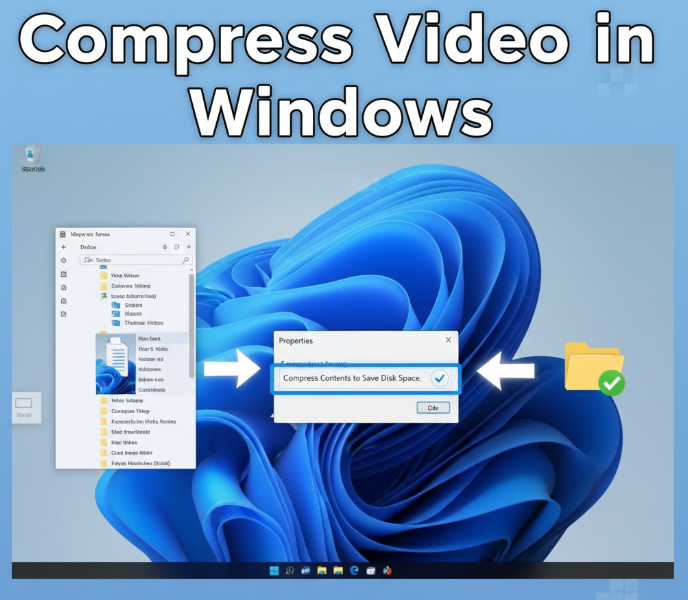
Videos are great for capturing memories, tutorials, or work projects—but they can take up a lot of storage space. If you need to save space or make a video easier to share, compressing it is the solution.
In this guide, we’ll go through everything you need to know about compressing videos on Windows, including simple methods for beginners and more advanced options for better control.
Why Compress Videos?
Before we start, it’s worth understanding why video compression is useful:
-
Save storage space – large videos can eat up your hard drive quickly.
-
Faster sharing – compressed videos upload and download faster.
-
Compatibility – some platforms or email services limit file sizes.
-
Better streaming – smaller files stream more smoothly.
Things to Know About Video Compression
Compression reduces file size, but there’s a tradeoff:
-
High compression → smaller file size but lower quality
-
Low compression → better quality but larger file size
The goal is to find a balance that works for your needs.
Method 1: Compress Video Using VLC Media Player (Free & Easy)
VLC is a free, widely used media player that can also compress videos.
Steps:
-
Download and install VLC Media Player if you don’t have it.
-
Open VLC.
-
Click Media → Convert / Save.
-
Click Add and select your video.
-
Click Convert / Save.
-
Choose a profile (e.g., H.264 + MP3 for MP4 files).
-
Click Edit selected profile to adjust:
-
Resolution
-
Bitrate
-
Codec
-
-
Choose a destination folder.
-
Click Start.
VLC will compress your video while keeping it playable on most devices.
Method 2: Compress Video Using HandBrake (More Control)
HandBrake is a free, open-source video converter that allows advanced compression settings.
Steps:
-
Download and install HandBrake.
-
Open HandBrake.
-
Click Open Source and select your video.
-
Choose a Preset (e.g., Fast 1080p30 for HD).
-
Adjust video settings:
-
Codec: H.264 or H.265
-
Framerate: same as source
-
Quality: lower RF (rate factor) = higher quality; higher RF = smaller file
-
-
Select a destination folder.
-
Click Start Encode.
HandBrake provides a balance between size and quality, especially for high-resolution videos.
Method 3: Use Online Video Compressors (Quick & Simple)
If you don’t want to install software, online tools work too.
Steps:
-
Go to a trusted online video compressor (e.g., Clipchamp, VEED.io, Online UniConverter).
-
Upload your video.
-
Choose compression settings (resolution, quality).
-
Download the compressed video.
⚠️ Notes:
-
File size limits often apply (usually 500 MB – 1 GB free).
-
Uploading large files can take time.
-
Avoid uploading sensitive videos to unknown websites.
Method 4: Compress Using Windows 11 Built-in “Video Editor”
Windows 11 includes a basic Video Editor in the Photos app, which can export videos in smaller sizes.
Steps:
-
Open Photos → Video Editor.
-
Click New Video Project → Add your video.
-
Drag video to the timeline.
-
Click Finish Video → Choose Low, Medium, or High quality.
-
Save the video.
This is very simple but doesn’t offer advanced settings.
Tips for Effective Video Compression
-
Reduce resolution: 1080p → 720p if acceptable
-
Lower bitrate: smaller files, slightly lower quality
-
Shorten unnecessary sections: trimming reduces file size
-
Use modern codecs: H.265 compresses better than H.264
-
Batch compress: if you have multiple videos, apps like HandBrake can process them all
Common Problems and How to Fix Them
Compressed Video Looks Blurry
-
Lower compression level
-
Keep higher resolution if needed
Video Won’t Play After Compression
-
Use a standard format like MP4
-
Use VLC to test playback
Compression Takes Too Long
-
Reduce video resolution or length
-
Use a faster computer or optimized software
FAQ
Can I compress a video without losing quality?
Yes, but the reduction will be modest. Using efficient codecs like H.265 helps.
Will compressing videos affect sound?
If audio bitrate is reduced, quality may drop slightly. Keep it at 128–192 kbps for good sound.
Can I compress large 4K videos on Windows?
Yes, but compression will take longer. HandBrake or professional tools are recommended.
Are online compressors safe?
Only use trusted websites. Avoid uploading sensitive or private content to unknown platforms.
Conclusion
Compressing videos on Windows doesn’t need to be complicated. Whether you want a quick free method using VLC or an advanced approach using HandBrake, there’s a solution for every skill level.
The key is to balance file size and quality based on your needs. For casual sharing, online tools are perfect; for serious projects, software like HandBrake is your best choice.
Once you understand the tools and settings, video compression becomes a quick, painless part of your workflow.