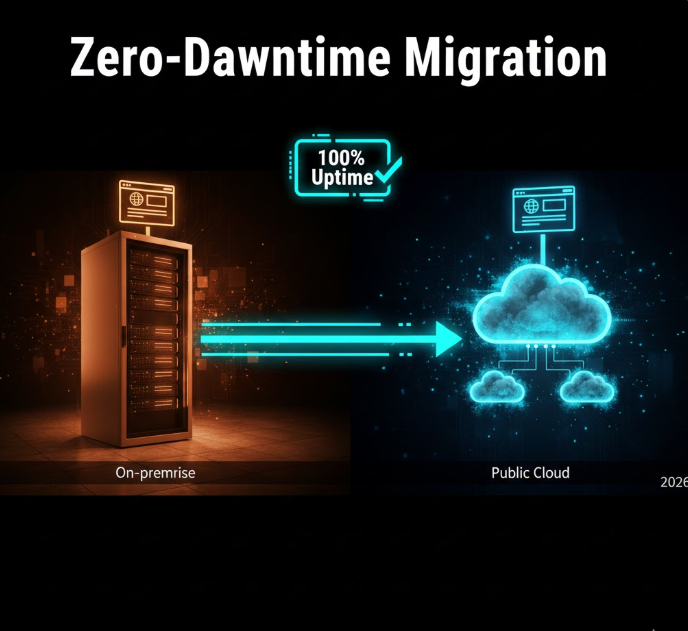
Migrating a website to cloud hosting can feel intimidating especially when uptime matters. Whether you run a business website, an e-commerce store, or a content platform, even a few minutes of downtime can mean lost revenue, broken user trust, and SEO headaches.
The good news is that zero-downtime (or near-zero-downtime) migration is achievable when done properly. In 2026, modern cloud platforms, DNS tools, and deployment practices make it easier than ever if you follow the right process.
This guide explains how website migrations actually work, the safest strategies to avoid downtime, and common mistakes to avoid. It’s written for real people, not for marketing hype.
What “Downtime” Really Means in Website Migration
Downtime occurs when:
-
Visitors cannot access your site
-
Pages load with errors
-
Databases are unavailable or inconsistent
-
Forms, logins, or payments fail
True zero downtime means users never notice the migration happening. In practice, the goal is seamless transition, where traffic switches quietly from the old server to the new one.
Why Websites Experience Downtime During Migration
Downtime usually happens due to:
-
DNS changes propagating incorrectly
-
Files or databases not fully synced
-
Different server configurations
-
Hard-coded paths or environment settings
-
Testing directly on the live site
Avoiding downtime is less about speed and more about planning and staging.
Step 1: Prepare Before You Touch Anything
Successful migrations begin long before files are moved.
Audit Your Current Website
Make a list of:
-
Website files and directories
-
Databases and database users
-
Email accounts (if hosted on the same server)
-
SSL certificates
-
Background jobs or cron tasks
-
Caching and CDN services
Understanding what you’re moving prevents surprises later.
Choose the Right Cloud Hosting Environment
Select a cloud setup that matches or exceeds your current environment:
-
Same or newer OS version
-
Compatible PHP, Python, Node, or runtime versions
-
Similar database engine and version
-
Adequate storage and RAM
Migrating to a weaker environment increases failure risk.
Step 2: Create a Staging Copy of Your Website
Never migrate directly on the live site.
Set Up a Staging Environment
-
Deploy your cloud server
-
Configure the web server (Nginx, Apache, etc.)
-
Install required dependencies
-
Set up the database
This staging environment becomes your testing ground.
Copy Website Files
Transfer files using secure methods such as:
-
SFTP
-
Rsync
-
Backup restoration tools
-
Hosting control panels
At this stage, your original site stays fully live.
Step 3: Migrate and Sync the Database Safely
Databases change constantly especially on dynamic websites.
Initial Database Copy
-
Export the database from the old server
-
Import it into the cloud database
-
Update configuration files to connect to the new database
This creates a baseline copy.
Handle Ongoing Changes
If your site receives frequent updates:
-
Plan a short content freeze window, or
-
Perform a final database sync just before DNS switching
This ensures users don’t lose data during the transition.
Step 4: Test Everything on the Cloud Server
Testing is where downtime is truly prevented.
What to Test
-
Page loading speed
-
Internal and external links
-
Forms and contact pages
-
User logins and registrations
-
Shopping carts and checkout systems
-
Admin dashboards
-
Media uploads
-
Email sending (if applicable)
Test the site using:
-
Temporary URLs
-
Local hosts file mapping
-
Preview tools from your hosting provider
Users should not see the staging site yet.
Step 5: Set Up SSL and Security in Advance
SSL issues are a common cause of downtime.
Before switching traffic:
-
Install SSL certificates on the cloud server
-
Ensure HTTPS redirects work correctly
-
Verify security headers and firewalls
Do this before DNS changes so visitors don’t encounter warnings.
Step 6: Lower DNS TTL Ahead of Time
DNS controls where your domain points.
Why TTL Matters
TTL (Time To Live) determines how long DNS records are cached. High TTL values cause slow propagation.
What to Do
-
Lower TTL (for example, to 300 seconds) 24–48 hours before migration
-
This allows DNS changes to propagate quickly when you switch
This single step dramatically reduces downtime risk.
Step 7: Final Sync and Traffic Switch
Now comes the quiet transition.
Final Data Sync
-
Sync files that changed since the initial copy
-
Perform final database update if needed
Update DNS Records
-
Change A records or nameservers to the cloud server
-
Keep the old server running during propagation
During this phase:
-
Some users may hit the old server
-
Others may hit the new server
-
Both must work correctly
Step 8: Monitor Closely After Migration
Once traffic starts hitting the cloud server:
Monitor for:
-
Errors in logs
-
Broken pages
-
Database connection issues
-
Performance bottlenecks
Keep the old hosting active for at least 48–72 hours as a fallback.
Step 9: Decommission the Old Server (Carefully)
Only shut down the old server when:
-
Traffic has fully moved
-
No errors are reported
-
Backups are verified
Rushing this step can cause hidden downtime days later.
Common Mistakes That Cause Downtime
-
Migrating during peak traffic hours
-
Forgetting email services tied to hosting
-
Ignoring DNS TTL settings
-
Skipping staging tests
-
Not backing up before migration
-
Hard-coding server paths or IPs
Avoiding these mistakes is often more important than technical skill.
When Zero Downtime Is Not Fully Possible
Some scenarios require brief maintenance windows:
-
Large transactional databases
-
Real-time financial systems
-
Highly interactive platforms
In these cases:
-
Schedule migrations during low traffic
-
Display maintenance notices
-
Keep downtime minimal and transparent
Honest communication protects user trust.
Who Benefits Most from Cloud Migration?
-
Growing businesses needing scalability
-
Websites with variable traffic
-
Platforms requiring better reliability
-
Teams planning long-term expansion
Cloud hosting offers flexibility but only when migration is done correctly.
Final Thoughts
Migrating a website to cloud hosting without downtime is not about rushing it’s about preparation, testing, and careful execution.
By:
-
Using staging environments
-
Managing DNS intelligently
-
Keeping old systems live during transition
-
Testing thoroughly before switching traffic
You can move to the cloud smoothly, without users ever noticing.

