
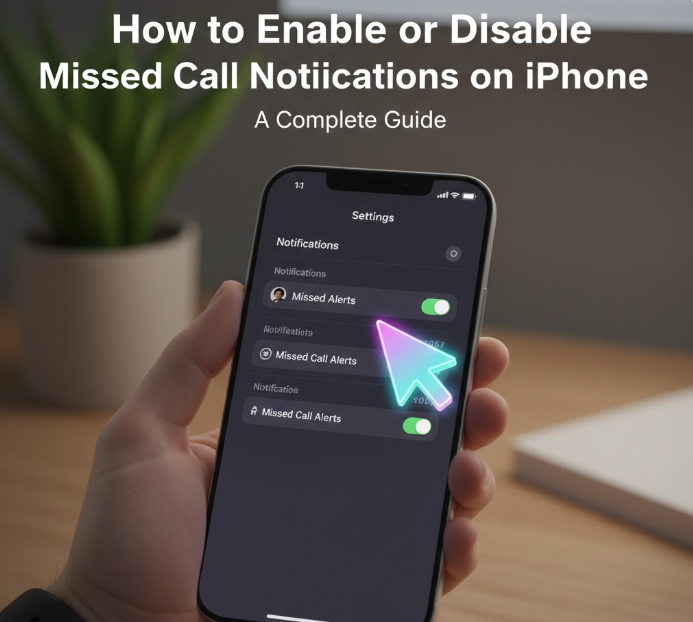
Missed calls happen to everyone, and keeping track of them is essential, especially if you rely heavily on your iPhone for personal or professional communication. Fortunately, Apple gives you full control over notifications, including those for missed calls. Whether you want to ensure you never miss a call or reduce notification distractions, this guide covers everything you need to know about managing missed call alerts on iPhone.
In this tutorial, we’ll walk you through step-by-step instructions, explain related settings, troubleshoot common issues, and share tips for using notifications effectively.
Understanding iPhone Notifications
iPhone notifications are messages, banners, or alerts that let you know about new activity. Missed call notifications are part of Call alerts, which work with the Phone app and sometimes with FaceTime.
Notifications can appear as:
-
Banners at the top of your screen
-
Lock screen alerts
-
Notification Center entries
-
Badge icons on the Phone app
Apple gives you flexibility to:
-
Enable or disable missed call notifications entirely
-
Choose alert style
-
Customize vibration and sound
Step 1: Enable or Disable Missed Call Notifications
Steps:
-
Open the Settings app on your iPhone
-
Scroll down and tap Notifications
-
Select Phone
-
Toggle Allow Notifications on or off:
-
On: Missed call alerts appear as banners, lock screen alerts, and notification center entries
-
Off: All notifications for the Phone app, including missed calls, are disabled
-
Tip: Turning off notifications does not block calls; it only hides alerts.
Step 2: Customize Alert Style
Apple allows you to choose how missed call alerts are displayed.
Steps:
-
Go to Settings > Notifications > Phone
-
Under Alerts, choose where notifications appear:
-
Lock Screen – Shows missed calls when your phone is locked
-
Notification Center – Keeps track of missed calls for later viewing
-
Banners – Temporary or persistent banners at the top of your screen
-
-
Toggle Sounds to enable or disable audible alerts
-
Toggle Badges to show a red number on the Phone app icon
Pro Tip: Use persistent banners if you often miss transient alerts.
Step 3: Set Up Vibration for Missed Calls
Vibrations help you notice missed calls without sound, especially in quiet or noisy environments.
Steps:
-
Go to Settings > Sounds & Haptics
-
Tap Ringtone or Text Tone
-
Tap Vibration
-
Choose a default vibration or create a custom pattern
-
Make sure Vibration is enabled even when the phone is on silent
Step 4: Enable Repeat Alerts (Optional)
iPhone allows repeated missed call notifications to ensure you notice important calls.
Steps:
-
Open Settings
-
Tap Phone
-
Tap Notifications (or Call Alerts in older iOS)
-
Find Repeat Alerts
-
Select how frequently alerts repeat:
-
Never
-
Every 2 minutes
-
Every 5 minutes
-
Every 10 minutes
-
Use Case: Repeat alerts are useful if you often miss calls while in meetings or driving.
Step 5: Enable Do Not Disturb Exceptions
If Do Not Disturb (DND) is active, notifications for missed calls may be suppressed. You can allow certain calls while DND is on.
Steps:
-
Go to Settings > Focus > Do Not Disturb
-
Tap People under Allowed Notifications
-
Add contacts whose calls should break through DND
-
Calls from these contacts will trigger notifications even when DND is on
Tip: This ensures you don’t miss urgent calls.
Step 6: Enable or Disable Announce Calls
iPhone can announce incoming calls using Siri, which can help you know who called without looking at your device.
Steps:
-
Go to Settings > Phone > Announce Calls
-
Choose from:
-
Always
-
Headphones & Car
-
Headphones Only
-
Never
-
Use Case: Useful when driving or using AirPods.
Step 7: Check Notifications for FaceTime Calls
Missed calls can also occur via FaceTime. To manage notifications:
-
Go to Settings > Notifications > FaceTime
-
Toggle Allow Notifications on or off
-
Choose alert style, sound, banners, and badges similar to Phone settings
Tip: This ensures you never miss video calls from work or family.
Step 8: Troubleshooting Missed Call Notifications
Even with correct settings, some users may not receive missed call alerts. Common issues include:
1. Check Notification Settings
-
Ensure Allow Notifications is on for Phone
-
Ensure alerts are enabled for Lock Screen, Banners, and Notification Center
2. Restart Your iPhone
-
Minor software glitches can prevent alerts
-
Hold the power button, slide to power off, and restart
3. Update iOS
-
Go to Settings > General > Software Update
-
Install any available updates to fix notification bugs
4. Check Focus or Do Not Disturb Settings
-
Ensure your current Focus mode allows Phone alerts
-
Verify Emergency Bypass settings for critical contacts
5. Reset Notification Settings
-
Go to Settings > General > Transfer or Reset iPhone > Reset > Reset All Settings
-
This resets system settings without deleting data
Step 9: Manage Notifications via Control Center
You can quickly check or silence notifications:
-
Swipe down from the top-right corner to open Control Center
-
Tap the bell icon to enable or disable DND
-
Missed call notifications will reappear once DND is off
Step 10: Advanced Tips for Managing Missed Calls
-
Use Widgets: Add a Phone or Contacts widget to your home screen to see recent calls.
-
Check Call History Regularly: Even without alerts, your call log stores missed calls.
-
Enable Visual Voicemail Alerts: Ensure voicemail notifications are active if someone leaves a message.
-
Customize Contact Ringtones: Assign special ringtones or vibration patterns for priority contacts.
-
Third-Party Apps: Some apps can enhance call notifications with additional alert options, but ensure they are reputable and iOS-compatible.
Frequently Asked Questions (FAQ)
1. Why am I not receiving missed call notifications?
Check Notification settings, Do Not Disturb, Focus mode, or software updates.
2. Can I set repeat alerts for specific contacts?
No, repeat alerts apply system-wide for all missed calls. However, you can assign unique ringtones or vibrations for contacts.
3. Will silent mode stop missed call notifications?
If Sounds & Haptics vibration is on, you will still get visual and vibration alerts. Banners will still appear on the screen.
4. How do I stop notifications temporarily?
Enable Do Not Disturb or Focus mode.
5. Can I receive missed call alerts on my Apple Watch?
Yes, notifications mirror your iPhone settings if connected. You can customize alerts on the Watch app.
Conclusion
Managing missed call notifications on your iPhone ensures that you never miss important calls while giving you control over distractions. By following this step-by-step guide, you can:
-
Enable or disable missed call notifications
-
Customize alerts, banners, and badges
-
Set vibrations and repeat alerts
-
Ensure DND exceptions for urgent contacts
-
Troubleshoot common issues
iPhone’s notification system is flexible and powerful. With the right settings, you can stay on top of your calls while avoiding unnecessary distractions.

