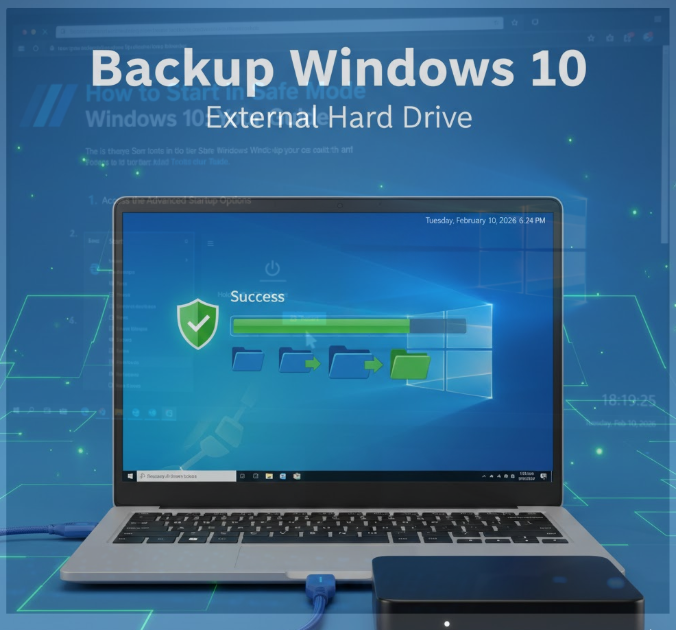
Backing up your Windows 10 PC is not optional anymore. Hardware failure, ransomware attacks, accidental deletion, Windows update crashes, or power surges can wipe out years of data in seconds. The safest and most reliable solution is backing up Windows 10 to an external hard drive.
In this complete guide, you’ll learn every safe and effective way to back up Windows 10 to an external drive, including system backups, file backups, automatic backups, and full recovery options.
No tech skills required. No skipped steps.
Why You Must Backup Windows 10 Regularly
Many people only think about backups after data loss happens—and by then, it’s too late.
Here’s what backups protect you from:
-
Hard drive failure
-
Malware and ransomware attacks
-
Accidental file deletion
-
Corrupted Windows updates
-
Laptop theft or damage
-
System crashes and boot failure
A proper backup lets you restore your files or your entire system in minutes.
What You Need Before Backing Up Windows 10
Before starting, make sure you have the following:
1. External Hard Drive
-
USB external HDD or SSD
-
Minimum size: 500 GB (1 TB recommended)
-
Faster option: SSD (but HDD is cheaper)
2. Windows 10 PC
-
Fully updated
-
Administrator access
3. Enough Time
-
First backup can take 30 minutes to several hours, depending on data size
Types of Windows 10 Backups (Important to Understand)
Windows 10 offers multiple backup methods, each serving a different purpose.
1. File Backup
Backs up:
-
Documents
-
Pictures
-
Videos
-
Desktop files
Best for: Personal data protection
2. System Image Backup
Backs up:
-
Windows OS
-
Installed programs
-
Settings
-
Drivers
-
Files
Best for: Full system recovery after crash or disk failure
3. Automatic Backup
Runs backups on a schedule without manual effort.
Best for: Ongoing protection
Method 1: Backup Windows 10 Using File History (Recommended for Most Users)
File History is Windows’ built-in tool for backing up personal files automatically.
Step 1: Connect Your External Hard Drive
-
Plug the external drive into your PC
-
Wait until Windows detects it
Step 2: Enable File History
-
Press Windows + I → open Settings
-
Go to Update & Security
-
Click Backup
-
Under Back up using File History, click Add a drive
-
Select your external hard drive
File History is now enabled.
Step 3: Choose What Gets Backed Up
-
Click More options
-
Review default folders:
-
Documents
-
Pictures
-
Videos
-
Desktop
-
-
Add or remove folders as needed
Step 4: Set Backup Frequency
You can choose:
-
Every 10 minutes
-
Hourly
-
Daily (recommended for most users)
You can also set how long backups are kept.
Step 5: Run Backup
Click Back up now to start the first backup.
Method 2: Create a Full System Image Backup (MOST IMPORTANT BACKUP)
A system image allows you to restore everything, even if Windows won’t boot.
Step 1: Open Backup and Restore (Windows 7)
-
Press Windows + S
-
Search for Control Panel
-
Go to Backup and Restore (Windows 7)
Yes—Windows 10 still uses this classic tool.
Step 2: Create a System Image
-
Click Create a system image
-
Select On a hard disk
-
Choose your external hard drive
-
Click Next
-
Confirm and start backup
This process may take 1–3 hours.
Step 3: Create a System Repair Disc (Optional)
Windows may ask to create a recovery disc.
-
Recommended if you don’t have a Windows USB installer
Method 3: Backup Windows 10 Manually (Quick & Simple)
This method is best if you only want a basic copy of files.
Steps:
-
Connect external hard drive
-
Open File Explorer
-
Go to:
-
Documents
-
Desktop
-
Pictures
-
-
Copy files
-
Paste into external drive
This does NOT back up system files or programs.
Method 4: Automatic Backup to External Drive (Set and Forget)
To automate backups using File History:
-
Keep external drive connected
-
File History runs automatically based on schedule
-
Windows backs up changes only (faster)
Best practice:
-
Plug in drive daily or weekly
How to Restore Files from External Hard Drive Backup
Restore Using File History
-
Go to Settings → Update & Security → Backup
-
Click More options
-
Select Restore files from a current backup
-
Browse versions
-
Click Restore
Restore Entire System Using System Image
-
Boot from Windows installation USB
-
Choose Repair your computer
-
Select System Image Recovery
-
Choose your external drive image
-
Restore system
Best Backup Strategy (Recommended)
Use two types of backups:
✔ File History (daily)
✔ System Image (monthly)
This protects both files and your OS.
Common Backup Problems & Solutions
External Hard Drive Not Showing
-
Try another USB port
-
Check Disk Management
-
Assign drive letter
Backup Failed or Stopped
-
Free up disk space
-
Disable antivirus temporarily
-
Restart backup service
Backup Is Too Slow
-
Use USB 3.0 port
-
Close heavy programs
-
First backup always takes longest
Backup vs Cloud Storage: Which Is Better?
| Feature | External Drive | Cloud Backup |
|---|---|---|
| One-time cost | Yes | Monthly |
| Speed | Fast | Internet dependent |
| Offline access | Yes | No |
| Full system restore | Yes | Limited |
Best approach: Use both if possible.
How Often Should You Backup Windows 10?
-
Daily: Important documents
-
Weekly: Personal files
-
Monthly: System image
Consistency matters more than frequency.
Is It Safe to Leave External Drive Connected?
Yes, but for ransomware protection:
-
Disconnect drive after backup
-
Keep offline when not in use
Frequently Asked Questions (FAQ)
1. Does backing up Windows 10 delete files?
No. Backup only copies data—it never deletes original files.
2. How much space do I need on my external drive?
At least 2x your used disk space is recommended.
3. Can I use a USB flash drive instead?
Only for small backups. External hard drives are better.
4. Can I backup Windows 10 without internet?
Yes. External drive backups work offline.
5. Does File History backup installed programs?
No. Use System Image Backup for programs.
6. Can I backup multiple PCs to one external drive?
Yes, but keep folders clearly labeled.
7. What happens if my external drive fails?
Your backup is lost—consider keeping two backups.
8. Can I restore backup to a new computer?
System images may not work across different hardware. File backups will.
9. Is Windows backup better than third-party tools?
For most users, Windows tools are enough.
10. How long does a full system backup take?
Anywhere from 30 minutes to several hours, depending on data size and drive speed.
Final Thoughts
Backing up Windows 10 to an external hard drive is one of the smartest things you can do. It protects your files, your time, and your peace of mind. Once set up, backups run quietly in the background and can save you from disaster.
If you value your data, don’t delay—set up your backup today.