Updating software is essential for improving security, adding new features, and enhancing system performance. However, software updates can sometimes lead to data loss, leaving users frustrated when important files, apps, or settings disappear.
This comprehensive guide explains why data loss occurs after software updates, how to recover lost data, and steps to prevent future data loss on Windows, macOS, iOS, and Android devices.
Understanding Data Loss After Software Updates
Data loss after an update can take several forms:
-
Missing photos, videos, or music
-
Deleted documents or downloads
-
Disappeared app data or settings
-
Corrupted files that cannot open
-
System or user accounts reset
Not all updates cause data loss, but certain factors can increase the risk.
Common Causes of Data Loss After Software Updates
Understanding the causes helps prevent recurrence.
1. Incomplete Update Installation
Interrupted updates may remove old files without fully installing new ones.
2. Software Bugs
Updates occasionally contain errors that overwrite or delete user data.
3. Storage Space Issues
Insufficient storage can prevent updates from completing and lead to temporary data loss.
4. Conflicting Apps or System Files
Certain apps or outdated drivers may interfere with updates.
5. Corrupted Backups
Restoring from a damaged backup can result in missing data.
6. User Error
Accidentally choosing “erase and update” or resetting settings during updates.
Step 1: Check for Backup
Before attempting recovery, see if you have a recent backup:
-
Windows: Check File History or OneDrive
-
macOS: Check Time Machine
-
iOS: Check iCloud or iTunes backups
-
Android: Check Google Drive or Samsung Cloud
If a backup exists, restoring it is often the fastest solution.
Step 2: Stop Using the Device
Continuing to use the device after data loss increases the risk of overwriting lost files.
-
Avoid downloading new apps or files
-
Minimize device activity
-
Turn off automatic updates temporarily
Tip: The more you use the device, the harder recovery becomes.
Step 3: Recover Data Using Built-in Tools
Windows
-
File History: Go to Settings > Update & Security > Backup > Restore files
-
Previous Versions: Right-click folder > Restore previous versions
macOS
-
Time Machine: Connect backup drive > Open Time Machine > Restore lost files
iOS
-
iCloud Backup: Go to Settings > General > Reset > Erase All Content and Settings, then restore from iCloud
-
iTunes Backup: Connect iPhone > Restore from backup in iTunes
Android
-
Google Drive Backup: Settings > System > Backup > Restore data
-
Samsung Cloud: Settings > Accounts and Backup > Restore
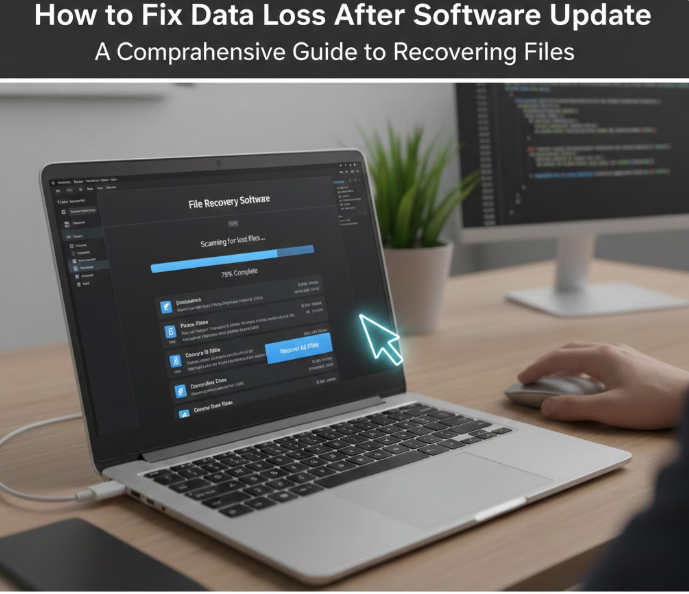
Step 4: Use Professional Data Recovery Software
If backups are unavailable, data recovery tools may help.
Recommended Tools
-
Windows: Recuva, EaseUS Data Recovery Wizard, Stellar Data Recovery
-
macOS: Disk Drill, EaseUS Data Recovery for Mac
-
iOS: Dr.Fone, Tenorshare UltData
-
Android: Dr.Fone, iMobie PhoneRescue
Steps:
-
Install software on a different drive to avoid overwriting data
-
Scan the affected drive or device
-
Preview recoverable files
-
Recover files to a separate drive
Tip: Recovery success decreases the longer the device is used after data loss.
Step 5: Check Cloud Services
Many apps automatically sync data:
-
Google Photos, Dropbox, OneDrive, iCloud Photos
-
Email apps may store messages on server
-
Note apps like Evernote or OneNote often have cloud backups
Check these services before attempting recovery.
Step 6: Restore App Data
Some apps store local data that may be recoverable:
-
WhatsApp: Restore from chat backup
-
Games: Restore cloud-synced progress
-
Office apps: Check recent files and auto-saved versions
Tip: Many apps offer in-app restore or recovery options.
Step 7: Reinstall Software Safely
Corrupted apps can cause perceived data loss.
-
Reinstall the app from official sources
-
Sign in to account if applicable
-
Restore from cloud backup or app’s internal backup
Step 8: Repair Corrupted Files
Some files may appear lost but are actually corrupted.
-
Windows: Use CHKDSK, SFC /scannow, or Windows Repair tools
-
macOS: Use Disk Utility > First Aid
-
iOS/Android: File recovery apps may repair partially corrupted files
Step 9: Update Drivers and Software
Outdated drivers can prevent proper access to files after an update.
-
Windows: Device Manager > Update drivers
-
macOS: Update via System Settings > Software Update
-
iOS/Android: Update OS and key apps
Step 10: Use Safe Mode
Booting in Safe Mode can help recover data blocked by system errors.
Windows
-
Restart > Press F8 / Shift + F8 or follow Advanced Startup
-
Boot into Safe Mode
-
Attempt recovery or restore backups
macOS
-
Restart > Hold Shift
-
Login > Access files and run recovery tools
Android/iOS
-
Limited Safe Mode exists (Android: Safe Mode via power button)
Step 11: Prevent Future Data Loss
Regular Backups
-
Windows: File History + OneDrive
-
macOS: Time Machine
-
iOS: iCloud or iTunes
-
Android: Google Drive / Samsung Cloud
Keep Software Updated Safely
-
Wait a few days for major OS updates to stabilize
-
Read update notes for known issues
Monitor Storage Space
-
Ensure sufficient free storage before updates
-
Delete unnecessary files regularly
Use Reliable Recovery Software
-
Avoid shady tools that may cause malware
-
Use trusted brands for recovery
Step 12: Frequently Asked Questions (FAQ)
Can I recover data lost after a major system update?
Yes, with backups, cloud services, or professional recovery software.
Why did I lose data after an update?
Common causes: incomplete update, software bugs, insufficient storage, corrupted files.
Is it safe to restore from backup after update?
Yes, restoring from a recent backup is the most reliable recovery method.
Can data recovery software fix everything?
Not always. Recovery success depends on usage after loss and file corruption.
How can I prevent data loss in the future?
Regular backups, sufficient storage, careful update procedures, and cloud sync are essential.
Step 13: Advanced Recovery Methods
If standard recovery fails, consider:
-
Professional data recovery services: For severely corrupted drives or phones
-
Command-line recovery tools: TestDisk, PhotoRec (Windows/macOS/Linux)
-
External drive recovery: Boot from USB or external drive to access lost files
Tip: These methods are advanced and may require technical knowledge.
Step 14: Handling Specific Devices
Windows PC
-
Use System Restore to revert system to pre-update state
-
Recover files using File History or Recuva
Mac
-
Restore from Time Machine backup
-
Use Disk Drill or Stellar Data Recovery for Mac
iPhone/iPad
-
Restore from iCloud or iTunes backup
-
Use recovery tools like Dr.Fone
Android
-
Restore Google Drive or Samsung Cloud backup
-
Use professional recovery software if backups are unavailable
Step 15: Tips for Safe Updating
-
Always back up before updates
-
Ensure enough storage for updates
-
Check internet stability for online updates
-
Avoid interrupting updates
-
Keep apps updated for compatibility
Conclusion
Data loss after a software update can be stressful, but most cases are recoverable with proper tools and steps. Key takeaways:
-
Always back up your device before updating
-
Identify the root cause: storage, corruption, software bugs
-
Use built-in recovery tools, cloud backups, or professional software
-
Prevent future data loss by monitoring storage and applying updates carefully
By following this step-by-step guide, you can recover lost data efficiently and minimize the risk of future data loss during updates.