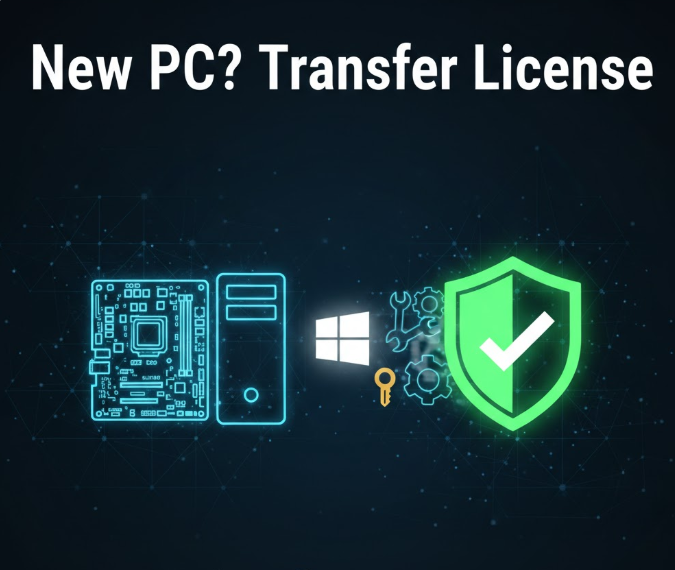
If you’re getting a new computer, upgrading hardware, or reinstalling Windows, you may wonder whether you can transfer your existing Windows 10 license instead of buying a new one.
The answer depends on what type of license you have and how it was originally activated.
This guide explains everything in simple terms and walks you through the process step by step.
Can a Windows 10 License Be Transferred?
Yes — but not all licenses are transferable.
Microsoft uses different license types, and each has its own rules.
Step 1: Check What Type of Windows 10 License You Have
This is the most important step.
How to Check Your License Type
-
Press Windows + R
-
Type cmd
-
Right-click Command Prompt → Run as administrator
-
Type the following command and press Enter:
A window will appear showing your license type.
Common License Types Explained
Retail License (Transferable)
-
Purchased separately (online or store)
-
Can be moved to another PC
-
Only active on one device at a time
OEM License (Not Transferable)
-
Came preinstalled on a laptop or desktop
-
Locked to the original motherboard
-
Cannot legally be transferred
Digital License (Microsoft Account)
-
Linked to your Microsoft account
-
Transfer depends on how it was obtained
-
Often transferable if originally retail
If your license is Retail, you can proceed.
Step 2: Link Your License to a Microsoft Account (If Not Already)
Linking makes reactivation much easier.
How to Link Your License
-
Open Settings
-
Go to Update & Security
-
Click Activation
-
Check if it says:
“Windows is activated with a digital license linked to your Microsoft account”
If not:
-
Sign in with your Microsoft account
-
Restart your PC
Step 3: Deactivate Windows on the Old PC
You should remove the license from the old computer before transferring it.
How to Deactivate Windows 10
-
Open Command Prompt as administrator
-
Type:
-
Press Enter
This removes the license key from the old device.
Your old PC will still work, but Windows will no longer be activated.
Step 4: Install Windows 10 on the New PC
Option A: During Installation
-
When asked for a product key, enter your Windows 10 key
Option B: After Installation
-
Install Windows 10 without a key
-
Go to Settings → Activation
-
Click Change product key
-
Enter your key
Step 5: Activate Windows 10 on the New Device
If activation does not happen automatically:
-
Open Settings
-
Go to Update & Security
-
Click Activation
-
Select Troubleshoot
-
Choose:
“I changed hardware on this device recently”
-
Sign in to your Microsoft account
-
Select the new device
-
Click Activate
This works best if your license was linked to your account.
What If Activation Fails?
Don’t panic. Try the following:
-
Make sure the old PC is no longer using the license
-
Confirm your license is Retail
-
Sign in with the same Microsoft account
-
Run the Activation Troubleshooter again
If it still fails, you may need a new license.
Common Scenarios Explained
Transferring to a New Laptop
✔ Works if the license is Retail
✖ Does not work if the old license was OEM
Replacing a Motherboard
✔ Usually works with Retail licenses
✖ OEM licenses usually fail activation
Reinstalling Windows on the Same PC
✔ Always allowed
Important Rules to Remember
-
One license = one active device
-
You cannot use the same license on two PCs at once
-
OEM licenses stay with the original hardware
-
Retail licenses belong to you, not the device
Is It Legal to Transfer Windows 10?
Yes — if the license type allows it.
Microsoft’s license terms permit:
-
Reinstalling
-
Moving Retail licenses
-
Hardware changes
They do not allow:
-
Selling OEM licenses separately
-
Using one license on multiple devices
What Happens If You Don’t Activate Windows?
Windows will still work, but:
-
You’ll see an activation watermark
-
Personalization options are limited
-
You may miss some updates
Activation is recommended.
Final Thoughts
Transferring a Windows 10 license is simple once you know the rules.
If your license is Retail:
-
Deactivate the old PC
-
Install Windows on the new one
-
Reactivate using your account or key
If it’s OEM:
-
A new license is required
Knowing the difference saves money and prevents activation headaches.