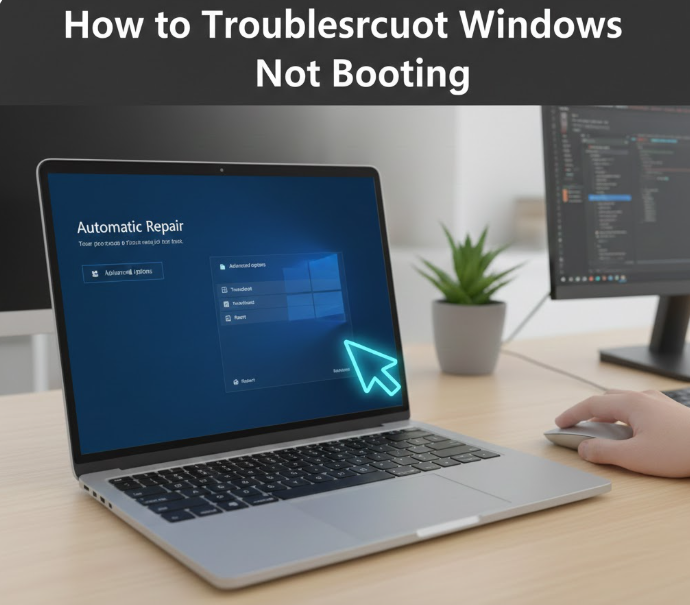
A Windows PC that won’t boot can be frustrating and alarming, especially if important files are stored on it. Whether your computer is stuck on a black screen, shows a spinning circle forever, or doesn’t turn on at all, Windows boot problems are common and often fixable without professional repair.
This comprehensive guide explains how to troubleshoot Windows not booting, covering causes, solutions, and preventive measures for Windows 10 and Windows 11 users.
What Does “Windows Not Booting” Mean?
When Windows is not booting, it means the operating system fails to load properly after you power on your computer. This can appear in several ways:
-
Black screen with no Windows logo
-
Stuck on the Windows logo
-
Endless spinning loading screen
-
“Preparing Automatic Repair” loop
-
Blue screen error before startup
-
PC turns on but never reaches the login screen
Common Reasons Windows Fails to Boot
Understanding the cause helps you apply the right fix. The most common causes include:
-
Corrupted system files
-
Failed Windows update
-
Faulty or outdated drivers
-
Hard drive or SSD issues
-
Incorrect BIOS/UEFI settings
-
Power interruptions
-
Malware or virus infections
-
Hardware changes or failures
Step 1: Perform Basic Checks First
Before attempting advanced fixes, try these simple checks:
Check Power and Connections
-
Ensure the power cable is firmly connected
-
If using a laptop, charge the battery
-
Remove external devices (USB drives, printers, external hard drives)
Restart the PC
Sometimes Windows fails to load due to a temporary glitch. Restart once or twice before proceeding.
Step 2: Try a Force Restart
A force restart can resolve temporary startup hangs.
-
Hold the Power button for 10 seconds to turn off the PC
-
Wait 30 seconds
-
Turn it back on
Repeat this process two or three times. This may trigger Windows Recovery Environment (WinRE).
Step 3: Boot into Windows Recovery Environment (WinRE)
If Windows does not start normally, WinRE allows access to repair tools.
How to Enter WinRE:
-
Turn on your PC
-
Force shutdown during startup (hold power button)
-
Repeat 2–3 times until “Preparing Automatic Repair” appears
Once inside WinRE:
-
Select Advanced options
-
Choose Troubleshoot
Step 4: Use Startup Repair
Startup Repair automatically fixes boot-related issues.
-
Go to Troubleshoot > Advanced options
-
Select Startup Repair
-
Choose your Windows account
-
Enter your password if prompted
Windows will scan and attempt to fix startup problems automatically.
Step 5: Boot into Safe Mode
Safe Mode starts Windows with minimal drivers and services.
Steps:
-
Go to Advanced options > Startup Settings
-
Click Restart
-
Press 4 or F4 for Safe Mode
-
Press 5 or F5 for Safe Mode with Networking
What to Do in Safe Mode:
-
Uninstall recently installed software
-
Remove faulty drivers
-
Run antivirus scans
-
Check system stability
If Windows boots in Safe Mode, the issue is likely caused by software or drivers.
Step 6: Uninstall Recent Windows Updates
Failed updates are a major cause of boot problems.
-
Go to Advanced options
-
Select Uninstall Updates
-
Choose:
-
Uninstall latest quality update or
-
Uninstall latest feature update
-
-
Restart your PC
Step 7: Restore Windows Using System Restore
System Restore reverts Windows to an earlier working state without deleting personal files.
-
Go to Advanced options
-
Select System Restore
-
Choose a restore point
-
Follow on-screen instructions
This is effective if the issue started after installing drivers or updates.
Step 8: Check and Repair Disk Errors
Disk errors can prevent Windows from booting.
-
Open Advanced options
-
Select Command Prompt
-
Type the following command and press Enter:
-
Wait for the scan to complete
-
Restart your computer
This scans and repairs file system errors and bad sectors.
Step 9: Repair Corrupted System Files
Corrupted system files can block startup.
-
Open Command Prompt from Advanced options
-
Run the command:
-
If that fails, run:
Restart after completion.
Step 10: Check BIOS/UEFI Settings
Incorrect BIOS settings can prevent Windows from loading.
What to Check:
-
Ensure correct boot order (Windows drive first)
-
Disable unnecessary boot devices
-
Set boot mode correctly (UEFI or Legacy)
To access BIOS:
-
Restart PC
-
Press DEL, F2, F10, or ESC (varies by manufacturer)
Step 11: Disconnect and Test Hardware
Faulty hardware can stop Windows from booting.
Try This:
-
Remove external devices
-
Reseat RAM sticks
-
Disconnect additional hard drives
-
Check for loose cables
If Windows boots after removing a component, that part may be faulty.
Step 12: Scan for Malware (If Accessible)
Malware can damage boot files.
-
Boot into Safe Mode with Networking
-
Use Windows Security or trusted antivirus
-
Run a full system scan
Step 13: Reset Windows (Last Resort)
If nothing works, resetting Windows may be necessary.
-
Go to Troubleshoot
-
Select Reset this PC
-
Choose:
-
Keep my files (recommended)
-
Remove everything (clean install)
-
This reinstalls Windows and fixes deep system issues.
When to Seek Professional Help
You should consider professional repair if:
-
Hard drive is not detected
-
BIOS does not recognize storage
-
PC powers on but shows no display
-
Hardware damage is suspected
How to Prevent Windows Boot Problems
-
Keep Windows updated
-
Install trusted software only
-
Regularly back up important files
-
Avoid forced shutdowns
-
Use reliable antivirus software
-
Maintain sufficient free disk space
Frequently Asked Questions (FAQ)
Why does Windows suddenly stop booting?
Common reasons include failed updates, corrupted system files, or hardware problems.
Can I fix Windows not booting without reinstalling?
Yes. Startup Repair, Safe Mode, System Restore, and Command Prompt tools often fix the issue.
Does resetting Windows delete my files?
Not if you choose Keep my files, but installed apps will be removed.
Can a virus stop Windows from booting?
Yes. Malware can corrupt boot files and system components.
How long does Startup Repair take?
Typically 5–15 minutes, depending on system condition.
Conclusion
When Windows is not booting, it doesn’t always mean your PC is permanently damaged. In many cases, the issue is caused by software conflicts, corrupted files, or failed updates—all of which can be resolved using built-in recovery tools.
By following this step-by-step troubleshooting guide, you can:
-
Identify the cause of boot failure
-
Apply safe and effective fixes
-
Restore Windows without losing data
-
Prevent future startup problems
This guide is suitable for Windows 10 and Windows 11 users and is ideal for tech blogs, troubleshooting hubs, and AdSense monetization.