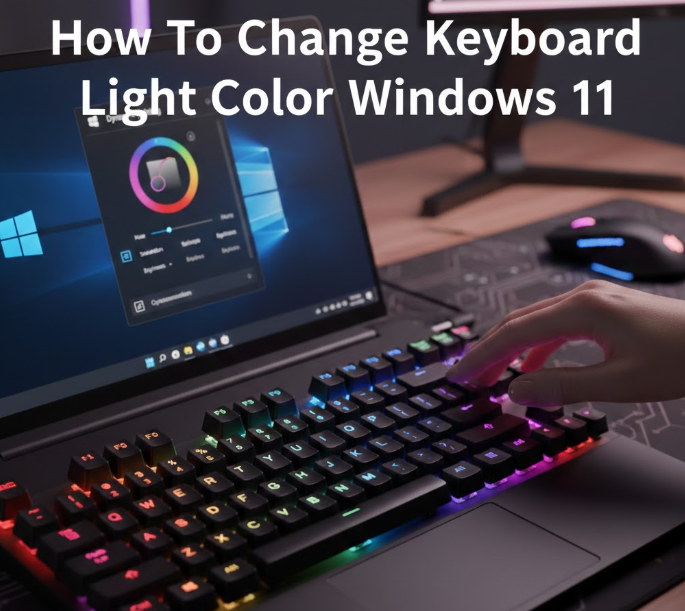
Many modern laptops and external keyboards come with RGB or backlit keyboards, allowing users to change the keyboard light color for better visibility, style, or gaming. If you’re using Windows 11, the process depends on your keyboard brand and whether it supports color customization.
This guide explains all working methods to change keyboard backlight color on Windows 11, including built-in settings, manufacturer software, and common troubleshooting tips.
Understanding Keyboard Backlight Types
Before changing colors, it’s important to know what type of keyboard you have.
1. Single-Color Backlit Keyboards
-
Usually white or blue light
-
Brightness can be adjusted
-
Color cannot be changed
2. RGB Keyboards
-
Support multiple colors
-
Allow effects like breathing, wave, or static color
-
Require software or keyboard shortcuts
If your keyboard is single-color, Windows 11 cannot change the color—only brightness.
Method 1: Change Keyboard Light Color Using Manufacturer Software
Most RGB keyboards require brand-specific software. Windows 11 itself does not control RGB colors for most devices.
For Laptop Keyboards
HP Laptops
-
Use HP OMEN Gaming Hub (for RGB models)
-
Open the app → Keyboard → Lighting
-
Choose color, zones, or effects
Dell / Alienware
-
Use Alienware Command Center
-
Go to FX Lighting → Keyboard
-
Customize colors and patterns
ASUS Laptops
-
Use Armoury Crate
-
Select Device → Lighting → Keyboard
-
Apply RGB effects or static colors
Lenovo Legion
-
Use Lenovo Vantage
-
Go to Input & Accessories → Keyboard Lighting
-
Choose color and brightness
For External RGB Keyboards
Most popular brands include software support:
| Brand | Software |
|---|---|
| Logitech | G Hub |
| Razer | Synapse |
| Corsair | iCUE |
| SteelSeries | GG Engine |
| HyperX | NGENUITY |
Steps:
-
Install the correct software
-
Connect your keyboard
-
Open the app
-
Select Lighting / RGB settings
-
Choose your desired color or effect
Method 2: Change Keyboard Light Color Using Keyboard Shortcuts
Some laptops allow color changes using function keys.
Common Key Combinations
-
Fn + Spacebar
-
Fn + F9 / F10
-
Fn + Arrow Keys
These shortcuts may:
-
Switch between preset colors
-
Change lighting effects
-
Adjust brightness
Note: Not all keyboards support color switching via shortcuts.
Method 3: Change Keyboard Backlight Using Windows 11 Settings (Limited Support)
Windows 11 has limited native keyboard lighting controls.
Steps:
-
Open Settings
-
Go to Personalization
-
Select Dynamic Lighting (if available)
-
Choose your keyboard
-
Change color and brightness
This feature only works with supported RGB keyboards and newer hardware.
Method 4: Adjust Keyboard Backlight Brightness
Even if color cannot be changed, brightness often can.
Ways to Adjust Brightness
-
Fn + Brightness key
-
Manufacturer software
-
BIOS settings (some laptops)
Brightness levels usually include:
-
Off
-
Low
-
Medium
-
High
Method 5: Check BIOS or UEFI Settings
Some laptops allow keyboard lighting control in BIOS.
Steps:
-
Restart your computer
-
Press F2, F10, DEL, or ESC during boot
-
Open Keyboard or Lighting settings
-
Adjust backlight options
-
Save and exit
This is more common on gaming laptops.
Common Reasons You Can’t Change Keyboard Color
-
Keyboard only supports one color
-
Required software is not installed
-
Outdated keyboard drivers
-
Unsupported hardware in Windows 11
-
RGB disabled in BIOS
Troubleshooting Tips
-
Update Windows 11 to the latest version
-
Install the latest keyboard software
-
Update device drivers
-
Restart after installing RGB software
-
Ensure the keyboard model supports RGB
Frequently Asked Questions
Can Windows 11 change keyboard color without software?
Only for limited supported devices. Most require manufacturer software.
Why is my keyboard light only white?
Your keyboard likely does not support RGB colors.
Can I use third-party RGB software?
Yes, but only if compatible with your keyboard model.
Do external keyboards work differently?
Yes. External keyboards almost always need brand-specific software.
Best Practices for Keyboard Lighting
-
Avoid maximum brightness all the time (saves battery)
-
Use static colors for work, effects for gaming
-
Keep software updated for best compatibility
Final Thoughts
Changing keyboard light color in Windows 11 depends entirely on your keyboard’s hardware capabilities. Windows 11 itself offers limited control, so manufacturer software is usually required for RGB customization.
If your keyboard supports RGB, you can easily customize colors, brightness, and effects for productivity or gaming. If it doesn’t, brightness control is often the only available option.