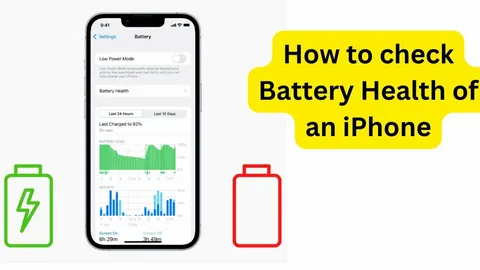
Keeping an eye on your iPhone’s battery life helps you avoid unexpected shutdowns and keeps your device running smoothly. Luckily, Apple makes it easy to check not only how much battery you have left, but also your battery’s overall health and which apps are draining power the fastest.
In just a few taps, you can monitor battery usage, enable power-saving features, and even find out whether your battery may need replacing.
How to Check Battery Life on iPhone
The steps below will help you check your current battery percentage, battery health, and app usage so you can better manage your iPhone’s performance.
Step 1: Open the Settings App
Tap the Settings app on your iPhone’s Home Screen.
The Settings app looks like a gray gear icon and acts as the control center for your device. From here, you can adjust everything from Wi-Fi to privacy settings and battery management.
Step 2: Tap “Battery”
Scroll down and tap Battery.
Inside the Battery section, you’ll find detailed information about your iPhone’s power usage, including battery percentage, app activity, and charging behavior.
Step 3: Check Your Battery Percentage
Look near the top-right corner of your screen or inside the Battery menu to see your remaining battery percentage.
If the percentage isn’t visible in the status bar, you can enable it by going to:
Settings > Battery > Battery Percentage
This makes it easier to keep track of your charge throughout the day.
Step 4: View Battery Health
Tap Battery Health & Charging.
Here, you’ll see important details about your battery’s condition, including:
- Maximum Capacity – shows how much charge your battery can hold compared to when it was new
- Peak Performance Capability – tells you whether your iPhone is operating normally
- Charging Optimization Settings – helps extend battery lifespan
A healthy battery usually stays above 80% maximum capacity.
Step 5: Review Battery Usage by Apps
Scroll down in the Battery menu to view battery usage statistics.
Your iPhone shows which apps consume the most power over the last 24 hours or 10 days. This can help you identify battery-hungry apps that may need adjustments.
For example:
- Social media apps often run heavily in the background
- Navigation apps use GPS continuously
- Streaming apps can quickly drain battery life
Step 6: Enable Low Power Mode (Optional)
Turn on Low Power Mode if your battery is running low.
This feature temporarily reduces background activity like downloads and mail fetching to help your battery last longer.
You can enable it through:
Settings > Battery > Low Power Mode
Or quickly through the Control Center.
What Happens After You Check Battery Life?
After following these steps, you’ll have a clear understanding of:
- How much battery you currently have
- Which apps use the most power
- Whether your battery is still healthy
- If you should consider replacing the battery
Monitoring these details regularly can improve your iPhone’s performance and help extend battery lifespan.
Tips for Improving iPhone Battery Life
Here are some simple ways to make your battery last longer:
- Lower screen brightness when indoors
- Turn on Auto-Brightness
- Use Wi-Fi instead of mobile data when possible
- Disable Background App Refresh for unnecessary apps
- Turn off location services for apps that don’t need it
- Keep your iPhone updated with the latest iOS version
- Avoid exposing your iPhone to extreme heat
- Use Low Power Mode during long days away from a charger
- Restart your iPhone occasionally to refresh system processes
Signs Your iPhone Battery May Need Replacement
You may want to replace your battery if you notice:
- Rapid battery drain
- Unexpected shutdowns
- Slow performance
- Overheating during normal use
- Battery Health below 80%
- Charging taking much longer than usual
Apple recommends battery replacement once battery health significantly declines.
Frequently Asked Questions
How often should I check my battery health?
Checking once every month or two is usually enough unless you notice performance issues or rapid battery drain.
What is considered good battery health?
Anything above 80% maximum capacity is generally considered healthy for normal use.
Why is my iPhone battery draining so fast?
Common causes include:
- Background apps
- High screen brightness
- Poor cellular signal
- Outdated software
- Location services
- Streaming or gaming apps
Does charging overnight damage the battery?
Modern iPhones use optimized charging to reduce battery wear, so overnight charging is generally safe.
Can Low Power Mode damage my phone?
No. Low Power Mode simply reduces background activity and is perfectly safe to use regularly.
Should I close apps to save battery?
Not always. Constantly force-closing apps can sometimes use more power when reopening them. Only close apps that are malfunctioning.
Quick Summary
- Open Settings
- Tap Battery
- Check battery percentage
- Open Battery Health & Charging
- Review app battery usage
- Enable Low Power Mode if needed
Conclusion
Knowing how to check battery life on your iPhone is one of the easiest ways to keep your device running at its best. Your battery is like the fuel tank of your phone—when it’s healthy, everything works smoothly. By regularly checking battery health and monitoring app usage, you can avoid frustrating shutdowns and extend the life of your device.
Small habits can make a big difference. Lowering brightness, updating iOS, and managing background apps all help preserve battery performance over time. And if your battery health drops too low, replacing the battery can make your iPhone feel almost new again.
Now that you know where to find all your battery information, take a minute to check your own iPhone and see how it’s holding up.