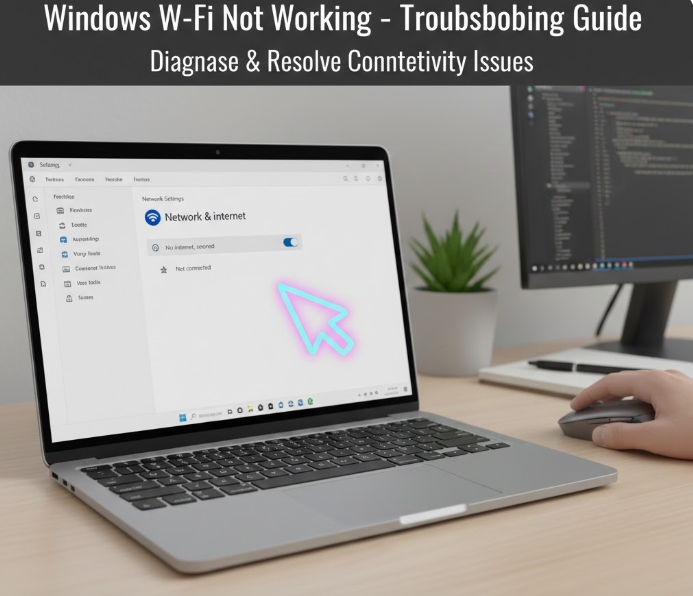
A stable Wi-Fi connection is essential for browsing, work, streaming, and communication. When Windows Wi-Fi is not working, it can quickly disrupt your day. Whether your PC can’t connect to a network, keeps disconnecting, shows “No networks available,” or has Wi-Fi turned off entirely, the issue is often fixable without professional help.
This comprehensive guide explains why Wi-Fi stops working on Windows, how to diagnose the problem, and step-by-step solutions to restore your internet connection on Windows 10 and Windows 11.
What Does “Windows Wi-Fi Not Working” Mean?
Windows Wi-Fi not working can appear in different ways, such as:
-
Wi-Fi option missing or turned off
-
“No Wi-Fi networks found” message
-
Connected to Wi-Fi but no internet access
-
Wi-Fi keeps disconnecting
-
Limited or no connectivity warning
-
Slow or unstable Wi-Fi connection
These issues can affect laptops, desktops with Wi-Fi adapters, and hybrid devices.
Common Causes of Wi-Fi Problems on Windows
Understanding the cause helps apply the right fix.
1. Disabled Wi-Fi Adapter
Wi-Fi may be turned off accidentally through settings or hardware switches.
2. Outdated or Corrupted Network Drivers
Faulty drivers are one of the most common causes of Wi-Fi issues.
3. Router or Modem Problems
The issue may be with the network equipment, not the PC.
4. Incorrect Network Settings
Corrupted IP or DNS settings can prevent internet access.
5. Windows Update Issues
Some updates can break network connectivity temporarily.
6. Airplane Mode Enabled
Airplane mode disables all wireless connections.
7. Malware or Security Software Conflicts
Firewalls or antivirus software may block Wi-Fi access.
Before You Start: Basic Checks
Always start with these simple steps:
-
Restart your PC
-
Restart your router and modem
-
Check if other devices can connect to the same Wi-Fi
-
Move closer to the router
-
Ensure Airplane Mode is turned off
If Wi-Fi still doesn’t work, continue with the steps below.
Step 1: Check If Wi-Fi Is Enabled
Sometimes Wi-Fi is disabled accidentally.
How to Check:
-
Click Start
-
Open Settings
-
Go to Network & Internet
-
Select Wi-Fi
-
Make sure Wi-Fi is turned On
Also check Control Center / Quick Settings for Wi-Fi toggle.
Step 2: Disable and Re-Enable the Wi-Fi Adapter
Resetting the adapter often fixes temporary glitches.
Steps:
-
Press Windows + R
-
Type
ncpa.cpland press Enter -
Right-click Wi-Fi
-
Select Disable
-
Wait 10 seconds
-
Right-click again and select Enable
Step 3: Run Windows Network Troubleshooter
Windows has a built-in tool to diagnose network issues.
Steps:
-
Open Settings
-
Go to Network & Internet
-
Select Network troubleshooter
-
Follow on-screen instructions
This can automatically fix common problems.
Step 4: Check Airplane Mode
Airplane mode disables Wi-Fi and Bluetooth.
Steps:
-
Open Settings
-
Go to Network & Internet
-
Select Airplane mode
-
Make sure it is Off
Step 5: Forget and Reconnect to the Wi-Fi Network
Corrupted saved networks can cause connection failures.
Steps:
-
Open Settings
-
Go to Network & Internet > Wi-Fi
-
Select Manage known networks
-
Click your Wi-Fi network
-
Select Forget
-
Reconnect by entering the password again
Step 6: Update Wi-Fi Drivers
Outdated drivers frequently cause Wi-Fi problems.
Steps:
-
Press Windows + X
-
Open Device Manager
-
Expand Network adapters
-
Right-click your Wi-Fi adapter
-
Select Update driver
-
Choose Search automatically for drivers
Restart your PC afterward.
Step 7: Roll Back Network Drivers
If Wi-Fi stopped working after a driver update:
-
Open Device Manager
-
Right-click the Wi-Fi adapter
-
Select Properties
-
Go to the Driver tab
-
Click Roll Back Driver (if available)
Step 8: Reset Network Settings
Resetting network settings fixes deep configuration issues.
⚠️ This removes saved Wi-Fi networks and VPNs.
Steps:
-
Open Settings
-
Go to Network & Internet
-
Select Advanced network settings
-
Click Network reset
-
Restart your PC
Step 9: Check IP and DNS Settings
Incorrect IP or DNS settings can block internet access.
Reset IP Settings:
-
Open Command Prompt as Administrator
-
Run:
Reset DNS Cache:
Restart your PC after running these commands.
Step 10: Disable Power Saving for Wi-Fi Adapter
Windows may turn off Wi-Fi to save power.
Steps:
-
Open Device Manager
-
Right-click Wi-Fi adapter
-
Select Properties
-
Go to Power Management
-
Uncheck “Allow the computer to turn off this device”
-
Click OK
Step 11: Temporarily Disable Antivirus or Firewall
Some security software may block internet access.
-
Disable third-party antivirus temporarily
-
Test Wi-Fi connectivity
-
Re-enable security software afterward
Step 12: Check Router and Modem Settings
If only your PC is affected, it’s likely a Windows issue. If all devices are affected:
-
Restart router and modem
-
Check router firmware
-
Reset router (last resort)
-
Contact your internet service provider
Step 13: Boot into Safe Mode with Networking
Safe Mode helps identify software conflicts.
Steps:
-
Restart PC
-
Enter Advanced startup
-
Choose Troubleshoot > Advanced options
-
Select Startup Settings
-
Restart and press F5
If Wi-Fi works in Safe Mode, a background app is likely causing the issue.
Step 14: Check for Hardware Problems
Hardware failure may be the cause if:
-
Wi-Fi adapter doesn’t appear in Device Manager
-
Wi-Fi option is completely missing
-
External USB Wi-Fi also fails
In such cases, professional repair or adapter replacement may be needed.
What NOT to Do
❌ Don’t install random “Wi-Fi fix” software
❌ Don’t repeatedly reset the router unnecessarily
❌ Don’t change advanced router settings blindly
❌ Don’t disable security permanently
How to Prevent Future Wi-Fi Issues
-
Keep Windows and drivers updated
-
Restart your PC weekly
-
Use reliable routers
-
Avoid overcrowded Wi-Fi channels
-
Use strong Wi-Fi passwords
-
Back up network settings when possible
Frequently Asked Questions (FAQ)
Why does my Wi-Fi say “Connected but no internet”?
This usually means IP or DNS issues, router problems, or ISP outages.
Why is Wi-Fi missing in Windows?
It may be disabled, the driver is missing, or the adapter is faulty.
Can Windows updates break Wi-Fi?
Yes, occasionally. Rolling back updates often fixes it.
Does network reset delete files?
No, it only resets network-related settings.
How do I know if my Wi-Fi adapter is faulty?
If it doesn’t appear in Device Manager or works intermittently even after driver updates, it may be failing.
When to Seek Professional Help
Seek professional help if:
-
Wi-Fi adapter is not detected
-
Hardware damage is suspected
-
Wi-Fi fails after Windows reset
-
Multiple network components fail
Conclusion
When Windows Wi-Fi is not working, the problem is usually caused by drivers, settings, or temporary system glitches rather than serious hardware failure. By following this step-by-step troubleshooting guide, you can:
-
Identify the cause of the issue
-
Restore Wi-Fi connectivity safely
-
Improve connection stability
-
Prevent future network problems
Start with basic checks, then move to advanced fixes only if needed.