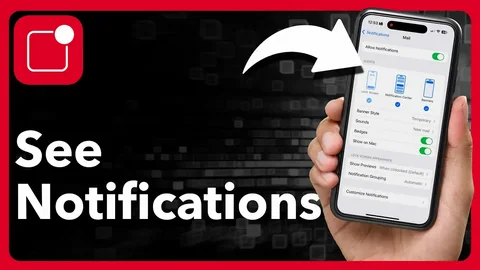
Notifications are one of the most important features on your iPhone, but they can quickly become overwhelming if you don’t know how to manage them properly. Whether you missed an alert, want to check old notifications, or customize what appears on your screen, this guide will show you exactly how to see notifications on iPhone in the simplest way possible.
Why iPhone Notifications Matter
Your notifications keep you updated on:
- Messages and calls
- App updates
- Emails and social media alerts
- Reminders and calendar events
But if not managed well, they can become distracting. That’s why learning how to view and control them is essential.
How to See Notifications on iPhone (Step-by-Step)
Follow these simple steps to view all your iPhone notifications quickly.
Step 1: Unlock Your iPhone
Start by unlocking your device using Face ID, Touch ID, or your passcode.
Once unlocked, you’re ready to access all recent alerts.
Step 2: Open the Notification Center
Swipe down from the top of your screen.
This opens the Notification Center, where all your recent alerts are stored in one place.
👉 Even missed notifications will appear here.
Step 3: Scroll Through Your Notifications
Browse through the list of notifications.
You will see alerts grouped by app, including:
- Messages
- WhatsApp or social apps
- Emails
- System alerts
Take your time to review what’s important.
Step 4: Open or Clear Notifications
You can interact with notifications in two ways:
- Tap to open and respond
- Swipe left to clear or manage them
This helps keep your notification panel clean and organized.
Step 5: Manage Notification Settings
To control what appears in the future:
Go to:
Settings → Notifications
From here, you can:
- Turn notifications on or off for apps
- Control alert styles
- Enable or disable sounds
- Customize previews
Bonus: How to Access Old Notifications on iPhone
If you think you missed something:
- Swipe down again to reopen Notification Center
- Scroll upward to view older alerts
iPhone keeps recent notifications until you clear them manually.
Best Tips to Manage iPhone Notifications Like a Pro
- Turn on Do Not Disturb during work or sleep
- Use notification grouping to reduce clutter
- Disable unnecessary app alerts
- Enable badge icons to see unread items
- Customize previews for privacy protection
Common Problems & Fixes
Why am I not getting notifications?
Check if:
- Do Not Disturb is enabled
- Notifications are disabled for the app
Can I recover cleared notifications?
Once cleared, notifications cannot be recovered.
Why are notifications delayed?
This may happen due to:
- Low Power Mode
- Poor internet connection
- Background app restrictions
Frequently Asked Questions (FAQ)
How do I quickly check notifications on iPhone?
Swipe down from the top of your screen to open Notification Center.
Can I see all past notifications?
Only recent notifications are stored until cleared.
How do I stop annoying notifications?
Go to Settings → Notifications and turn off unwanted apps.
Can I silence all notifications?
Yes, enable Do Not Disturb or Focus Mode.
Conclusion
Knowing how to see notifications on your iPhone helps you stay organized, productive, and in control of your digital life. Instead of being overwhelmed by constant alerts, you can now easily view, manage, and customize them to fit your lifestyle.
With just a few simple swipes and settings adjustments, your iPhone becomes a smarter and more focused device.
