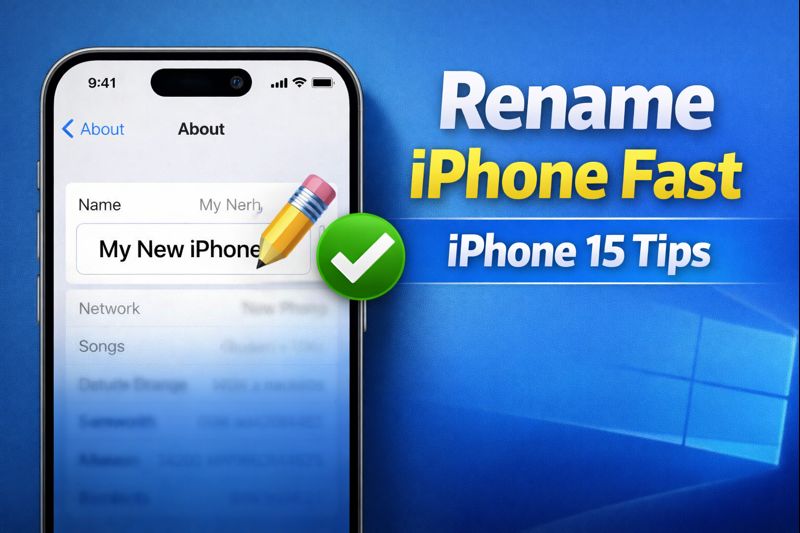
Your iPhone 15 comes with a default name assigned by Apple, usually in the format “iPhone” or “iPhone 15”. While this name works fine, renaming your device can make it easier to identify in iCloud, AirDrop, Bluetooth connections, or Wi-Fi networks. Whether you have multiple Apple devices or simply want a personal touch, renaming your iPhone is quick and straightforward.
This guide walks you through all the steps to rename your iPhone 15, with tips to ensure the process goes smoothly.
Why You Might Want to Rename Your iPhone 15
-
Easier Device Identification
-
When using AirDrop or Bluetooth, a unique name makes it simple to recognize your iPhone among multiple devices.
-
iCloud Management
-
A custom name helps keep your devices organized in iCloud, especially if you have multiple Apple products.
-
Personalization
-
Renaming your iPhone is an easy way to give it a personal touch or indicate ownership in a household with several Apple devices.
Step 1: Open Settings
-
Unlock your iPhone 15 and locate the Settings app on your home screen.
-
Tap Settings to open the app.
The Settings app is the central hub for all iPhone customization options.
Step 2: Navigate to General
-
Scroll down and tap General.
-
This menu contains all the general settings for your device, including software updates, storage, and device information.
Step 3: Access About
-
Inside General, tap About.
-
The About section displays information about your iPhone, including the software version, serial number, model number, and current device name.
Step 4: Rename Your iPhone
-
At the top of the About screen, you will see Name. Tap on it.
-
Delete the existing name and type in your desired new name.
-
Keep it simple and easy to recognize, especially if you use AirDrop or share files via Bluetooth.
-
-
Tap Done on the keyboard to save the new name.
Your iPhone 15 is now renamed, and the change will apply across iCloud, AirDrop, and your computer when syncing.
Step 5: Verify the Change
-
To confirm the name update, return to Settings → General → About.
-
The new name should now appear at the top.
You can also check by connecting your iPhone to a Mac or PC via USB; the new name should appear in Finder (Mac) or iTunes (Windows).
Additional Tips
-
Keep Names Short: Long names may get truncated in AirDrop or Bluetooth menus.
-
Avoid Special Characters: Stick to letters, numbers, and simple symbols to prevent display issues.
-
Sync with iCloud: Ensure your device is connected to Wi-Fi so that the new name syncs across Apple services.
-
Change Back Easily: You can repeat these steps anytime to rename your iPhone again.
FAQ
Can I rename my iPhone 15 using a computer?
Yes. You can connect your iPhone to a Mac or Windows PC and rename it via Finder (Mac) or iTunes (Windows) under device settings.
Will renaming my iPhone affect my data?
No. Renaming your iPhone does not delete or modify any data on your device. It only changes the device identifier.
How long does it take for the new name to appear on all devices?
Changes are usually immediate on the iPhone. It may take a few minutes to update on iCloud, AirDrop, or other Apple devices.
Can multiple devices have the same name?
Technically, yes, but it can cause confusion when sharing files or connecting via Bluetooth. Unique names are recommended.
Do I need to restart my iPhone after renaming it?
No. The name change is applied immediately without restarting.
Conclusion
Renaming your iPhone 15 is a simple, quick process that enhances device organization and personalization. By following the steps in this guide—Settings → General → About → Name—you can assign a unique, easily identifiable name to your device. This small tweak can make a big difference when managing multiple Apple devices, sharing files, or syncing with iCloud.
Regularly checking your device settings and personalizing your iPhone ensures a smoother, more user-friendly experience.
