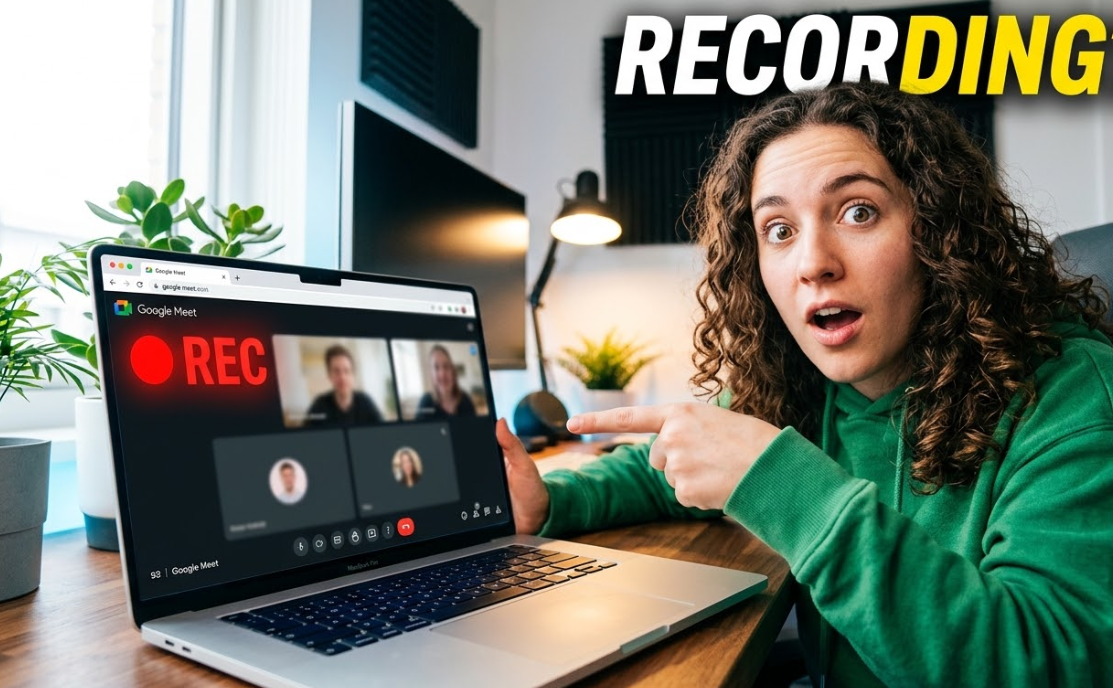
Recording your online meetings has become more important than ever—whether you’re attending virtual classes, hosting business meetings, conducting interviews, or creating content. If you use Google Meet, knowing how to record your sessions on any device can save you time and help you revisit important discussions later.
In this detailed guide, you’ll learn how to record Google Meet on desktop, Android, and iPhone, including both official and alternative methods. This article is written in a simple, beginner-friendly way and follows best practices for AdSense-friendly content.Why Record Google Meet Sessions?
Before diving into the steps, let’s quickly look at why recording Google Meet meetings is useful:
- Review important information later
- Share meetings with absent participants
- Create tutorials or educational content
- Keep records of business discussions
- Improve productivity and accountability
Important Things to Know Before Recording
Google Meet has a built-in recording feature, but it comes with some restrictions:
1. Recording is Not Available for Free Accounts
To use the official recording feature, you need:
- Google Workspace account (Business, Enterprise, Education)
2. Host Permission is Required
Only the meeting host or someone given permission can record.
3. Participants Are Notified
Everyone in the meeting will see a notification when recording starts.
4. Storage Location
Recorded videos are saved automatically to Google Drive.
Method 1: Record Google Meet Using Built-in Feature (Desktop)
This is the easiest and most reliable way if you have access.
Step-by-Step Guide
- Open Google Meet in your browser
- Join or start a meeting
- Click the three dots (More options) at the bottom right
- Select “Record meeting”
- Click Start recording
- To stop, click the three dots again → Stop recording
Where to Find the Recording
After the meeting:
- The recording is saved in Google Drive
- A link is sent to your email
- It may also appear in Google Calendar event details
Method 2: Record Google Meet Without Permission (Using Screen Recorder – Desktop)
If you don’t have access to the built-in feature, you can use screen recording tools.
Option A: Use Windows Built-in Recorder (Xbox Game Bar)
- Press Windows + G
- Click Capture
- Hit the Record button
- Start your Google Meet session
- Stop recording when done
Option B: Use Mac Screen Recording
- Press Command + Shift + 5
- Select recording area
- Click Record
- Stop when finished
Method 3: Record Google Meet on Android
Google Meet does not offer built-in recording on mobile devices, but you can use your phone’s screen recorder.
Steps for Android Users
- Swipe down to open Quick Settings
- Tap Screen Recorder
- Adjust settings (audio, resolution)
- Start recording
- Open Google Meet and join the meeting
- Stop recording when done
Tips
- Enable microphone recording if needed
- Make sure notifications are turned off to avoid interruptions
Method 4: Record Google Meet on iPhone (iOS)
iPhones have a built-in screen recording feature that works well.
Steps for iPhone Users
- Go to Settings → Control Center
- Add Screen Recording
- Swipe down (or up) to open Control Center
- Tap the Record button
- Open Google Meet and start your session
- Tap the red bar to stop recording
Where Recordings Are Saved
- Automatically saved in the Photos app
Method 5: Use Third-Party Recording Software (Advanced Option)
If you want more control (like editing, high-quality recording, or streaming), third-party tools are a great option.
Popular Recording Tools
- OBS Studio (free, powerful)
- Bandicam
- Camtasia
- Loom
Why Use These Tools?
- Better video quality
- Ability to record system + microphone audio
- Add overlays, webcam, and branding
- Ideal for YouTube or tutorials
How to Record Google Meet Audio Clearly
One common issue is poor audio quality. Here are some tips:
- Use headphones to reduce echo
- Choose “system audio + microphone” in recorder settings
- Record in a quiet environment
- Test audio before starting
Legal and Privacy Considerations
Recording meetings comes with responsibility. Always:
- Inform participants before recording
- Get permission when required
- Avoid recording sensitive conversations without consent
This is important for maintaining trust and staying compliant with privacy guidelines.
Common Problems and How to Fix Them
1. Recording Option Not Showing
- You’re likely using a free account
- Ask the host to enable recording
2. No Audio in Recording
- Check microphone permissions
- Ensure system audio is enabled
3. Poor Video Quality
- Improve internet connection
- Increase recording resolution
4. Recording Didn’t Save
- Check Google Drive storage
- Confirm recording was properly stopped
Tips for Better Google Meet Recordings
To get professional-looking recordings:
- Use a stable internet connection
- Turn on camera only if necessary
- Close background apps
- Use good lighting if recording video
- Keep your screen clean and uncluttered
Best Use Cases for Recording Google Meet
You can use recordings for:
- Online courses and tutorials
- Business meetings and reports
- Client presentations
- Content creation (YouTube, blogs)
- Training sessions
Frequently Asked Questions (FAQs)
1. Can I record Google Meet for free?
Yes, but only using screen recording tools. The built-in feature requires a paid Google Workspace account.
2. Does Google Meet notify recording?
Yes, all participants are notified when recording starts.
3. Can I record Google Meet secretly?
It’s not recommended. Always inform participants to respect privacy and avoid issues.
4. Where are Google Meet recordings stored?
They are saved in Google Drive and shared via email.
5. Can I record on mobile devices?
Yes, using built-in screen recording features on Android and iPhone.
Final Thoughts
Recording Google Meet sessions is a powerful way to stay organized, improve productivity, and create valuable content. While the built-in recording feature is convenient, there are plenty of alternative methods available for all devices—even if you’re using a free account.
Whether you’re a student, business owner, or content creator, mastering these recording methods ensures you never miss important information again.
Bonus Tip for Content Creators
If you’re creating YouTube or blog content:
- Edit your recordings for clarity
- Add captions or highlights
- Convert meetings into educational videos or tutorials
This can help you grow your audience and monetize your content effectively.