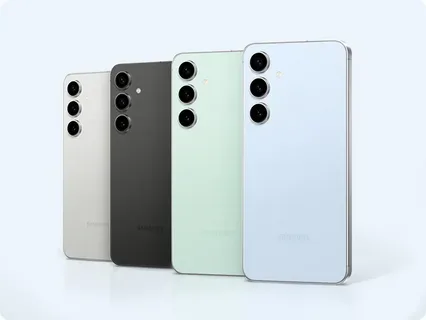
Battery life is one of the biggest concerns for Android users today. No matter how powerful a smartphone becomes, it still feels frustrating when the battery drains faster than expected. You charge your phone to 100% in the morning, only to see it struggling by midday. Sound familiar?
The truth is, modern Android phones are packed with powerful processors, high-refresh-rate displays, background syncing, AI features, and constant connectivity. While these improvements make smartphones smarter and faster, they also increase battery consumption.
The good news is that you don’t need to buy a new phone or rely on a power bank all the time. With the right settings, habits, and optimizations, you can significantly extend your Android battery life—sometimes even doubling how long it lasts in a single charge cycle.
In this guide, we’ll break everything down in a practical, easy-to-follow way. No complicated jargon, no unrealistic claims—just real solutions that work on most Android devices in 2026.
Understanding Why Your Android Battery Drains Fast
Before fixing the problem, it helps to understand the cause. Battery drain usually comes from a combination of software activity, hardware usage, and user habits.
1. Background Apps Running Constantly
Many apps continue running even when you are not using them. Social media apps, messaging platforms, and email clients frequently refresh in the background.
2. High Screen Brightness and Refresh Rate
Your screen is one of the biggest power consumers. Phones with 90Hz, 120Hz, or even 144Hz refresh rates can drain battery faster if not optimized.
3. Location Services and GPS
Apps like Google Maps, ride-hailing services, and even weather apps constantly track your location, consuming power.
4. Poor Network Signal
When your phone struggles to find a stable network, it uses more power to stay connected.
5. Battery-Heavy Apps
Apps like TikTok, Instagram, Snapchat, and mobile games are known to consume significant battery power.
Understanding these causes makes it easier to apply the right solutions.
How to Improve Android Battery Life Dramatically
Let’s go into the most effective methods you can apply right away.
1. Reduce Screen Brightness and Use Adaptive Brightness
Your display is one of the biggest battery drainers.
What to do:
- Lower brightness manually in low-light environments
- Enable Adaptive Brightness so your phone adjusts automatically
- Avoid max brightness unless necessary
Why it works:
Lower brightness reduces power consumption from the display panel, especially OLED screens.
2. Switch to Dark Mode
Dark mode is more than just aesthetic—it saves battery.
Benefits:
- Reduces power usage on AMOLED and OLED screens
- Easier on the eyes at night
- Improves UI visibility in low light
How to enable:
Go to Settings > Display > Dark Mode
3. Restrict Background App Activity
Many apps run silently in the background.
Steps:
- Go to Settings > Battery > App Battery Usage
- Identify heavy apps
- Select Restrict Background Activity
Example:
If Instagram or Facebook is draining battery, restricting background usage can noticeably improve performance.
4. Turn Off Unused Connectivity Features
Wi-Fi, Bluetooth, and GPS constantly search for connections when enabled.
What to disable when not needed:
- Bluetooth
- Location services
- Hotspot
- NFC
Tip:
Use quick settings panel for faster toggling.
5. Use Battery Saver Mode
Almost every Android phone has a built-in battery saver.
What it does:
- Reduces background processes
- Limits animations
- Slows down syncing
- Reduces performance slightly to save power
When to use:
- Below 30% battery
- During travel
- When you don’t have access to charging
6. Manage App Notifications
Constant notifications wake your phone and drain battery.
Fix:
- Disable unnecessary notifications
- Keep only essential apps (banking, messaging, calls)
Path:
Settings → Notifications → App Notifications
7. Update Apps and System Software Regularly
Outdated software can cause battery inefficiencies.
Why updates matter:
- Fix bugs that cause battery drain
- Improve system optimization
- Enhance app performance
8. Limit High-Performance Features
Modern Android phones include powerful features that consume energy.
Features to manage:
- High refresh rate (switch to 60Hz if needed)
- Always-on display
- Live wallpapers
9. Use Lightweight or Lite Apps
Some apps have “Lite” versions designed for efficiency.
Examples:
- Facebook Lite
- Messenger Lite alternatives
- Go versions of Google apps
These use less memory and battery.
10. Check Battery Usage Statistics
Android provides detailed battery insights.
How to check:
Settings → Battery → Battery Usage
What to look for:
- Apps consuming unusual power
- System processes draining battery
- Screen usage percentage
11. Disable Auto Sync for Unnecessary Apps
Auto-sync keeps apps constantly updating.
Fix:
- Turn off sync for apps you don’t need in real time
- Keep sync only for essential apps like Gmail or WhatsApp
12. Avoid Extreme Temperatures
Battery performance drops in heat or extreme cold.
Tips:
- Don’t use your phone under direct sunlight for long periods
- Avoid heavy gaming while charging
- Remove thick cases during charging if overheating
Advanced Battery Optimization Tips (Expert Level)
If you want deeper optimization, these techniques can help:
1. Use Developer Options
- Reduce animation scale to 0.5x or off
- Limit background processes
2. Switch to Static Wallpapers
Live wallpapers consume GPU power continuously.
3. Monitor Battery Health
Some Android phones show battery health stats. If capacity is degraded, replacement may be needed.
Pros and Cons of Battery Optimization
Pros
- Longer screen-on time
- Better device performance stability
- Reduced overheating
- Fewer charging cycles needed daily
Cons
- Some features may feel limited
- Background updates may be delayed
- Slight reduction in app responsiveness (in strict mode)
Common Mistakes That Drain Battery Faster
Many users unknowingly reduce battery life by doing the following:
- Keeping too many apps open
- Using maximum brightness all the time
- Ignoring software updates
- Installing unnecessary apps
- Leaving GPS on constantly
Avoiding these mistakes alone can significantly improve battery performance.
Frequently Asked Questions (FAQ)
1. Why does my Android battery drain so fast even when idle?
This is usually caused by background apps, poor network signal, or sync services running constantly.
2. Does closing apps improve battery life?
Not always. Android manages memory well, but restricting background activity is more effective.
3. Does fast charging damage battery health?
Modern phones are designed for fast charging, but excessive heat can affect long-term battery health.
4. Is dark mode really effective for battery saving?
Yes, especially on OLED and AMOLED displays.
5. What is the best battery-saving feature on Android?
Battery Saver Mode combined with background app restriction offers the best results.
Final Thoughts
Improving Android battery life is not about one single trick—it’s about combining multiple small optimizations that work together. From reducing screen brightness to managing background apps and disabling unused features, each adjustment contributes to better efficiency.
The key is balance. You don’t need to disable everything or limit your phone’s capabilities completely. Instead, focus on smart usage habits that extend battery life without affecting your daily experience.
With the strategies in this guide, you should notice a significant improvement in how long your Android phone lasts on a single charge. Over time, these habits will also help maintain better battery health, keeping your device efficient for longer.
If you apply even half of these tips consistently, your phone will feel noticeably more reliable throughout the day.