
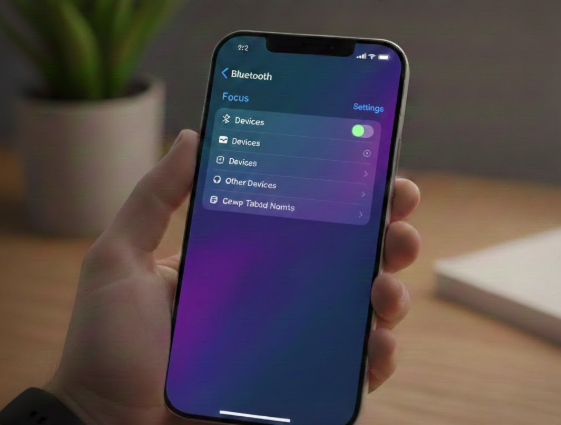
Bluetooth is one of the most essential features on an iPhone. It allows you to connect wireless headphones, AirPods, car systems, smartwatches, speakers, keyboards, and many other accessories. When iPhone Bluetooth is not working, it can disrupt calls, music, navigation, and everyday tasks.
If your iPhone won’t turn Bluetooth on, fails to find devices, keeps disconnecting, or refuses to pair, this guide will walk you through all proven fixes, from simple checks to advanced solutions.
What Does “iPhone Bluetooth Not Working” Mean?
Bluetooth problems on iPhone can appear in several ways, including:
-
Bluetooth won’t turn on
-
Bluetooth is greyed out in Settings
-
iPhone cannot find nearby devices
-
Bluetooth device connects but disconnects frequently
-
Poor audio quality or lag
-
iPhone won’t pair with car Bluetooth or AirPods
These issues can affect any iPhone model, regardless of iOS version.
Common Causes of iPhone Bluetooth Issues
Understanding the cause helps apply the right fix.
1. Temporary Software Glitches
Minor bugs or background processes can interfere with Bluetooth.
2. iOS Bugs or Outdated Software
Older or unstable iOS versions may contain Bluetooth-related bugs.
3. Interference From Other Wireless Devices
Wi-Fi networks, routers, or nearby electronics can cause interference.
4. Device Compatibility Issues
Some Bluetooth accessories may not fully support iOS.
5. Corrupted Network or Bluetooth Settings
Damaged system settings can prevent stable connections.
6. Hardware Problems
Rarely, Bluetooth antennas or internal components may be damaged.
Before You Start: Basic Checks
Before attempting advanced troubleshooting, try these quick checks:
-
Ensure Bluetooth is turned on
-
Make sure the Bluetooth accessory is fully charged
-
Keep the device within 10 meters (33 feet)
-
Disable Bluetooth on nearby devices to avoid interference
-
Restart the Bluetooth accessory
Solution 1: Toggle Bluetooth Off and On
This simple step often resolves minor glitches.
Steps:
-
Open Settings
-
Tap Bluetooth
-
Turn Bluetooth off
-
Wait 10 seconds
-
Turn Bluetooth on
Alternatively, toggle Bluetooth from Control Center.
Solution 2: Restart Your iPhone
Restarting clears temporary system bugs.
Steps:
-
Press and hold the Power button
-
Slide to power off
-
Wait 30 seconds
-
Turn the iPhone back on
After restarting, test Bluetooth again.
Solution 3: Forget and Re-Pair the Bluetooth Device
If your iPhone connects but doesn’t work properly, re-pairing can help.
Steps:
-
Go to Settings > Bluetooth
-
Tap the (i) icon next to the device
-
Tap Forget This Device
-
Confirm the action
-
Restart your iPhone
-
Put the Bluetooth device into pairing mode
-
Pair it again
Solution 4: Turn Airplane Mode On and Off
This resets wireless connections.
Steps:
-
Open Control Center
-
Turn Airplane Mode on
-
Wait 30 seconds
-
Turn Airplane Mode off
-
Turn Bluetooth back on
Solution 5: Update iOS to the Latest Version
Apple frequently fixes Bluetooth bugs in updates.
Steps:
-
Open Settings
-
Tap General
-
Select Software Update
-
Download and install any available update
Tip: Ensure Wi-Fi and sufficient battery before updating.
Solution 6: Reset Network Settings
Resetting network settings fixes corrupted Bluetooth and Wi-Fi configurations.
This will erase:
-
Wi-Fi passwords
-
VPN settings
-
Bluetooth pairings
Steps:
-
Open Settings
-
Tap General
-
Select Transfer or Reset iPhone
-
Tap Reset
-
Choose Reset Network Settings
-
Enter your passcode
After restarting, reconnect your Bluetooth devices.
Solution 7: Check Bluetooth Permissions
Some apps require Bluetooth permissions.
Steps:
-
Open Settings
-
Tap Privacy & Security
-
Select Bluetooth
-
Ensure required apps have Bluetooth access enabled
Solution 8: Disable Wi-Fi Temporarily
Wi-Fi interference can affect Bluetooth performance.
Steps:
-
Turn off Wi-Fi
-
Test Bluetooth connection
-
Re-enable Wi-Fi afterward
This is especially helpful for audio lag or connection drops.
Solution 9: Check Accessory Compatibility
Some older Bluetooth devices may not fully support iOS.
What to Check:
-
Manufacturer’s website for compatibility
-
Firmware updates for the accessory
-
Try connecting the device to another phone
If it works on another device but not your iPhone, the issue may be iOS-related.
Solution 10: Reset All Settings
If Bluetooth still doesn’t work, resetting all settings may help.
This does not delete data, but resets:
-
Display settings
-
Location settings
-
Privacy preferences
Steps:
-
Open Settings
-
Go to General > Transfer or Reset iPhone
-
Tap Reset
-
Choose Reset All Settings
Solution 11: Check for Hardware Issues
If Bluetooth is completely unavailable or greyed out, hardware may be the cause.
Signs of Hardware Problems:
-
Bluetooth toggle missing or greyed out
-
iPhone not detecting any devices
-
Bluetooth fails even after reset
Common causes include:
-
Water damage
-
Physical drops
-
Faulty internal antenna
In these cases, professional repair is recommended.
How to Fix Bluetooth Issues with AirPods
If AirPods are not connecting:
-
Place AirPods in the case
-
Open the lid
-
Press and hold the setup button
-
Re-pair with iPhone
-
Update iOS if needed
How to Fix iPhone Bluetooth Not Working in Car
Car Bluetooth issues are common.
Try This:
-
Delete iPhone from car system
-
Delete car system from iPhone
-
Restart car infotainment system
-
Re-pair from scratch
-
Update car software if available
What NOT to Do
Do not install untrusted apps
Do not ignore iOS updates
Do not force iOS downgrades
Do not open the device yourself
How to Prevent Future Bluetooth Issues
-
Keep iOS updated
-
Restart your iPhone weekly
-
Use certified accessories
-
Avoid water exposure
-
Keep Bluetooth device firmware updated
Frequently Asked Questions (FAQ)
Why is my iPhone Bluetooth not turning on?
This may be due to software glitches, iOS bugs, or hardware damage.
Does resetting network settings delete data?
No, but it removes Wi-Fi passwords and Bluetooth pairings.
Why does Bluetooth keep disconnecting?
Interference, low battery, or compatibility issues are common causes.
Can Bluetooth issues be fixed without reset?
Yes, many issues are resolved with toggling Bluetooth or restarting.
Is Bluetooth hardware failure common?
No, but it can happen due to physical or water damage.
When to Contact Apple Support
Contact Apple Support if:
-
Bluetooth is permanently disabled
-
iPhone is under warranty
-
Hardware damage is suspected
-
Software fixes fail
Conclusion
When iPhone Bluetooth is not working, it’s usually caused by software bugs, incorrect settings, or temporary glitches rather than serious hardware failure. By following this step-by-step troubleshooting guide, you can:
-
Restore Bluetooth functionality
-
Fix pairing and connection issues
-
Improve audio quality and stability
-
Prevent future problems
Start with simple fixes like toggling Bluetooth and restarting your device, then move to advanced solutions only if necessary.

