
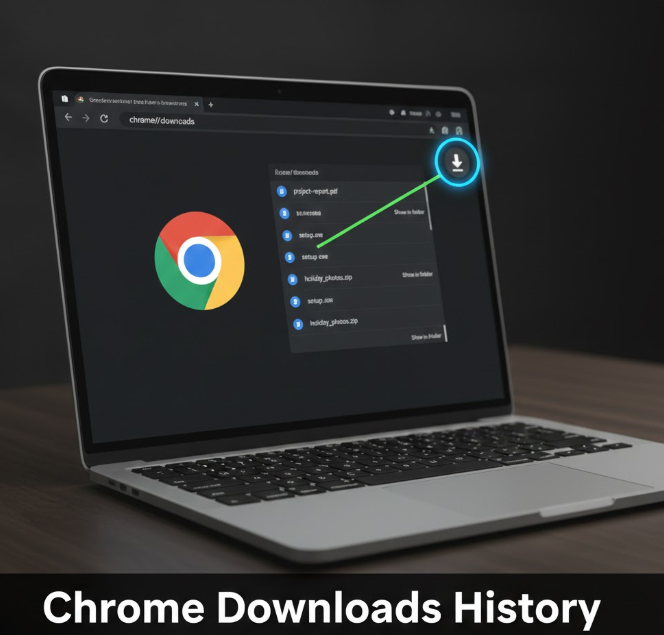
If you’ve ever downloaded a file in Google Chrome and later couldn’t remember where it went, you’re not alone. Chrome keeps a clear downloads history that lets you view, open, or manage everything you’ve downloaded whether it’s a document, image, video, or software file.
This guide shows you multiple easy ways to find your downloads history in Chrome on Windows, Mac, Android, and iPhone, plus tips for recovering missing files.
What Is Chrome Downloads History?
Chrome downloads history is a built-in record of files you’ve downloaded using the browser. It shows:
-
File names
-
Download dates and times
-
File sources (websites)
-
File status (completed or failed)
It does not always store the actual file, just the record—unless the file still exists on your device.
Method 1: View Downloads History from Chrome Menu (Desktop)
Steps (Windows & Mac):
-
Open Google Chrome
-
Click the three-dot menu in the top-right corner
-
Select Downloads
You’ll see a full list of all files downloaded through Chrome.
From here, you can:
-
Open a downloaded file
-
Show the file in its folder
-
Remove it from the history list
Method 2: Use the Chrome Downloads Shortcut
This is the fastest method on desktop.
Steps:
-
Open Chrome
-
Press:
-
Ctrl + J (Windows)
-
Command + Shift + J (Mac)
-
This instantly opens the Downloads page.
Method 3: Use Chrome Address Bar
Steps:
-
Open Chrome
-
Type:
-
Press Enter
This works on both Windows and Mac and takes you directly to your downloads history.
Method 4: Find Downloads History on Chrome Android
Steps:
-
Open Chrome app
-
Tap the three-dot menu
-
Select Downloads
You’ll see downloaded files, including:
-
Images
-
PDFs
-
Videos
-
Documents
Tap any file to open it or long-press to delete it.
Method 5: Find Downloads History on Chrome iPhone / iPad
Chrome on iOS handles downloads slightly differently.
Steps:
-
Open Chrome
-
Tap the three-dot menu
-
Select Downloads
You can view recent downloads and open them directly within Chrome or in supported apps.
Where Are Chrome Downloads Stored on Your Device?
On Windows:
-
This PC → Downloads
On Mac:
-
Finder → Downloads
On Android:
-
Files app → Downloads
On iPhone:
-
Files app → On My iPhone → Chrome
If the file is missing, it may have been deleted manually or by a cleanup tool.
How to Recover Missing Downloads
If a file no longer appears:
-
Check your device’s Downloads folder
-
Search for the file name using your system search
-
Re-download it from the original website
-
Check antivirus or cleanup apps that may have removed it
Note: Removing an item from Chrome’s downloads history does not delete the file itself.
Common Issues & Fixes
Downloads History Not Showing
-
Make sure Chrome is updated
-
Restart Chrome
-
Try accessing via
chrome://downloads
File Says “Removed”
-
The file was deleted or moved
-
Re-download from the original source
Download Failed
-
Check internet connection
-
Disable conflicting extensions
-
Try downloading again
Frequently Asked Questions (FAQ)
Can I delete downloads history in Chrome?
Yes. You can remove individual entries or clear browsing data.
Does Incognito Mode save download history?
No. Downloads from Incognito do not appear in Chrome history, but the files still save to your device.
Can I search downloads history?
Yes. Use the search bar on the downloads page (desktop).
Does Chrome sync downloads history across devices?
No. Downloads history is stored locally on each device.
Final Thoughts
Finding your downloads history in Google Chrome is simple once you know where to look. Whether you’re on a computer or mobile device, Chrome gives you quick access to everything you’ve downloaded, helping you reopen, locate, or manage files easily.
Knowing these methods saves time and avoids unnecessary re-downloads.

