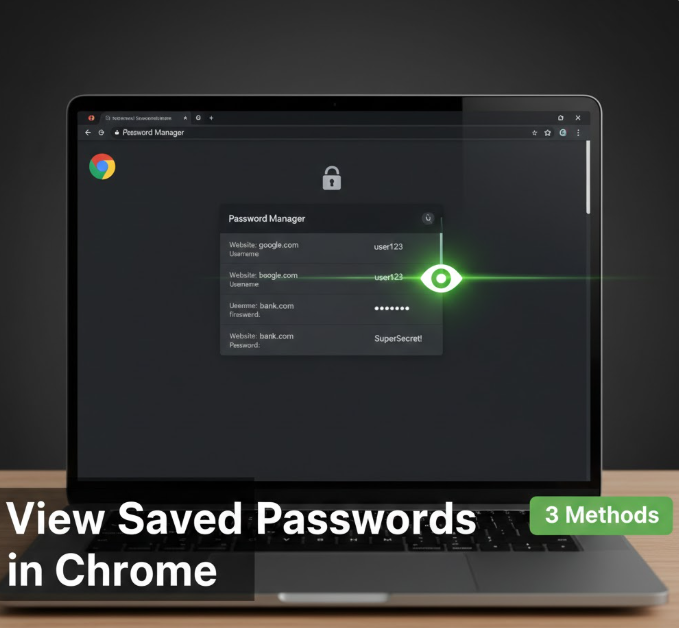
Google Chrome can save your passwords so you don’t have to remember every login. That’s convenient until you forget a password and actually need to see it.
If you’ve ever wondered where Chrome stores your passwords or how to view them safely, this guide walks you through three simple methods on desktop and mobile, without technical jargon.
Before You Start (Important)
To view saved passwords, you must:
-
Be logged into your computer or phone
-
Enter your device password, PIN, or biometric when prompted
This security step prevents others from accessing your private accounts.
Method 1: View Saved Passwords in Chrome Settings (Windows & Mac)
This is the most direct way.
Steps:
-
Open Google Chrome
-
Click the three-dot menu in the top-right corner
-
Select Settings
-
Click Autofill and passwords
-
Choose Password Manager
You’ll see a list of websites with saved logins.
To view a password:
-
Click the website
-
Select the eye icon
-
Enter your computer password
-
The password will be revealed
You can also copy, edit, or delete the password from here.
Method 2: View Saved Passwords Using Chrome Address Bar
This method is quick and works on desktop.
Steps:
-
Open Chrome
-
Type the following into the address bar:
-
Press Enter
You’ll be taken directly to Chrome’s Password Manager, where you can:
-
Search for a website
-
View saved usernames and passwords
-
Copy passwords securely
Method 3: View Saved Passwords on Mobile (Android & iPhone)
Chrome syncs passwords across devices if you’re signed in.
On Android:
-
Open Chrome
-
Tap the three-dot menu → Settings
-
Tap Password Manager
-
Select a website
-
Tap the eye icon and verify your identity
On iPhone / iPad:
-
Open Chrome
-
Tap three dots → Settings
-
Select Password Manager
-
Choose a saved website
-
Authenticate using Face ID, Touch ID, or passcode
How to Check If Chrome Is Saving Your Passwords
If Chrome isn’t saving passwords, here’s how to check:
-
Go to Settings → Autofill and passwords
-
Open Password Manager
-
Make sure Offer to save passwords is turned ON
You can also review websites where Chrome is set to never save passwords.
Security Tips When Viewing Saved Passwords
-
Never view passwords on shared or public computers
-
Lock your device when not in use
-
Use Chrome’s built-in password warnings
-
Consider a password manager for sensitive accounts
Chrome encrypts your passwords, but device security still matters.
Common Questions
Can someone else see my Chrome passwords?
Only if they can unlock your device. Chrome requires authentication before showing passwords.
Are Chrome passwords stored online?
If sync is enabled, they’re encrypted and synced to your Google account.
Can I export my saved passwords?
Yes, from Password Manager settings (desktop only).
What if the eye icon doesn’t appear?
You may not have permission, or the password was never saved.
Final Thoughts
Chrome makes it easy to view saved passwords—as long as you know where to look. Whether you’re on a laptop or phone, the built-in Password Manager gives you quick, secure access when you need it.
Just remember: convenience is great, but protecting your device is what keeps your passwords safe.