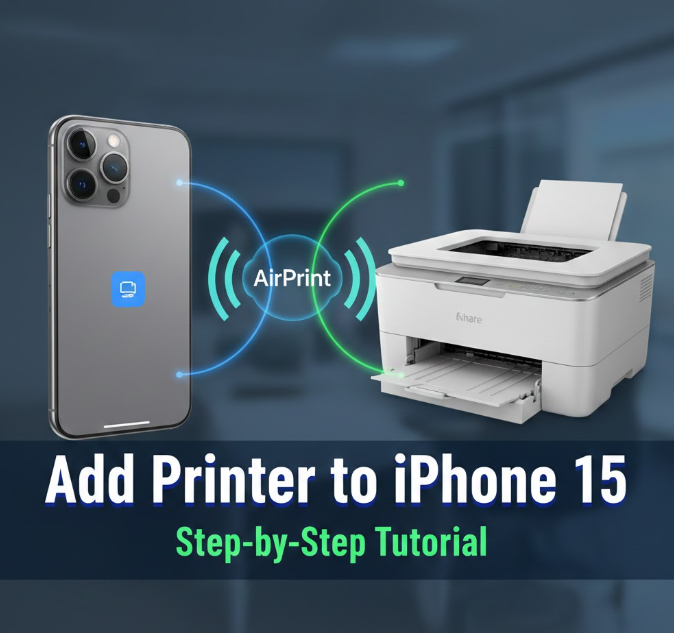
Printing directly from your iPhone 15 can save time, whether it’s documents, photos, emails, or presentations. Apple makes it easy to connect your iPhone to a compatible printer without installing additional software.
In this guide, we’ll walk you through step-by-step instructions to add a printer, explain troubleshooting tips, and share helpful tricks to make printing from your iPhone simple and efficient.
What You Need Before Printing
Before you start, ensure you have the following:
-
iPhone 15 updated to the latest iOS version
-
A compatible printer – preferably AirPrint-enabled (most modern printers support AirPrint)
-
Wi-Fi connection – both your iPhone and printer must be on the same network
-
Printer powered on and connected to Wi-Fi
Tip: If your printer doesn’t support AirPrint, check if the manufacturer provides an iOS app for printing.
Step 1: Verify Your Printer Supports AirPrint
Apple’s AirPrint allows iPhones to print without installing drivers:
-
Check your printer’s manual or manufacturer’s website
-
Look for “AirPrint” in specifications
-
Examples: HP, Canon, Epson, Brother, and some Samsung models support AirPrint
If your printer is not AirPrint-compatible, skip to Step 6 for app-based printing solutions.
Step 2: Connect Your Printer to Wi-Fi
-
Power on your printer
-
Access the network or Wi-Fi settings on the printer’s display panel
-
Connect to the same Wi-Fi network as your iPhone
-
Confirm the printer shows a connected or ready status
Tip: Avoid using mobile hotspots; AirPrint works best on stable home or office Wi-Fi.
Step 3: Open the Document, Photo, or File to Print
On your iPhone 15:
-
Open the app containing the content you want to print (e.g., Photos, Mail, Safari, Files)
-
Select the file or page you want to print
Step 4: Access the Print Option
-
Tap the Share icon (a square with an upward arrow)
-
Scroll down and tap Print
-
The Printer Options screen will appear
Step 5: Select Your Printer
-
Tap Select Printer
-
Choose your AirPrint-enabled printer from the list
-
If your printer does not appear:
-
Ensure your iPhone and printer are on the same Wi-Fi network
-
Restart the printer and iPhone
-
Check for firmware updates for your printer
-
Step 6: Choose Print Settings
On the Print Options screen, you can:
-
Number of copies – choose how many prints you want
-
Page range – select specific pages if applicable
-
Color options – color or black & white (depends on printer)
-
Duplex printing – double-sided, if supported
After adjusting settings, tap Print in the top-right corner.
Step 7: Use Manufacturer Apps for Non-AirPrint Printers
If your printer doesn’t support AirPrint:
-
Download the printer manufacturer’s app from the App Store (e.g., HP Smart, Canon PRINT, Epson iPrint)
-
Open the app and connect to your printer using the instructions provided
-
Select your document or photo and tap Print
These apps often provide additional features like scanning, cloud printing, and troubleshooting.
Step 8: Troubleshooting Common Printing Issues
Printer Not Showing on iPhone
-
Check Wi-Fi connectivity
-
Ensure AirPrint is enabled
-
Restart both iPhone and printer
Print Jobs Stuck in Queue
-
Cancel all pending jobs
-
Restart the printer and iPhone
-
Re-add the printer if necessary
Print Quality Problems
-
Check ink or toner levels
-
Ensure paper type and size match printer settings
-
Clean the printer heads if needed
Using Multiple Printers
-
Ensure the correct printer is selected in Printer Options
-
Save printer preferences if using frequently
FAQ
Can I print wirelessly without Wi-Fi?
AirPrint requires Wi-Fi. Some printers offer Bluetooth or direct USB connections, but this is rare for iPhones.
How do I print from third-party apps?
Most apps have a Share → Print option. If not, use the printer manufacturer’s app.
Can I print multiple pages at once?
Yes. Use Page Range in Print Options to select multiple pages or the entire document.
Do I need a Mac or PC to print?
No. AirPrint allows printing directly from iPhone 15 without a computer.
What if my printer is older and not compatible?
Check if your printer supports the manufacturer’s iOS app, which often enables printing even without AirPrint.
Final Thoughts
Adding a printer to your iPhone 15 is simple, fast, and convenient, especially with AirPrint-enabled printers. By following these steps:
-
Ensure your printer supports AirPrint
-
Connect both devices to the same Wi-Fi network
-
Use Share → Print or the manufacturer’s app if needed
-
Adjust print settings to match your needs
You can easily print documents, photos, emails, and web pages directly from your iPhone 15 without relying on a computer.
With these tips and troubleshooting strategies, printing from your iPhone becomes a smooth, hassle-free experience.
Leave a Reply