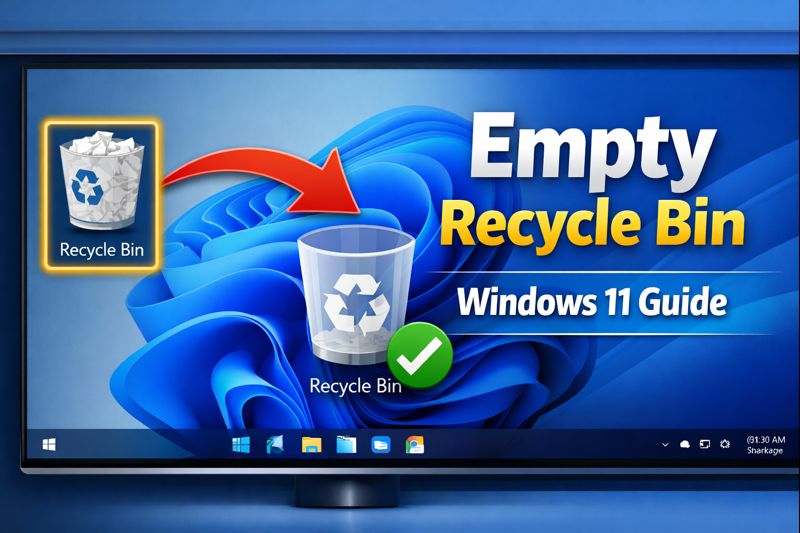
The Recycle Bin in Windows 11 acts as a safety net for deleted files, giving users the chance to recover accidentally deleted items. However, over time, the Recycle Bin can accumulate large amounts of data, taking up valuable storage space. Regularly emptying it helps maintain system performance and ensures that your storage is optimized.
In this guide, we will show you multiple ways to empty the Recycle Bin in Windows 11, including automatic options and best practices for keeping your system clean.
Why Emptying the Recycle Bin Is Important
-
Free Up Storage Space
Deleted files still occupy disk space until the Recycle Bin is emptied. Large files such as videos, high-resolution images, or backups can consume gigabytes unnecessarily. -
Improve System Performance
A cluttered Recycle Bin can slightly slow down file operations and search functions. While not a huge factor, regular cleanup contributes to a smoother Windows experience. -
Protect Privacy
Files in the Recycle Bin can still be accessed by anyone with access to your PC. Emptying it ensures deleted files cannot be recovered easily. -
Avoid Confusion
Keeping unnecessary files in the Recycle Bin can make it difficult to locate specific deleted files for recovery.
How to Empty the Recycle Bin in Windows 11
There are several ways to empty the Recycle Bin, ranging from manual deletion to automated cleanup.
Method 1: Empty Recycle Bin Manually
-
Locate the Recycle Bin Icon
-
The Recycle Bin icon is usually on the desktop. If it’s not visible, you can enable it by right-clicking the desktop → Personalize → Themes → Desktop icon settings → check Recycle Bin.
-
Open the Recycle Bin
-
Double-click the icon to open it and view deleted files.
-
Empty the Recycle Bin
-
Right-click anywhere inside the Recycle Bin window or on the desktop icon itself.
-
Select “Empty Recycle Bin”.
-
Confirm the action when prompted. All files will be permanently deleted.
Tip: If you want to delete only specific files, select them and press Delete, then confirm.
Method 2: Empty Recycle Bin via File Explorer
-
Open File Explorer (Windows + E).
-
Type Recycle Bin in the address bar and press Enter.
-
Use the “Empty Recycle Bin” option from the toolbar to permanently delete all contents.
This method is useful if the desktop icon is hidden.
Method 3: Empty Recycle Bin Using Settings (Automatic Cleanup)
Windows 11 has a Storage Sense feature that can automatically empty the Recycle Bin after a set period.
-
Open Settings → press Windows + I.
-
Go to System → Storage → Storage Sense.
-
Turn on Storage Sense by toggling the switch.
-
Click “Configure Storage Sense or run it now”.
-
Under Temporary Files, choose how long files should remain in the Recycle Bin before deletion (e.g., 30 days, 60 days, or never).
-
Click Run Storage Sense if you want to clean up immediately.
Benefits: Automates cleanup and reduces the risk of clutter without manual intervention.
Method 4: Empty Recycle Bin Using Command Prompt
For advanced users or batch scripts, you can use Command Prompt to clear the Recycle Bin.
-
Press Windows + S and type cmd → select Run as administrator.
-
Enter the following command:
-
Press Enter. This command will delete all Recycle Bin contents for all users on the C: drive.
Caution: Ensure you understand the command; files deleted this way cannot be recovered.
Method 5: Empty Recycle Bin Using PowerShell
PowerShell offers another advanced option:
-
Open PowerShell as Administrator.
-
Run the command:
-
Press Enter. The
-Forceparameter bypasses confirmation prompts.
This is particularly useful for remote or automated maintenance scripts.
Best Practices for Managing the Recycle Bin
-
Set Storage Limits
-
Right-click Recycle Bin → Properties → set a maximum size limit to prevent large files from taking up too much space.
-
Review Files Before Emptying
-
Ensure important files are not deleted permanently.
-
Enable Auto Cleanup
-
Use Storage Sense or third-party tools to automate the process.
-
Backup Critical Files
-
Before emptying the Recycle Bin, back up essential files on external drives or cloud storage.
FAQ
Can I recover files after emptying the Recycle Bin?
Yes, but only using specialized file recovery software. Regular deletion from the Recycle Bin makes recovery more difficult and less reliable.
How often should I empty the Recycle Bin?
It depends on usage. Heavy users or those handling large files may benefit from weekly cleanup, while casual users can rely on Storage Sense.
Does emptying the Recycle Bin delete files from the hard drive permanently?
Yes, but the data may remain until overwritten. Using secure deletion software ensures files cannot be recovered.
Can I automatically delete files older than 30 days?
Yes, configure Storage Sense to remove files older than your chosen timeframe.
Does emptying the Recycle Bin affect other drives?
No, only the drive where the Recycle Bin is located will be affected. Repeat the process for other drives if needed.
Conclusion
Emptying the Recycle Bin in Windows 11 is simple, but crucial for maintaining system performance, freeing storage, and protecting privacy. Whether you prefer manual deletion, Storage Sense automation, or command-line solutions, there are multiple options to suit different workflows and technical skills.
By incorporating regular Recycle Bin management into your maintenance routine, you can ensure a faster, cleaner, and more secure Windows 11 experience.