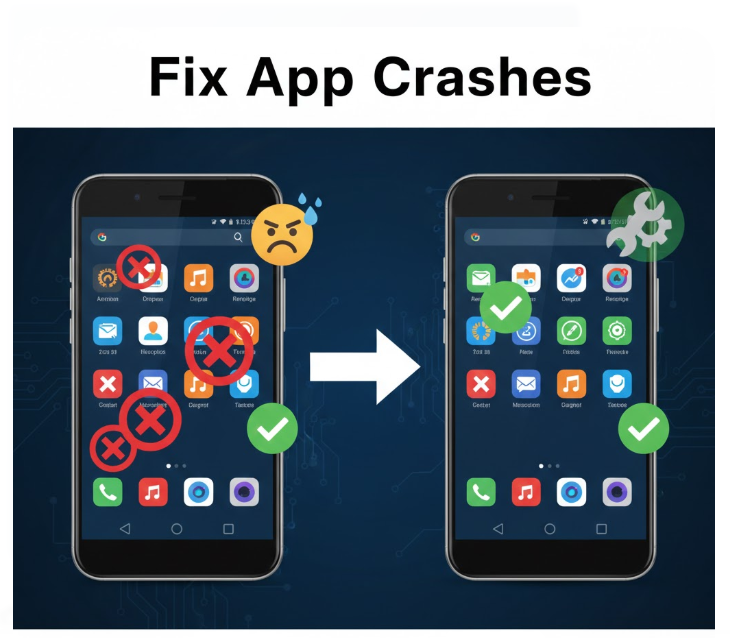
Android apps receive regular updates to improve performance, add features, and fix bugs. However, sometimes after an update, an app may start crashing, freezing, or behaving erratically. This is frustrating, but most of the time, the issue is fixable.
This guide will explain why app crashes happen after updates, step-by-step troubleshooting solutions, and tips to prevent future problems.
Why Android Apps Crash After an Update
App crashes can occur due to several reasons:
-
Bugs in the new version – Sometimes updates contain untested features that conflict with your device.
-
Compatibility issues – Your Android version may not fully support the new app update.
-
Corrupted app data or cache – Old cache or data may conflict with the updated version.
-
Insufficient storage – Updates require extra space; low storage can cause crashes.
-
Conflicting apps or services – Other installed apps may interfere with the updated app.
-
Network issues – Some apps rely on a stable internet connection, and poor connectivity can cause crashes.
Identifying the root cause helps in applying the correct solution.
Step-by-Step Solutions for Android App Crashes
Step 1: Restart Your Device
Many app crashes are temporary and can be fixed with a simple reboot:
-
Press and hold the Power button.
-
Tap Restart.
-
Wait for your phone to reboot and open the app again.
Step 2: Clear App Cache
Cache files can become corrupted after an update, causing the app to crash:
-
Go to Settings → Apps → See all apps → [App Name] → Storage & Cache.
-
Tap Clear Cache.
-
Open the app and check if it works properly.
Step 3: Clear App Data
If clearing the cache doesn’t work, you may need to clear app data. This will reset the app:
-
Go to Settings → Apps → [App Name] → Storage & Cache.
-
Tap Clear Storage / Clear Data.
-
Log in again and check if the app runs correctly.
Note: Clearing app data will erase saved preferences and login information.
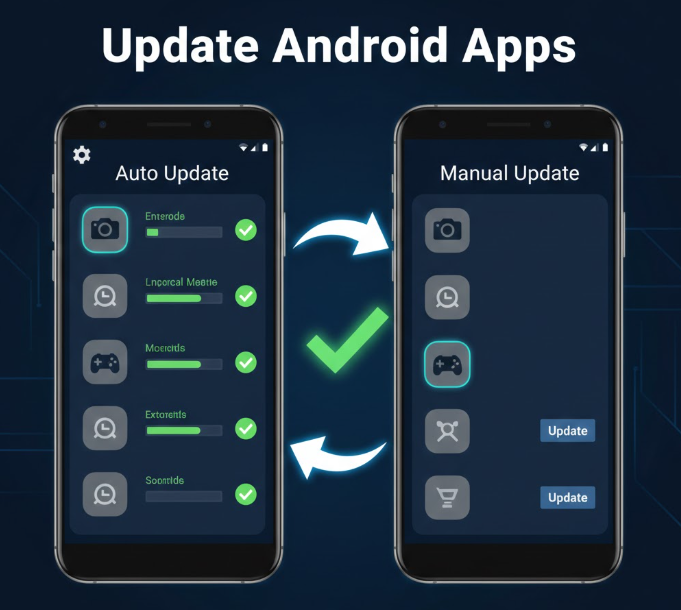
Step 4: Check for Further Updates
Sometimes developers release hotfixes after initial updates if users report crashes:
-
Open Google Play Store → My apps & games → Updates available.
-
Update the app if a new version is available.
Step 5: Reinstall the App
If the app continues to crash, reinstalling often resolves corrupted installations:
-
Uninstall the app: Settings → Apps → [App Name] → Uninstall.
-
Reinstall the latest version from the Google Play Store.
-
Open the app and verify functionality.
Step 6: Check Device Storage
Low storage can prevent apps from functioning correctly:
-
Go to Settings → Storage.
-
Ensure at least 1–2 GB of free space is available.
-
Delete unnecessary files or apps to free up space.
Step 7: Update Android OS
Some app updates require the latest Android version:
-
Go to Settings → System → Software Update.
-
Check for updates and install if available.
-
Restart your device and test the app.
Step 8: Check Internet Connection
Apps that rely on network connectivity may crash if the connection is unstable:
-
Use Wi-Fi or mobile data with strong signal.
-
Restart your router if using Wi-Fi.
-
Toggle Airplane Mode on and off to reset mobile network connection.
Step 9: Disable Battery Optimization
Android’s battery optimization can interfere with apps running in the background:
-
Go to Settings → Apps → [App Name] → Battery → Battery Optimization.
-
Select Don’t optimize for the app.
-
Restart the app and check for stability.
Step 10: Check for Conflicting Apps
Some apps may interfere with each other:
-
Boot your phone into Safe Mode (press Power → Hold Power Off → Tap Safe Mode).
-
Open the problematic app. If it works, another app may be causing the issue.
-
Identify and uninstall conflicting apps.
Tips to Prevent App Crashes
-
Update Apps Regularly – Keep all apps updated to get bug fixes and security patches.
-
Avoid Installing Beta Versions – Beta updates may be unstable.
-
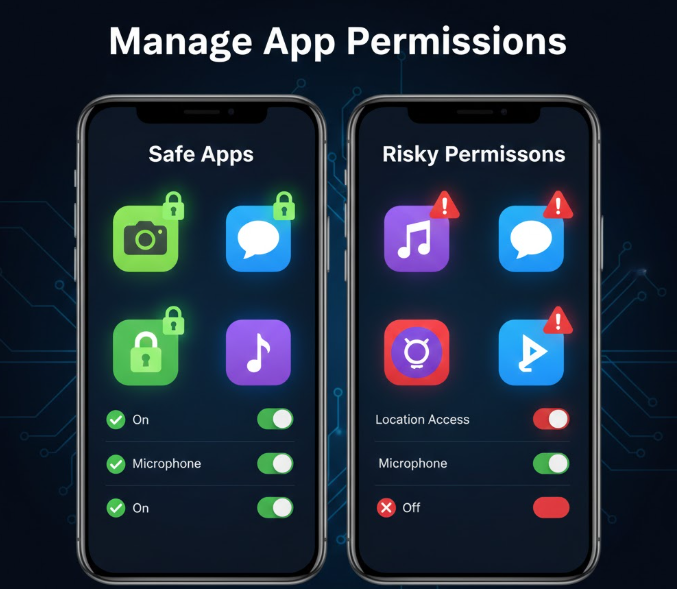
Monitor App Permissions – Apps with excessive permissions may cause conflicts.
-
Keep Android Updated – Ensures compatibility with updated apps.
-
Regularly Clear Cache – Prevents data corruption from building up.
FAQ
Why did my app crash immediately after an update?
Most crashes happen due to incompatibility with the device or corrupted cache/data. Follow the troubleshooting steps to resolve it.
Will uninstalling and reinstalling the app delete my data?
Yes, it may delete app-specific data unless it’s cloud-synced or backed up.
Can low storage cause app crashes?
Absolutely. Apps need free storage for temporary files and caching. Ensure sufficient storage is available.
Does Safe Mode help identify app conflicts?
Yes. Safe Mode disables third-party apps temporarily. If the app works in Safe Mode, another app may be causing the crash.
How often should I clear app cache?
Clearing cache once a month or after app updates helps maintain stability.
Conclusion
App crashes after an update can be frustrating, but most issues are easily fixable. Start with simple steps like restarting your device and clearing cache, and move on to reinstalling the app or updating your Android OS if needed.
By following these steps, you can ensure your apps run smoothly, securely, and efficiently. Regular maintenance, proper app updates, and monitoring permissions will reduce the likelihood of future crashes.