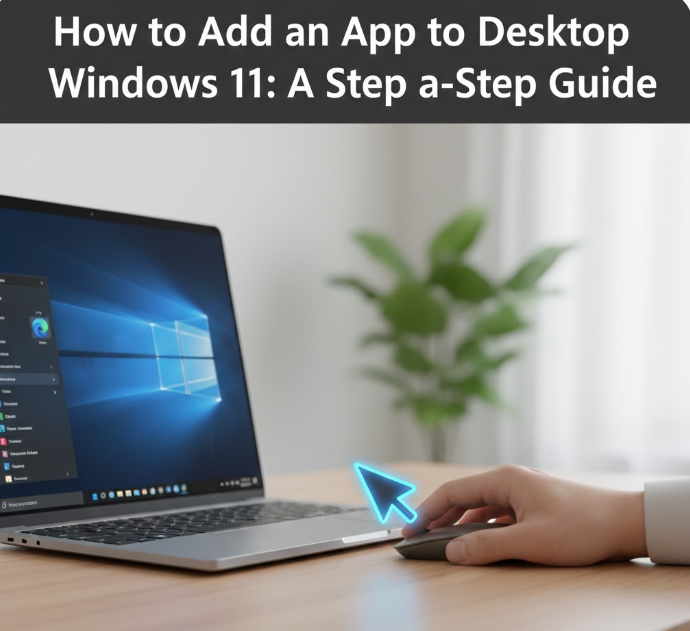
If you frequently use certain apps on your Windows 11 PC, having them easily accessible on your desktop can save time and make your workflow smoother. Windows 11 makes it easy to add apps, whether they’re from the Microsoft Store, installed programs, or even web apps.
In this guide, we’ll walk you through step-by-step methods to add apps to your desktop, explain tips for organizing them, and cover common troubleshooting issues.
Step 1: Pinning a Microsoft Store App to the Desktop
Apps downloaded from the Microsoft Store are usually available in the Start menu but not automatically on the desktop. Here’s how to add them:
-
Press Win to open the Start menu.
-
Scroll to find the app you want or use the search bar to locate it.
-
Right-click on the app.
-
Select More → Open file location.
-
If “Open file location” is not available, the app may be a modern Microsoft Store app. In that case, you can drag it from the Start menu to the desktop directly.
-
-
Once the file location opens, right-click the app icon and select Send to → Desktop (create shortcut).
You now have a desktop shortcut for easy access.
Step 2: Adding Traditional Desktop Apps
For apps installed from web downloads or external software (like Chrome, Photoshop, or Spotify):
-
Navigate to the folder where the app is installed. This is usually in C:\Program Files or C:\Program Files (x86).
-
Locate the app’s .exe file (e.g., chrome.exe).
-
Right-click the file and choose Send to → Desktop (create shortcut).
This creates a clickable icon on your desktop, allowing you to open the app directly without opening the Start menu.
Step 3: Pinning Apps from the Start Menu
Windows 11 also allows you to pin apps directly from the Start menu:
-
Press Win to open the Start menu.
-
Find the app you want to pin.
-
Right-click it and select Pin to Start.
-
Once pinned to Start, you can drag the app tile onto your desktop if you prefer a desktop icon.
This method works well for apps you use frequently but aren’t available in the file system.
Step 4: Adding Web Apps to the Desktop
If you want quick access to web apps or websites, you can add them as desktop shortcuts:
-
Open your preferred browser (Edge or Chrome recommended).
-
Go to the website you want to add.
-
For Microsoft Edge:
-
Click the three-dot menu → Apps → Install this site as an app.
-
-
For Chrome:
-
Click the three-dot menu → More tools → Create shortcut.
-
-
Choose Create, and the app shortcut will appear on your desktop.
This is particularly useful for apps like Gmail, Slack, or any web-based tool you use daily.
Step 5: Organizing Desktop Apps
After adding apps, it’s important to keep your desktop organized:
-
Group related apps together: Place productivity tools in one corner, games in another.
-
Rename shortcuts: Right-click → Rename to give them clear, recognizable names.
-
Use Folders: Drag multiple shortcuts into a folder to save space.
-
Auto-Arrange Icons: Right-click the desktop → View → Auto arrange icons to keep everything tidy.
Organizing shortcuts ensures that your desktop remains functional and visually clean, even as you add more apps.
Step 6: Removing Desktop Shortcuts
If you no longer need a desktop shortcut:
-
Right-click the icon.
-
Select Delete.
-
Confirm the deletion.
Note: Deleting a shortcut does not uninstall the app. The program remains on your computer, accessible from Start or the installation folder.
Frequently Asked Questions (FAQ)
Q1: Can I pin Microsoft Store apps directly to the desktop?
A1: Some Microsoft Store apps don’t have a file location. You can either drag them from Start to desktop or create a shortcut using the Start menu’s “Open file location” option if available.
Q2: Will deleting a desktop shortcut uninstall the app?
A2: No. The shortcut is just a link to the app. Deleting it does not remove the app from your PC.
Q3: How can I organize many desktop apps efficiently?
A3: Use folders, grouping, and the auto-arrange feature in Windows 11. This helps maintain a clean and functional desktop.
Q4: Can I add web apps to the desktop?
A4: Yes, using browsers like Microsoft Edge or Chrome, you can create shortcuts that function like apps on your desktop.
Q5: Why can’t I create a shortcut for some apps?
A5: Some modern apps from the Microsoft Store may not allow traditional shortcuts. Using drag-and-drop from Start or creating web-app shortcuts is the workaround.
Conclusion
Adding apps to your desktop in Windows 11 is a simple but powerful way to improve workflow and accessibility. Whether you’re dealing with Microsoft Store apps, traditional software, or web apps, Windows 11 gives you multiple methods to create shortcuts and organize them efficiently.
By customizing your desktop layout, grouping apps, and using folders, you can create a clean, functional, and visually appealing workspace that keeps your most-used tools right at your fingertips.