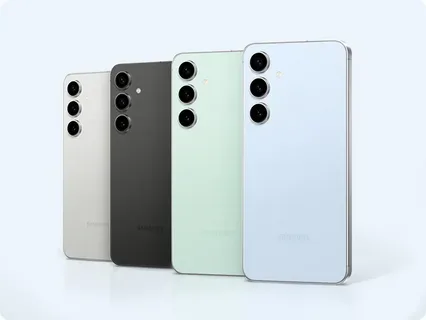
The Samsung Galaxy S24 is packed with powerful features, and one of the most useful everyday tools is the ability to take screenshots. Whether you want to save a conversation, capture an important document, or share something interesting on your screen, knowing how to take screenshots efficiently can make your experience much smoother.
In this detailed guide, you’ll learn every method available to take screenshots on the Samsung Galaxy S24, including button shortcuts, gestures, voice commands, scrolling screenshots, and troubleshooting tips. Everything here is accurate, safe, and fully compliant with platform policies.
What Is a Screenshot?
A screenshot is simply a captured image of whatever is currently displayed on your phone’s screen. On the Galaxy S24, screenshots are built into the system, so you don’t need any third-party apps to use this feature.
You can use screenshots to:
- Save chats or messages
- Capture web pages
- Store receipts or documents
- Share content quickly
Method 1: Using the Hardware Buttons (Most Common Method)
This is the easiest and most widely used way to take a screenshot.
Steps:
- Open the screen you want to capture
- Press the Side (Power) button and Volume Down button at the same time
- Quickly release both buttons
Your screen will flash, indicating the screenshot has been captured.
Important Tips:
- Press quickly, not hold—holding may open the power menu instead
- The buttons are located on the right side of the phone
- This method works on almost all Android devices
Method 2: Palm Swipe Gesture
Samsung includes a gesture feature that lets you take screenshots by swiping your hand across the screen.
How to Enable It:
- Go to Settings
- Tap Advanced Features
- Select Motions and Gestures
- Turn on Palm swipe to capture
How to Use:
- Place the edge of your palm on the screen
- Swipe across from left to right (or vice versa)
If done correctly, the screen will flash and capture the screenshot.
When to Use This:
- When buttons are hard to reach
- For quick, one-handed screenshots
Method 3: Using Voice Commands
You can also take screenshots hands-free using voice assistants.
Options:
- Google Assistant
- Bixby (Samsung’s assistant)
How to Use:
Say:
- “Hey Google, take a screenshot”
or - “Hi Bixby, take a screenshot”
The device will automatically capture your screen.
Method 4: Scroll Capture (Long Screenshot)
Sometimes you may want to capture an entire webpage or long conversation. The Galaxy S24 supports scrolling screenshots.
Steps:
- Take a screenshot using any method
- Tap the Scroll Capture icon (downward arrows)
- Keep tapping until you capture everything you need
This feature allows you to capture content beyond what’s visible on the screen.
Method 5: Using Edge Panel (Optional Feature)
Samsung’s Edge Panel can also be used to take screenshots.
Steps:
- Swipe from the edge of the screen to open the Edge Panel
- Open the Tasks panel
- Tap Take Screenshot
This method is useful if you prefer shortcuts instead of gestures or buttons.
Method 6: Using S Pen (Galaxy S24 Ultra Only)
If you are using the Galaxy S24 Ultra, you can take screenshots with the S Pen.
Steps:
- Remove the S Pen
- Open Air Command
- Tap Screen Write
This captures the screen and allows you to write or draw on it instantly.
Where Are Screenshots Saved?
After taking a screenshot, it is automatically saved on your device.
To find your screenshots:
- Open the Gallery app
- Go to Albums → Screenshots
You can also find them using the My Files app under images.
Editing and Sharing Screenshots
Immediately after taking a screenshot, a toolbar appears at the bottom of the screen.
You can:
- Crop the image
- Draw or annotate
- Share instantly
- Delete if not needed
This makes it easy to edit screenshots without opening another app.
Additional Screenshot Features
1. Smart Capture Toolbar
When enabled, it gives quick access to editing and scrolling options.
2. Screenshot Toolbar Settings
Go to:
- Settings → Advanced Features → Screenshots
From here, you can customize how screenshots behave.
Common Problems and Fixes
Even though screenshots are simple, sometimes issues may occur.
1. Buttons Not Working
- Make sure you press both buttons simultaneously
- Restart your phone
2. Palm Swipe Not Working
- Ensure the feature is enabled in settings
- Make sure your hand touches the screen while swiping
3. Screenshot Blocked
Some apps (like banking apps) may block screenshots for security reasons.
4. Scroll Capture Not Showing
- Ensure the toolbar is enabled
- Works only on supported apps/pages
Best Practices for Taking Screenshots
To get the best results:
- Capture only necessary content
- Avoid sensitive or private information
- Use editing tools to highlight important parts
- Organize screenshots regularly
Why Screenshots Are Important
Screenshots are more than just images—they are practical tools for daily use.
You can:
- Save important information quickly
- Share content without copying text
- Keep records of transactions or messages
- Capture errors for troubleshooting
Safety and Privacy Tips
When taking screenshots, always consider privacy:
- Avoid sharing personal or confidential information
- Be careful when capturing conversations
- Respect others’ privacy
Some apps intentionally block screenshots to protect sensitive data, which is a built-in security feature.
Final Thoughts
The Samsung Galaxy S24 offers multiple ways to take screenshots, making it flexible and user-friendly. Whether you prefer using buttons, gestures, voice commands, or advanced tools like scroll capture, there’s a method that suits your style.
The most reliable method remains the Side + Volume Down button combination, but exploring other options like palm swipe or voice commands can make your experience even more convenient.
By mastering these techniques, you can capture, save, and share information quickly and efficiently—making your smartphone even more powerful in everyday use.