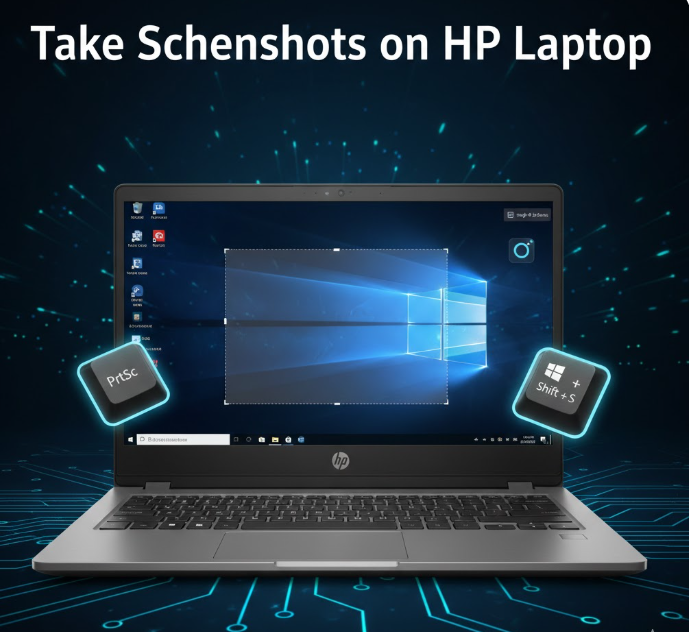
Taking screenshots is one of the most useful features on a Windows HP laptop. Whether you want to capture part of your screen for work, school, or sharing with friends, Windows offers several easy methods to take screenshots without additional software.
In this guide, we’ll cover step-by-step instructions for all methods, including keyboard shortcuts, built-in tools, and tips for saving and editing screenshots.
Why Screenshots Are Useful
Screenshots can help you:
-
Share information quickly – capture error messages or online content
-
Document work – save reports, presentations, or designs
-
Provide instructions – guide others step by step
-
Save content for later – images, receipts, or social media posts
Knowing multiple ways to screenshot ensures you can capture exactly what you need, no matter the situation.
Method 1: Using the Print Screen Key (PrtScn)
The Print Screen (PrtScn) key is the classic way to capture your screen on any Windows laptop, including HP.
Step-by-Step:
-
Locate the PrtScn key on your keyboard. On HP laptops, it’s usually at the top-right corner.
-
Press PrtScn to capture the entire screen.
-
Open Paint or any image editor.
-
Press Ctrl + V to paste the screenshot.
-
Save the file as PNG or JPEG.
Tip: If you want to save directly without opening Paint, press Windows + PrtScn. The screenshot will be saved in Pictures → Screenshots.
Method 2: Capture Only the Active Window
Sometimes, you only want to screenshot the active window instead of the full screen.
Step-by-Step:
-
Click on the window you want to capture.
-
Press Alt + PrtScn.
-
Open Paint, Word, or any image editor.
-
Press Ctrl + V to paste the screenshot.
-
Save your file.
This method is perfect for focusing on a specific application without showing your desktop.
Method 3: Using Snipping Tool or Snip & Sketch
Windows has a built-in tool called Snipping Tool (Windows 10 and 11) and Snip & Sketch (Windows 11) for more precise screenshots.
Step-by-Step:
-
Press Windows + Shift + S to open Snip & Sketch.
-
Choose a mode:
-
Rectangular Snip – draw a rectangle around what you want to capture
-
Freeform Snip – draw a custom shape
-
Window Snip – select a specific window
-
Full-screen Snip – capture the entire screen
-
-
The screenshot is copied to your clipboard.
-
Click the notification that appears to edit, annotate, or save the screenshot.
Tip: Snip & Sketch allows highlighting, cropping, and adding text, making it ideal for tutorials or work presentations.
Method 4: Using the Game Bar (For Screenshots in Games)
HP laptops running Windows 10 or 11 can use the Xbox Game Bar to capture screens while gaming or during any app session.
Step-by-Step:
-
Press Windows + G to open the Game Bar.
-
Click the camera icon or press Windows + Alt + PrtScn to take a screenshot.
-
Screenshots are saved in Videos → Captures.
Tip: Game Bar also allows screen recording, not just screenshots, making it versatile for tutorials and gaming content.
Method 5: Using Third-Party Tools (Optional)
For advanced screenshot needs, you can use apps like:
-
Lightshot – easy editing, sharing, and cloud storage
-
Greenshot – lightweight, with annotation features
-
Snagit – professional-grade screenshot tool with video capture
These tools offer more editing, annotation, and export options than built-in Windows tools.
Editing and Annotating Screenshots
Once you take a screenshot, you can:
-
Crop unnecessary parts
-
Highlight key areas
-
Add arrows or text for explanation
-
Blur sensitive information
Using Paint, Snip & Sketch, or third-party apps makes your screenshots more professional, especially for blogs, tutorials, or presentations.
FAQ
Can I take a screenshot without using the keyboard?
Yes. You can use the Snipping Tool or Snip & Sketch to click and capture the screen using your mouse.
Where are Windows screenshots saved?
-
With Windows + PrtScn:
Pictures → Screenshots -
With Game Bar:
Videos → Captures -
Clipboard: You need to paste it into Paint or Word.
How do I capture a scrolling window?
Windows built-in tools don’t capture scrolling. Use third-party tools like Snagit or ShareX for full-page screenshots.
Can I edit screenshots after saving?
Yes. Use Paint, Snip & Sketch, or any image editor to crop, annotate, or highlight areas.
Do screenshots capture password fields?
Yes. Be careful when taking screenshots containing sensitive data.
Final Thoughts
Capturing screenshots on a Windows HP laptop is easy and versatile, thanks to built-in tools and keyboard shortcuts. Whether you need full-screen captures, specific windows, or precise snips, Windows provides multiple methods to get the job done.
By following these steps, you can save, edit, and share screenshots efficiently, improving workflow for work, school, tutorials, or personal use.
Leave a Reply