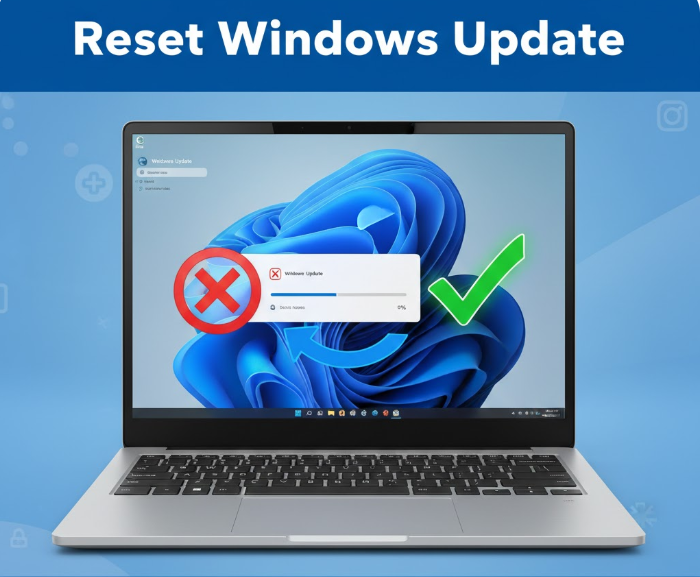
Windows Update is supposed to make life easier—keeping your system secure, stable, and up to date in the background. But when it breaks, it can be incredibly frustrating. Updates get stuck at 0%, fail repeatedly, show cryptic error codes, or refuse to download at all.
If you’ve reached the point where restarting your computer no longer helps, resetting Windows Update is often the cleanest and most reliable fix.
This guide walks you through what resetting Windows Update really means, when you should do it, and how to do it safely—step by step, without unnecessary technical jargon.
What Does “Resetting Windows Update” Actually Mean?
Resetting Windows Update does not:
-
Delete your files
-
Remove installed programs
-
Reinstall Windows
Instead, it:
-
Clears corrupted update files
-
Resets update-related services
-
Forces Windows to rebuild its update components from scratch
Think of it as clearing a jammed pipeline so updates can flow again.
When Should You Reset Windows Update?
You should consider resetting Windows Update if you’re experiencing issues like:
-
Updates stuck downloading or installing
-
“Something went wrong” messages
-
Repeated update failures after reboot
-
Windows Update error codes (like 0x80070002, 0x800f081f)
-
Updates installing but rolling back every time
If basic fixes (restart, internet check) haven’t worked, resetting is a logical next step.
Before You Start: A Few Important Notes
-
Make sure you’re logged in as an administrator
-
Save your work and close open apps
-
Follow the steps carefully—order matters
This process is safe, but skipping steps can cause confusion.
Step 1: Restart Windows Update Services
Windows Update relies on background services. Sometimes they just need a proper stop-and-start.
How to do it:
-
Press Windows + R
-
Type
services.mscand press Enter -
Find these services:
-
Windows Update
-
Background Intelligent Transfer Service (BITS)
-
Cryptographic Services
-
-
Right-click each one and select Stop
Don’t close the window yet—we’ll come back to it.
Step 2: Clear the Windows Update Cache
Corrupted update files are one of the most common causes of update problems.
What you’re clearing:
-
Temporary update downloads
-
Failed or incomplete update data
How to do it:
-
Press Windows + R
-
Paste this and press Enter:
-
Delete everything inside the folder
-
If something won’t delete, skip it
-
-
Now open:
-
Delete the contents of that folder as well
You are not deleting Windows—only temporary update files.
Step 3: Start the Services Again
Go back to the Services window you opened earlier.
-
Right-click each of the following and select Start:
-
Windows Update
-
Background Intelligent Transfer Service
-
Cryptographic Services
-
This allows Windows to recreate fresh update components.
Step 4: Reset Windows Update Using Command Prompt (Recommended)
This step ensures everything is properly reset—even hidden settings.
How to do it:
-
Click Start
-
Search for Command Prompt
-
Right-click it → Run as administrator
-
Enter the following commands one by one, pressing Enter after each:
Then run:
Now restart services:
Close Command Prompt when done.
Step 5: Restart Your Computer
This step is important.
A restart:
-
Applies service resets
-
Clears locked files
-
Stabilizes system processes
Once your PC boots back up, Windows Update should behave like it’s running for the first time.
Step 6: Check for Updates Again
-
Open Settings
-
Go to Windows Update
-
Click Check for updates
Be patient—Windows may take a little longer the first time as it rebuilds its update database.
What If Windows Update Still Doesn’t Work?
If resetting didn’t fix it, the issue may be deeper.
Try these next:
-
Run Windows Update Troubleshooter
-
Check available disk space
-
Temporarily disable third-party antivirus
-
Repair system files using:
-
Check for corrupted system images:
These steps go beyond reset but often solve stubborn cases.
Common Mistakes to Avoid
-
Deleting the wrong system folders
-
Skipping service restarts
-
Interrupting the process halfway
-
Using “registry cleaners” claiming to fix updates
Stick to manual, controlled steps.
Will Resetting Windows Update Delete Installed Updates?
No.
-
Installed updates remain
-
Only cached and pending files are removed
Windows simply re-downloads what it needs.
Is This Safe for Windows 10 and Windows 11?
Yes.
The process works for:
-
Windows 10
-
Windows 11
The folders and services are the same.
When Resetting Windows Update Is the Best Option
Resetting Windows Update is ideal when:
-
Errors keep repeating
-
Updates won’t install no matter what
-
You want a clean, reliable fix without reinstalling Windows
It’s one of the most effective troubleshooting steps available.
Final Thoughts
Windows Update problems can feel intimidating, but most of the time, the issue isn’t serious—it’s just stuck data or broken services. Resetting Windows Update gives your system a fresh start without risking your files or apps.
Take it slow, follow the steps carefully, and you’ll often find that updates begin working again immediately.