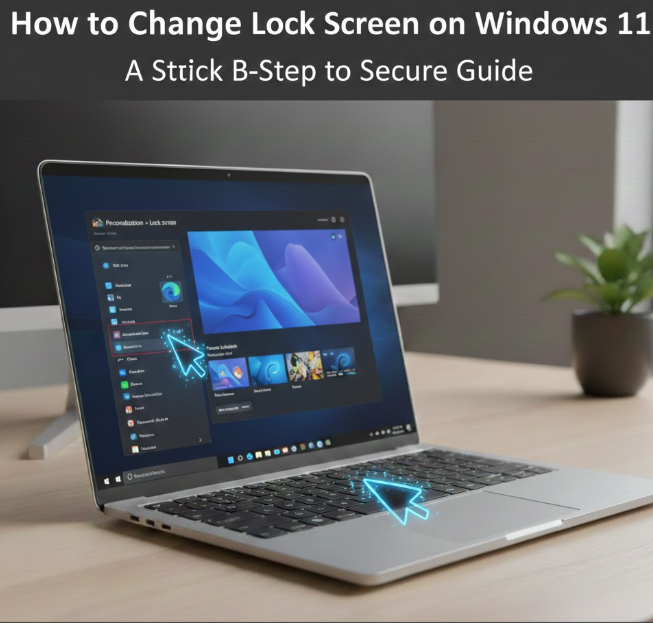
The lock screen is the first thing you see when you turn on or wake your Windows 11 PC. Beyond appearance, it plays an important role in privacy and security by displaying limited information before you sign in. Windows 11 allows you to personalize the lock screen with images, slideshows, widgets, and notification settings, giving your PC a more personal and functional feel.
Whether you want to add a favorite photo, use a rotating slideshow, enable Windows Spotlight, or control which apps show notifications, Windows 11 offers flexible lock screen customization options.
This detailed guide explains how to change the lock screen on Windows 11, customize images, enable or disable widgets, troubleshoot common problems, and follow best practices—all written clearly for beginners and advanced users alike.
What Is the Lock Screen in Windows 11?
The lock screen is the screen that appears before you sign in to Windows 11. It displays:
-
Background image or slideshow
-
Date and time
-
Network and battery status
-
Optional app notifications
-
Sign-in prompts after interaction
The lock screen protects your desktop while allowing limited information to be visible.
Why Customize the Lock Screen on Windows 11?
Customizing the lock screen helps you:
-
Personalize your PC’s appearance
-
Display useful information like calendar or email alerts
-
Reduce distractions by limiting notifications
-
Improve privacy by hiding sensitive app alerts
-
Enjoy daily images through Windows Spotlight
Lock screen personalization does not affect system performance.
How to Change Lock Screen on Windows 11 (Basic Method)
Method 1: Change Lock Screen Using Settings
This is the primary and recommended method.
Steps:
-
Click Start
-
Open Settings
-
Select Personalization
-
Click Lock screen
-
Under Personalize your lock screen, choose one of the following:
-
Windows Spotlight
-
Picture
-
Slideshow
-
Changes apply immediately.
Using Windows Spotlight on Lock Screen
What Is Windows Spotlight?
Windows Spotlight automatically displays high-quality images on your lock screen, refreshed daily. It also offers quick feedback options like “Like what you see?”
How to Enable Windows Spotlight
-
Go to Settings > Personalization > Lock screen
-
Under Personalize your lock screen, select Windows Spotlight
-
Close Settings
Your lock screen will now update automatically with new images.
How to Set a Custom Picture as Lock Screen
Method 2: Use a Personal Image
You can use any image stored on your PC.
Steps:
-
Open Settings
-
Go to Personalization > Lock screen
-
Select Picture
-
Click Browse photos
-
Choose your preferred image
-
Click Choose picture
Supported image formats include JPG, PNG, and BMP.
How to Set a Slideshow on Lock Screen
Method 3: Use Multiple Images
A slideshow allows your lock screen to rotate between multiple images.
Steps:
-
Go to Settings > Personalization > Lock screen
-
Select Slideshow
-
Click Add a folder
-
Choose a folder containing images
-
Customize advanced slideshow settings
This is ideal for photo collections or wallpapers.
Customize Slideshow Advanced Settings
You can control:
-
Shuffle images
-
Turn off slideshow when running on battery
-
Show images when PC is locked
-
Screen timeout behavior
These options help balance visuals and power efficiency.
How to Show or Hide Lock Screen Widgets
Windows 11 lock screen widgets show small pieces of information.
Available Widgets Include:
-
Weather
-
Calendar
-
Email
-
Other compatible apps
Enable or Disable Widgets
-
Open Settings > Personalization > Lock screen
-
Under Lock screen status, choose an app or select None
Only one detailed status app can be displayed at a time.
How to Control Notifications on Lock Screen
Lock screen notifications can show previews of messages or events.
Manage Notification Visibility
-
Open Settings
-
Go to System > Notifications
-
Select an app
-
Customize lock screen notification behavior
You can choose whether notifications show full content, limited info, or nothing.
How to Show the Lock Screen Background on Sign-In Screen
Windows 11 lets you use the same background for both screens.
Enable Lock Screen Background on Sign-In
-
Go to Settings > Personalization > Lock screen
-
Turn ON Show the lock screen background picture on the sign-in screen
This creates a consistent visual experience.
How to Disable Lock Screen on Windows 11 (Optional)
Some users prefer going directly to the sign-in screen.
Note: This requires advanced system configuration and is not recommended for most users, especially on shared PCs.
Disabling the lock screen can reduce security and privacy.
How to Fix Lock Screen Image Not Changing
Common Causes:
-
Corrupted cache
-
Disabled personalization settings
-
Outdated Windows version
Solutions:
-
Restart Windows Explorer
-
Update Windows
-
Re-select lock screen image
-
Check Group Policy settings (Pro edition)
Lock Screen vs Desktop Background
| Feature | Lock Screen | Desktop |
|---|---|---|
| Appears before sign-in | Yes | No |
| Shows widgets | Yes | No |
| Personalized separately | Yes | Yes |
| Affects privacy | High | Low |
They are controlled independently in Windows 11.
Best Practices for Lock Screen Customization
-
Use high-resolution images
-
Avoid displaying sensitive notifications
-
Enable Windows Spotlight for variety
-
Keep slideshow folders organized
-
Review notification permissions regularly
Frequently Asked Questions (FAQ)
Can I use different images for lock screen and desktop?
Yes. Windows 11 allows separate customization.
Does changing lock screen affect performance?
No. Lock screen customization has minimal system impact.
Can I remove all widgets from lock screen?
Yes. Set lock screen status to None.
Why does my lock screen keep reverting?
This may be caused by sync settings or policies.
Is lock screen customization available on all editions?
Yes, but some advanced options vary by edition.
Security and Privacy Considerations
While customizing your lock screen, avoid displaying sensitive app notifications like emails or messages if others can see your screen. Lock screen content is visible before authentication.
Conclusion
Customizing the lock screen on Windows 11 is a simple yet powerful way to personalize your PC while maintaining security. Whether you prefer stunning daily images from Windows Spotlight, a personal photo, or a rotating slideshow, Windows 11 gives you full control over your lock screen experience.
By following this step-by-step guide, you can confidently change lock screen images, manage widgets, control notifications, and fix common issues—all without affecting system performance or security.