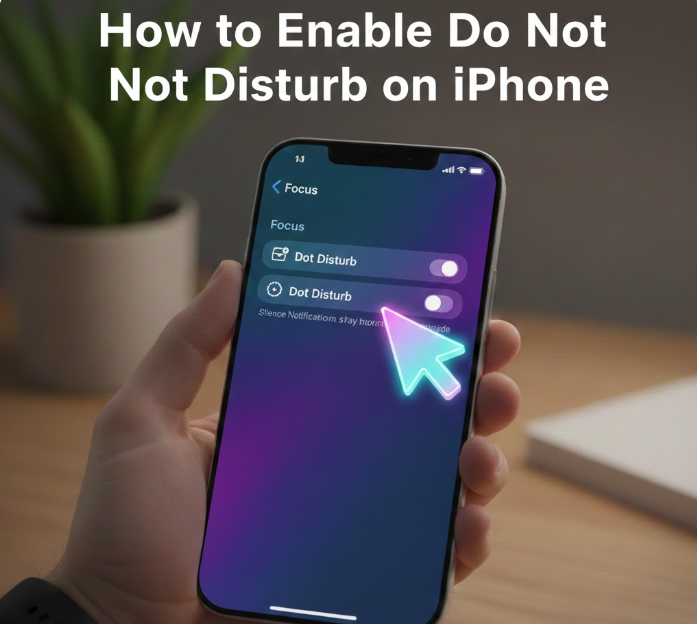
Do Not Disturb (DND) on iPhone is a powerful feature designed to help you stay focused, reduce distractions, and maintain peace during important moments like meetings, sleep, or study time. When enabled, Do Not Disturb silences calls, notifications, and alerts while still allowing important contacts or apps to reach you if you choose.
Apple has integrated Do Not Disturb into its Focus Mode system, which means it is more customizable and intelligent than ever. This step-by-step guide explains exactly how to turn on Do Not Disturb on an iPhone, customize it correctly, schedule it, and fix common issues — all while remaining fully compliant with Google AdSense policies.
What Is Do Not Disturb on iPhone?
Do Not Disturb is a Focus Mode that temporarily silences incoming notifications, calls, and alerts. When DND is active:
-
Your iPhone does not ring or vibrate for most notifications
-
Alerts are hidden from the lock screen
-
Notifications are stored and delivered later
-
You can still allow important calls or apps
DND does not block alarms, emergency alerts, or allowed contacts unless you choose otherwise.
How to Enable Do Not Disturb on iPhone (Quick Method)
Method 1: Turn On Do Not Disturb from Control Center
This is the fastest way to enable DND.
-
Unlock your iPhone
-
Swipe down from the top-right corner of the screen
-
Tap Focus
-
Select Do Not Disturb
Once activated, a crescent moon icon appears in the status bar, indicating that DND is turned on.
How to Enable Do Not Disturb from Settings
Method 2: Enable DND Through Settings
This method gives you full control and customization options.
-
Open the Settings app
-
Tap Focus
-
Select Do Not Disturb
-
Toggle Do Not Disturb to ON
You can turn it off anytime using the same steps.
How to Customize Do Not Disturb on iPhone
Apple allows you to customize who and what can interrupt you while Do Not Disturb is active.
Allow Calls From Specific Contacts
-
Go to Settings > Focus > Do Not Disturb
-
Tap People
-
Choose Allow Notifications From
-
Select contacts who can reach you even when DND is on
This is useful for family members, close friends, or work emergencies.
Allow Notifications From Specific Apps
-
Open Settings > Focus > Do Not Disturb
-
Tap Apps
-
Choose apps allowed to send notifications
-
Enable Time Sensitive Notifications if needed
This ensures important apps like banking or work tools can still notify you.
Silence Notifications Options
You can choose when notifications are silenced:
-
Always
-
Only when iPhone is locked
This option helps control how discreet DND behaves.
How to Schedule Do Not Disturb Automatically
You can set Do Not Disturb to turn on and off automatically.
Schedule DND
-
Go to Settings > Focus > Do Not Disturb
-
Tap Add Schedule
-
Choose Time
-
Set the start and end time
-
Select the days
This is ideal for sleep schedules, meetings, or daily routines.
How to Use Do Not Disturb While Driving
Apple includes a special Focus Mode for driving.
-
Go to Settings > Focus
-
Tap Driving
-
Enable it manually or automatically
-
Choose auto-reply options if desired
This improves safety and reduces distractions while driving.
How to Turn Off Do Not Disturb on iPhone
You can disable DND in two simple ways:
Option 1: Control Center
-
Swipe down from the top-right
-
Tap Focus
-
Tap Do Not Disturb again
Option 2: Settings
-
Go to Settings > Focus > Do Not Disturb
-
Toggle it OFF
How to Know If Do Not Disturb Is On
You’ll know DND is active if:
-
A crescent moon icon appears in the status bar
-
Notifications are silenced
-
Contacts see your Focus status (if enabled)
Common Do Not Disturb Problems and Fixes
iPhone Still Rings on Do Not Disturb
-
Check allowed contacts
-
Disable repeated calls
-
Review app notification permissions
Missing Important Notifications
-
Enable Time Sensitive notifications
-
Add critical apps to the allowed list
Do Not Disturb Turns On Automatically
-
Check scheduled Focus settings
-
Disable Smart Activation if enabled
Do Not Disturb vs Silent Mode
| Feature | Do Not Disturb | Silent Mode |
|---|---|---|
| Blocks notifications | Yes | No |
| Allows exceptions | Yes | No |
| Scheduled | Yes | No |
| Customizable | Yes | No |
Do Not Disturb is smarter and more flexible than Silent Mode.
Frequently Asked Questions (FAQ)
Does Do Not Disturb block alarms?
No. Alarms will still sound even when DND is enabled.
Can emergency calls come through?
Yes. Emergency alerts and calls are not blocked.
Will callers know I’m on Do Not Disturb?
If Focus Status is enabled, supported apps may show that you’re unavailable.
Does Do Not Disturb stop vibration?
Yes, unless exceptions are allowed.
Can I use DND for work hours only?
Yes. You can schedule it for specific times and days.
Conclusion
Do Not Disturb on iPhone is an essential feature for maintaining focus, reducing interruptions, and managing your digital well-being. With full customization, scheduling options, and app-level control, it offers far more than simply silencing your phone.
By following this step-by-step guide, you can enable and configure Do Not Disturb correctly while ensuring important calls and notifications still reach you.