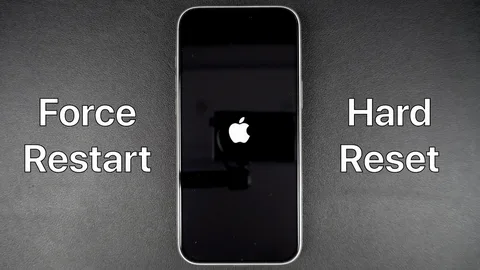
A frozen or unresponsive iPhone can be frustrating, especially when nothing seems to work. The good news is that a force restart can often fix common issues like screen freezes, app crashes, or system lag—without deleting any of your data.
Think of it as giving your iPhone a quick “hard reset” to refresh its system and get it working normally again.
Below is a clear, updated guide for all iPhone models.
How to Force Restart iPhone
The exact button sequence depends on your iPhone model, but the most common method applies to modern iPhones (iPhone 8 and later).
Step 1: Press and release Volume Up
Quickly press and release the Volume Up button.
This step signals the system that you are starting the force restart sequence. Do not hold it down.
Step 2: Press and release Volume Down
Quickly press and release the Volume Down button.
This must be done immediately after the first step. Timing matters, so keep it quick and smooth.
Step 3: Press and hold the Side button
Now press and hold the Side button (Power button).
Keep holding it even if you see the “slide to power off” screen. Ignore it.
Continue holding until the Apple logo appears, then release.
Your iPhone will restart automatically.
What Happens After a Force Restart?
Once the Apple logo appears:
- Your iPhone shuts down and restarts
- Temporary system glitches are cleared
- Frozen apps or screens reset
- Performance may return to normal
No data, photos, or apps are deleted.
Force Restart Methods for Different iPhone Models
iPhone 8 and later (including iPhone X, 11, 12, 13, 14, 15, 16)
Use the sequence:
- Volume Up (press & release)
- Volume Down (press & release)
- Side button (hold until Apple logo)
iPhone 7 and iPhone 7 Plus
Hold:
- Volume Down + Side button
Keep holding until the Apple logo appears.
iPhone 6s and earlier
Hold:
- Home button + Power (Side/Top) button
Release when you see the Apple logo.
When Should You Force Restart Your iPhone?
You should use this method when:
- Screen is frozen or unresponsive
- Apps keep crashing
- iPhone won’t turn off normally
- Touch screen stops working
- Device is stuck on Apple logo
It’s a safe troubleshooting tool for temporary issues.
Tips for Force Restarting iPhone
- Always follow the button order carefully
- Don’t hold Volume buttons too long—just press and release
- Ensure your iPhone has some battery before restarting
- Try again if it doesn’t work the first time
- Keep iOS updated to reduce system glitches
- Avoid using force restart as a daily habit—it’s only for issues
Frequently Asked Questions
Will force restarting delete my data?
No. A force restart does not erase any photos, apps, or files.
Why is my iPhone frozen?
Common reasons include:
- Software bugs
- Overloaded memory
- Problematic apps
- Outdated iOS version
Can force restart damage my iPhone?
No. It is a safe Apple-designed troubleshooting method.
What if my iPhone still won’t turn on?
Try charging it for 20–30 minutes, then repeat the force restart. If it still fails, it may need professional repair.
Is force restart the same as factory reset?
No.
- Force restart = fixes temporary glitches
- Factory reset = erases all data and restores default settings
Quick Summary
- Press Volume Up (quick release)
- Press Volume Down (quick release)
- Hold Side button until Apple logo appears
- Wait for iPhone to reboot
Conclusion
Knowing how to force restart an iPhone is one of the most useful troubleshooting skills you can have. It helps fix frozen screens, unresponsive apps, and minor system glitches in seconds—without risking your data.
Different iPhone models use slightly different button combinations, but the goal is always the same: refresh the system and get your device working again.
If your iPhone continues to freeze even after multiple restarts, it may be time to check for iOS updates or consult Apple Support. But in most cases, this simple method is all you need to bring your device back to life.
With this guide, you’re now ready to handle one of the most common iPhone problems confidently and quickly.
