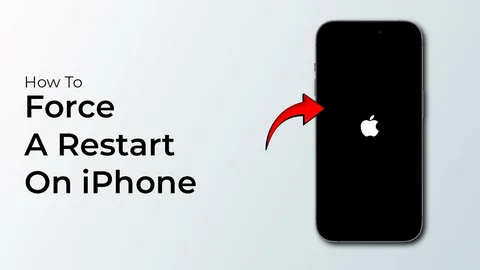
If your iPhone freezes, becomes unresponsive, gets stuck on a black screen, or an app stops working properly, a force restart can often solve the issue quickly. This process forces the device to reboot without deleting your data.
A force restart is different from a normal shutdown because it is used when the screen or buttons are not responding as expected.
This guide explains how to force restart different iPhone models safely.
What Is a Force Restart?
A force restart is a manual reboot used when your iPhone cannot be restarted normally.
It can help with issues such as:
- Frozen screen
- Touchscreen not responding
- Apps crashing repeatedly
- iPhone stuck on Apple logo
- Black screen with power still on
- Temporary software glitches
It does not erase photos, apps, messages, or personal files.
How to Force Restart iPhone (iPhone 8 and Newer)
This method works for:
- iPhone 8 and 8 Plus
- iPhone X
- iPhone XR, XS, XS Max
- iPhone 11 series
- iPhone 12 series
- iPhone 13 series
- iPhone 14 series
- iPhone 15 series and newer compatible models
Step 1: Press and Release Volume Up
Quickly press the Volume Up button, then release it.
Step 2: Press and Release Volume Down
Quickly press the Volume Down button, then release it.
Step 3: Press and Hold the Side Button
Press and hold the Side button until the Apple logo appears.
Then release the button and allow the iPhone to restart.
How to Force Restart iPhone 7 and iPhone 7 Plus
- Press and hold the Volume Down button
- Press and hold the Side button at the same time
- Keep holding both until the Apple logo appears
How to Force Restart iPhone 6s, iPhone SE (1st Gen), and Older Models
- Press and hold the Home button
- Press and hold the Top button or Side button
- Keep holding both until the Apple logo appears
What Happens After Force Restarting?
Your iPhone will shut down and reboot normally.
In many cases, temporary glitches disappear after startup.
You may need to reopen apps afterward.
What to Do If Force Restart Does Not Work
If your iPhone still has issues:
Charge the Device
A drained battery may prevent restarting.
Update iOS
Install the latest software version when possible.
Free Up Storage
Low storage can cause freezing and lag.
Use Recovery Mode
If stuck on Apple logo or boot loop, recovery mode may help.
Contact Apple Support
Hardware issues may require professional service.
Tips for Preventing iPhone Freezing
- Keep iOS updated
- Remove apps that crash often
- Restart your phone occasionally
- Avoid filling storage completely
- Use certified chargers and accessories
Frequently Asked Questions
Does force restart delete anything?
No. Your personal data remains intact.
How long should I hold the Side button?
Usually several seconds until the Apple logo appears.
Is force restarting harmful?
No. It is a safe troubleshooting step when needed.
Why does my iPhone keep freezing?
Possible causes include outdated software, buggy apps, low storage, or hardware problems.
Can I force restart if the screen is black?
Yes. A force restart often helps when the screen is unresponsive.
Final Thoughts
Knowing how to force restart iPhone models is a useful skill for solving common device problems quickly. Whether your phone freezes, stops responding, or gets stuck during use, this simple process can often restore normal function in minutes.
If problems continue after repeated force restarts, updating software or seeking technical support may be the next best step.
